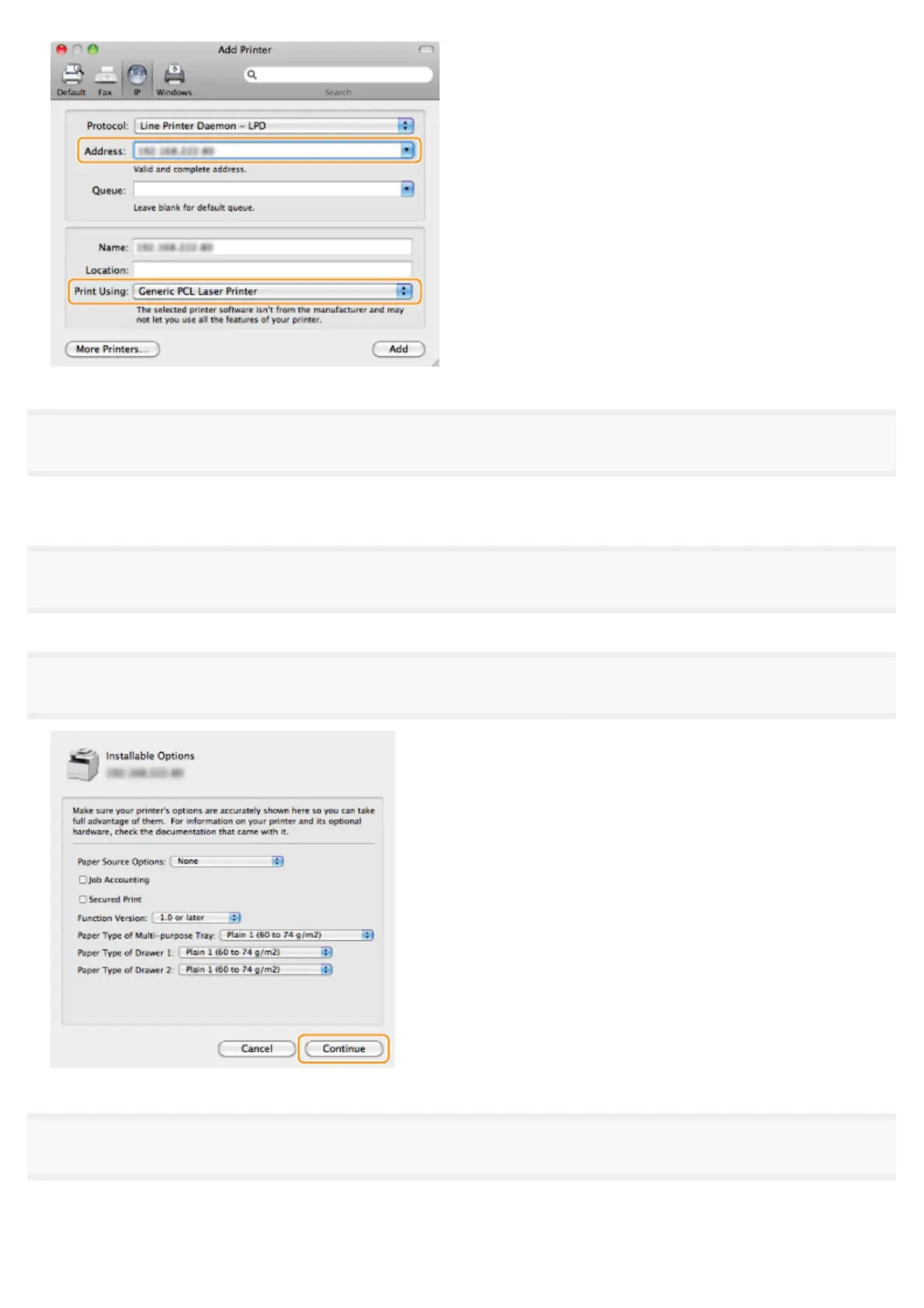
5
Select a driver that is capable for this machine from the driver list, and then click [OK].
If you are using Mac OS X 10.5.x, clicking [OK] is not required.
6
Click [Add].
7
If the following screen appears, specify the optional settings, and then click [Continue] or [OK].
8
Check that this machine is added to the [Printer & Fax] or [Print & Scan] dialog box.
㻟㻤㻌㻛㻌㻣㻠











 To Next Page