SMP Gateway User Manual • 145
Using the preview mode, you can transform the grid into a preview of the Annunciator’s display
for this readings page. When you enter this mode, all cells configured for real-time display are
replaced by simulated values.
To enter the preview mode:
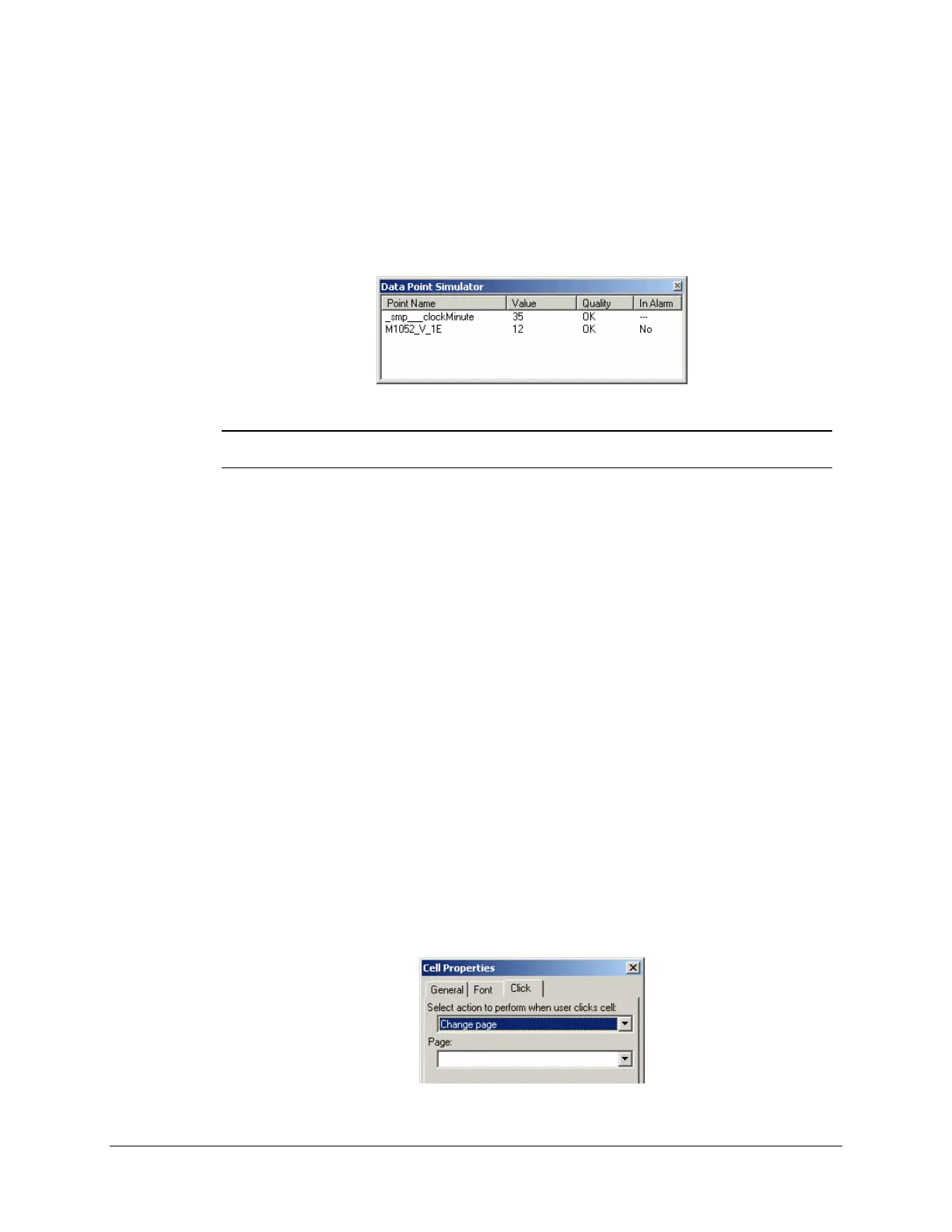
From the grid’s toolbar, click Preview Mode. Value cells display zero values and the Data
Point Simulator window appears.
Note: The Data Point Simulator window will remain open as long as you stay in the
Readings branch of SMP Config’s tree view.
Using the Data Point Simulator, edit the current value of the points that are used in the current
page. You should see the corresponding cells changing in the preview pane.
Still using the Data Point Simulator, you can also simulate bad quality for any point in the list,
by selecting Error under Quality.
To exit preview mode, click Preview Mode, or select any other branch in SMP config’s tree
view.
Finally, you can also attach an “On Click” handler function to a cell. A handler function is an
operation that is performed when a cell is pressed on screen, just like it would be clicked using a
mouse pointer. For example, you might like to add, to your readings pages, buttons that allow you
to control specific binary outputs or to open another readings page. By default, a cell has no
handler attached to it.
To add a Change page handler function to a cell:
Select the cell.
Double-click it, and then click the Click tab or click the On Click Properties button on the
grid’s toolbar.
Under Select action to perform when user clicks cell, select Change page.



 To Next Page