176 Eos Apex, Eos Ti, Gio, Gio @5, Ion Xe, Ion Xe 20, and Element 2 User Manual
To calibrate a scroller:
1. In the Live display, select the scroller channel.
2. Open the MLControls from the home screen or by using [Tab] [5]. On Element 2, you
can open the ML Controls via [MLControls]. The color category will display
automatically with the Hue and Saturation and scroller encoders and a frame picker
open. If the scroller encoder isn't open, click the {Scroller} button.
3. To begin calibrating, use the scroller encoder to adjust the centerpoint of a frame. It is
recommended that you start with the last frame in the scroll.
4. When the frame is centered, click {Calibrate}.
5. Repeat for any remaining frames that need to be calibrated.
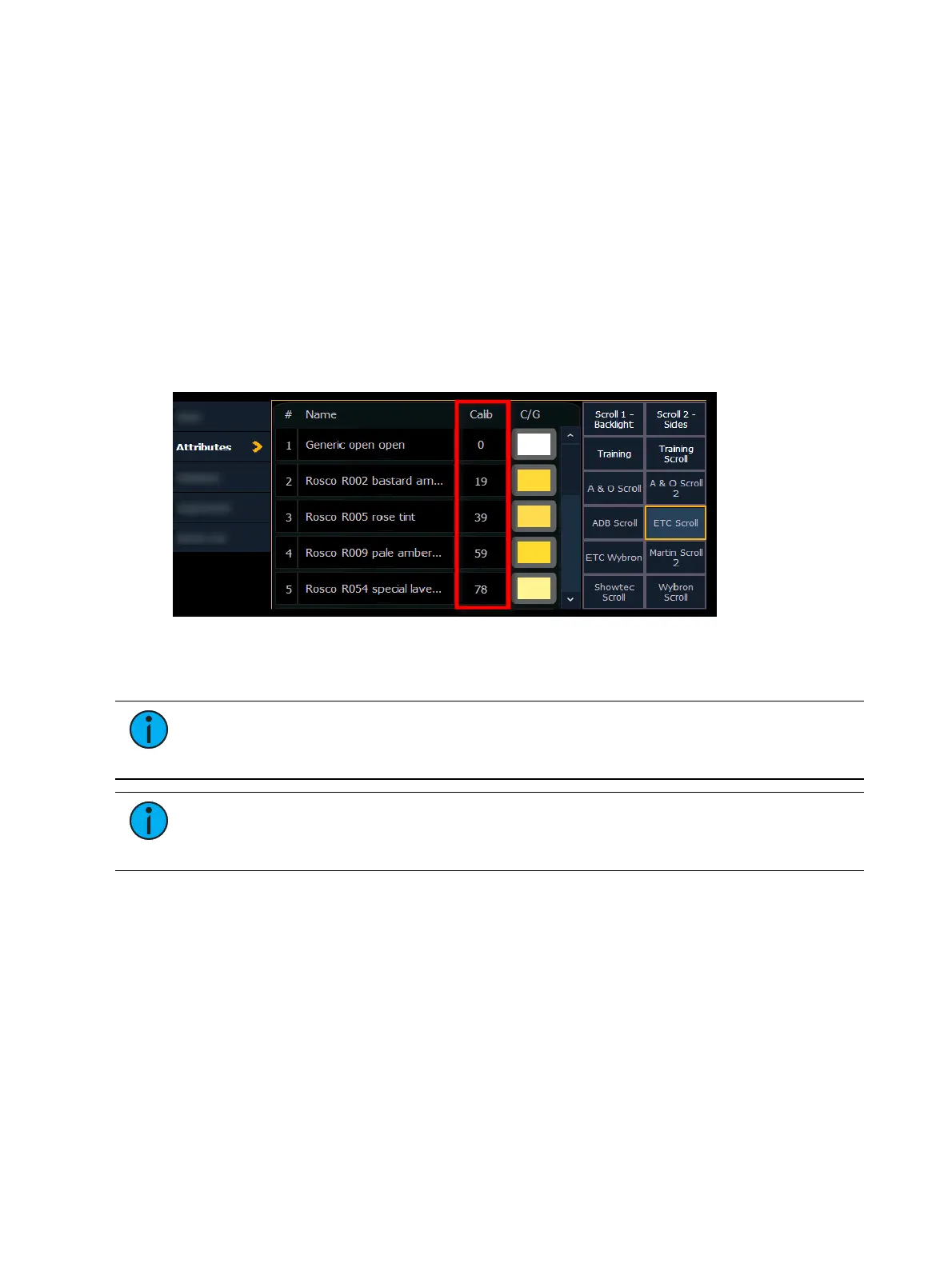
Scroller Calibration Column
Calibration information will be displayed in the scroller calibration column. Values in gray are
the default data, and the values in blue are calibrated data.
The displayed calibration information is the DMX level that puts the frame into its center
position. Information in the calibration column can be manually edited by clicking on it and
typing in a new DMX level.
Note:
Calibration data will only be applied to scroller wheels that are assigned to a
channel. Data will not be displayed when viewing a wheel with an empty command
line.
Note:
Calibration data can be returned to its default by clicking on the data and
pressing [Clear]. If you are entering in new data and hit [Clear], the data will return to
the default and not any previously calibrated data.
Pressing the softkey {Clear Calib} will clear out the calibration data for the whole scroller
wheel, returning it to the default data.
Scroller wheels and their calibration data can be copied to other channels.
[1] {Copy Scroller} [2] [Enter] - copies the scroller and calibration data from channel 1 to
channel 2.
Scrollers that have calibrated data will display a “~” after their name.
The {Calibrate} button will now only appear on scroller parameters that are currently not at
the center of a frame.



 To Next Page