238 Eos Apex, Eos Ti, Gio, Gio @5, Ion Xe, Ion Xe 20, and Element 2 User Manual
Color Spaces
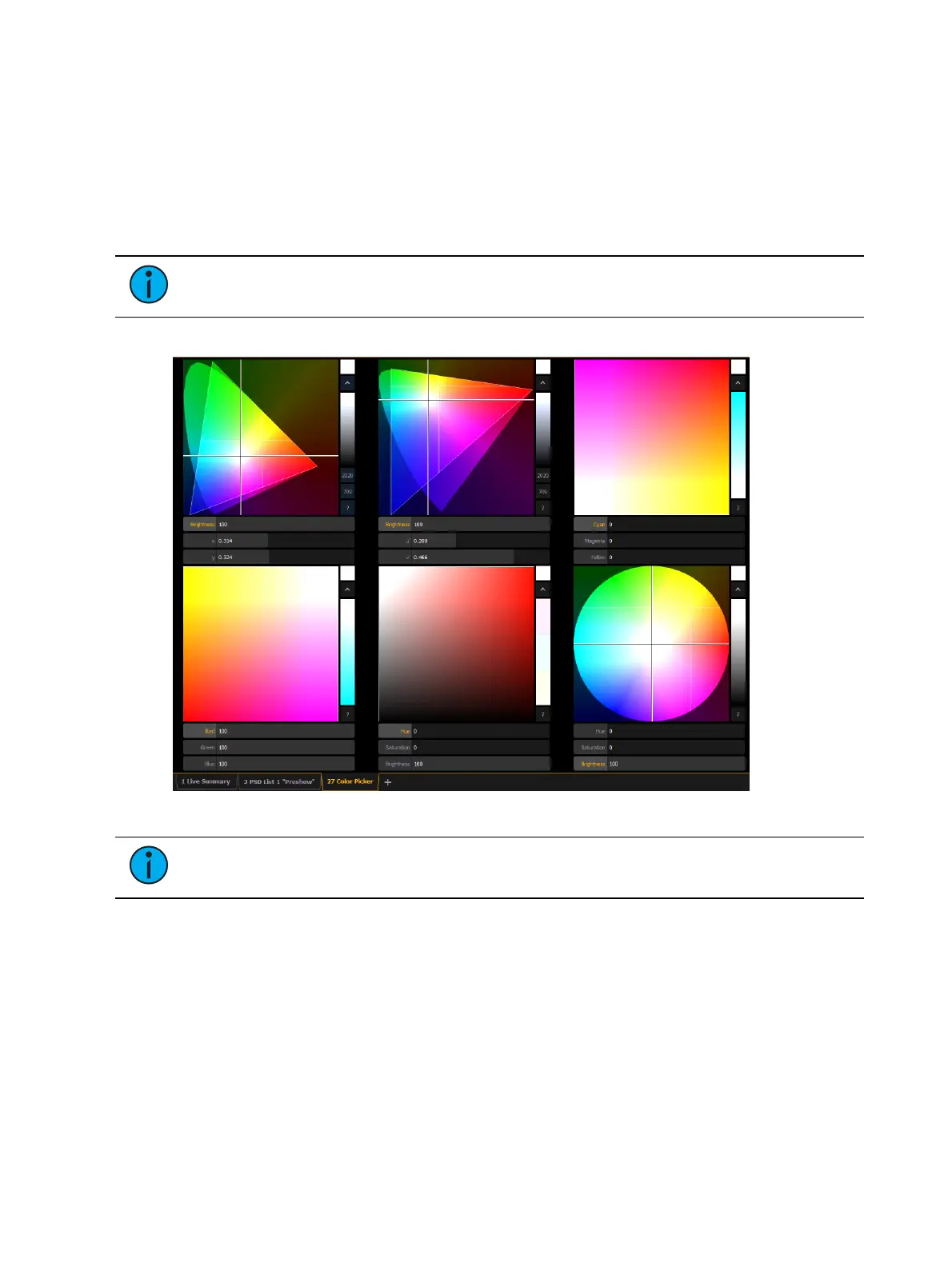
There are six color spaces that you can choose to work in. All of these spaces are connected.
So it doesn't matter which space you wish to work in, the console will translate the
information to work with your fixtures.
When the color picker is first opened, the CIE xy color space and the gel picker will open by
default. You can select other color spaces and tools by clicking on the display configuration
tool (the gear icon) in the bottom left corner of the tab bar, or by right-clicking on the tab.
Note:
Multiple color picker tabs with different color spaces can be opened at the
same time. Multiple color spaces can be opened on the same tab.
The available color spaces are:
Note:
When a fixture is in HSmode, the brightness control is not provided. Intensity
controls the brightness.
For the CIExy (CIE1931) and CIE uv (CIE 1976), the triangle represents the RGB space as
defined by the PLASA standard E1.54. Fixtures that comply to that standard can achieve any
color within the triangle. The cone represents the color spectrum that we can see.
Controls
Each color space has three virtual encoders, a vertical encoder, a {?} button, and a {^} button.
The encoders will change based on the color space selected. Double tapping in a virtual
encoder will cause it to jump to the location of your finger. Pressing and holding will cause the
encoder to fade toward your finger.
Tapping anywhere in the color space will cause the crosshair to move to that location. Press
and hold, then move your finger to fade the crosshair toward that location.



 To Next Page