Snapshots 439
Visible Workspaces - includes only the visible workspaces.
All Workspaces - include all workspaces, including those not visible at the time of
recording.
Faders - captures the current content or state of the faders including: fader page
mapping, position of all submasters, and pending cues based on configuration.
Encoders - records the current page of the encoders.
Filters - records the current setting of the record filters.
Direct Selects - when used without visible workspaces selected, this option will recall all
direct select tabs and their settings.
Favorite - the snapshot will display in the quick access window. See
Quick Access
for
more information.
Color - assign colors ({Red}, {Green}, or {White}) or {Dark} to a snapshot. {Dark} assigns
no color to the snapshot. The colors will display beside the snapshots name in a direct
select, and / or if that snapshot has been assigned to one of the customizable hardkeys
on Eos Ti, Gio, Gio @ 5, and RPU.
Reset - sets the menu back to its defaults.
Note:
The Faders and Encoders options are not available on Element 2.
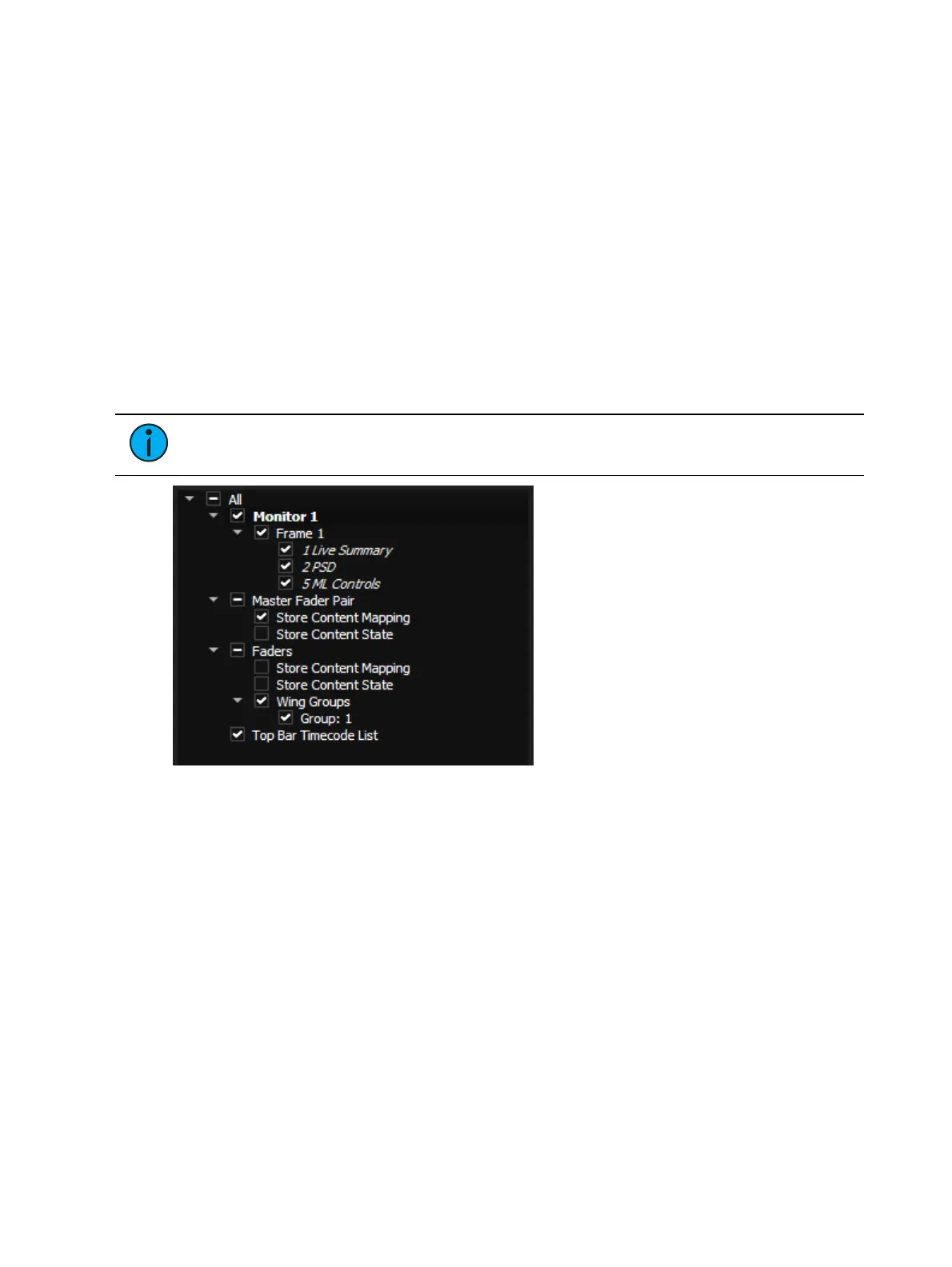
You may also check or uncheck to include or exclude any of the following:
Monitors - any of your console's internal or external monitors
Frames - any of the open frames on that monitor
Tabs - any of the open tabs in that frame
Master Fader Pair - the two master playback faders
Content Mapping - the page and location of the content assigned to the faders
Content State - the state or level of the content
Faders - any other internal or external faders
Content Mapping
Content State
Wing Group - which page the wing group is currently displaying
Top Bar Timecode List - which timecode list is currently displayed in the top bar display
When one or more sublevel items are excluded, a minus (-) icon will appear next to the top
level item to indicate that not every available option will be saved. A checkmark icon will
display when every sublevel item will be saved.



 To Next Page