Augment3d 519
Vectorworks System Requirements
For the most up-to-date requirements, please reference vectorworks.net/sysreq.
Installing the Vectorworks Augment3d Plug-in
1. Download the plug-in bundle from etcconnect.com, and extract it. The folder will
contain a copy of these instructions, and two zipped plug-ins for Windows and Mac. Do
not extract these plug-in .zip files.
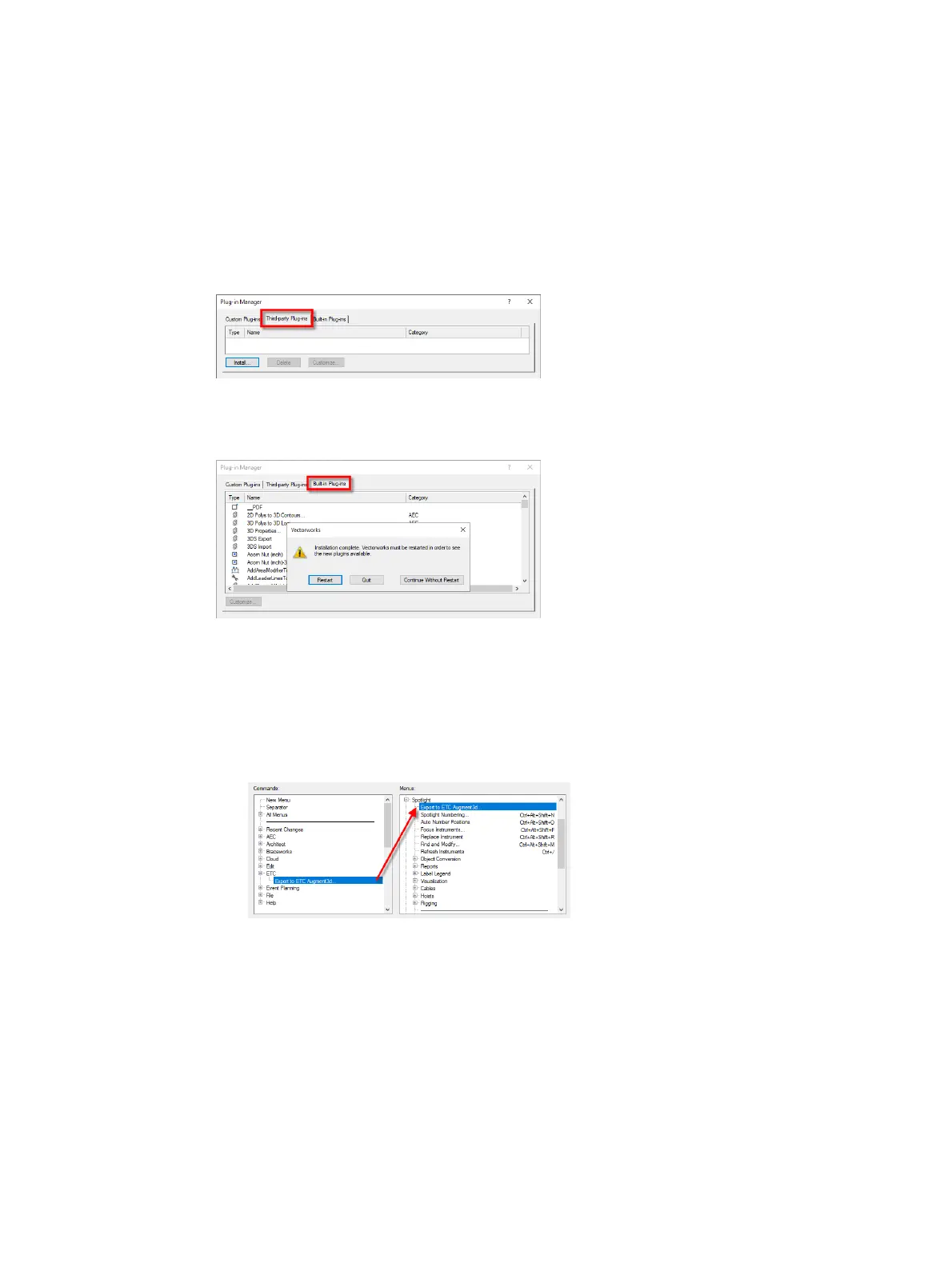
2. Open Vectorworks and navigate to Tools >Plug-ins >Plug-in Manager >Third-party
Plug-ins.
3. Select {Install} and choose the appropriate plug-in .zip file for your operating system.
4. Restart Vectorworks when prompted. After relaunch, the installed plug-in will appear in
the Built-in Plug-ins tab.
Configuring Vectorworks to use the Augment3d Plug-in
1. Launch Vectorworks.
2. Configure your Vectorworks workspace.
a. Open the Workspace Editor. Navigate to Tools >Workspaces >Edit Current
Workspace.
b. Expand the ETCnode in the Commands panel:
c. Drag "Export to ETCAugment3d"to the Spotlight node.
d. Select {OK} to close the Workspace Editor.



 To Next Page