520 Eos Apex, Eos Ti, Gio, Gio @5, Ion Xe, Ion Xe 20, and Element 2 User Manual
3. In Vectorworks 2019, you must map the information you want to export to Augment3d.
(Vectorworks 2020 and later do not have this option; skip to step 4.) If exporting for the
first time, or to change export preferences, navigate to File >Document Settings
>Spotlight Preferences.
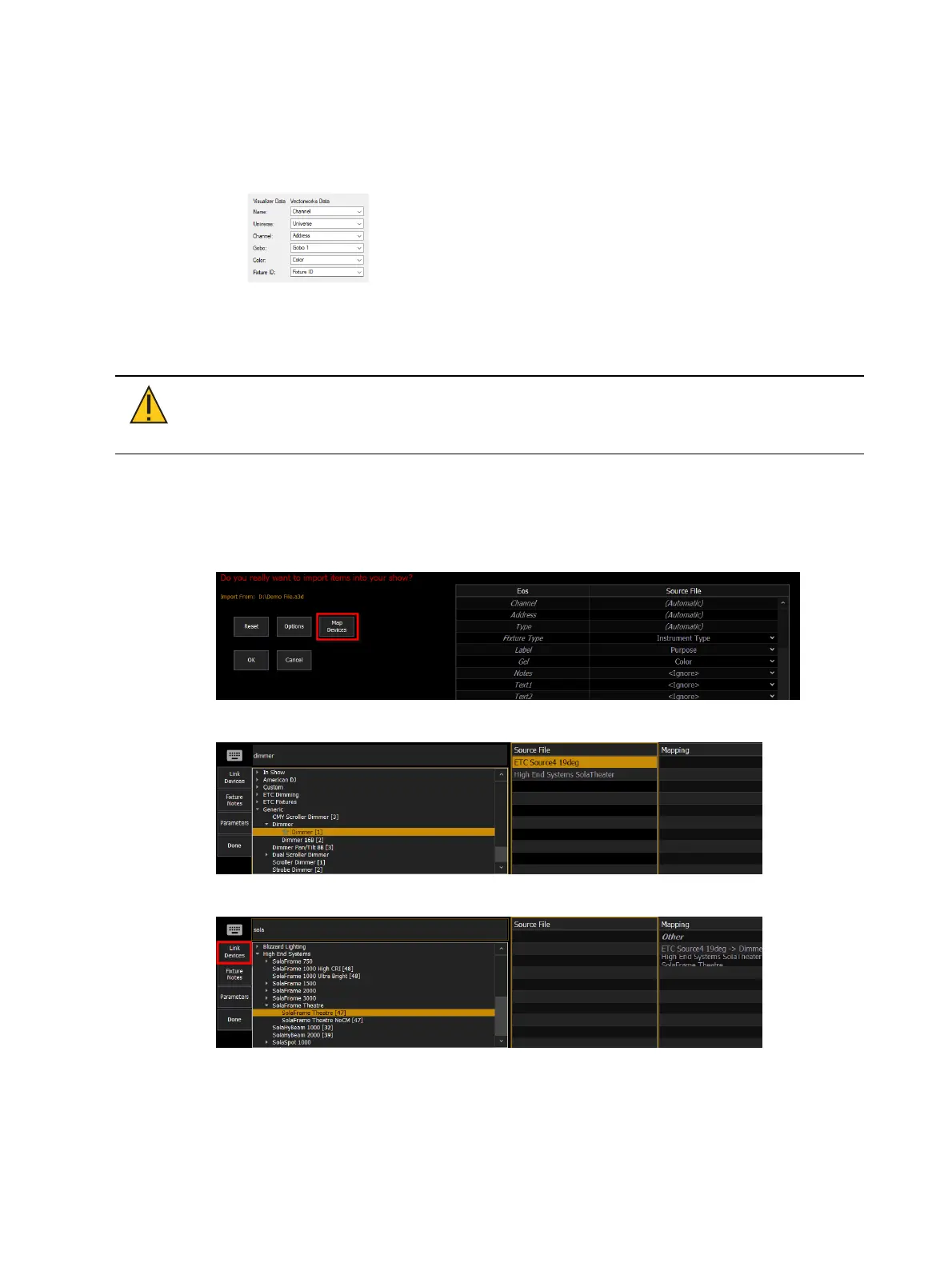
a. Select Edit Visualizer Data Mapping. Recommended mapping below:
b. Select {OK} to close the Data Mapping window.
4. Navigate to Spotlight >Export to ETCAugment3d and follow the prompt.
Vectorworks will export a .a3d file containing your information for import into Augment3d.
CAUTION:
Layers containing lights must be visible in the Vectorworks file in
order to export to Augment3d. If no lights are visible, a pop-up will notify
you that the file is empty, and cannot be exported.
Importing to Augment3d
1. In Eos, navigate to File >Import >Augment3d (from Vectorworks), and select your .a3d
file.
2. Click {Map Devices}.
3. Select a device from the Source File column and choose its matching Eos fixture profile.
4. Click {Link Devices}.
5. Repeat steps 3 and 4 until all devices have been associated with fixture profiles.



 To Next Page