17 - 16
To see Output Numbers and Status when connected to Panel initially, perform an Upload All, or for individual
Outputs, perform an Upload selected.
Output Set/Reset: Outputs can be Set/Reset by clicking on the Status box of the Output that you wish to Set/Reset,
then clicking the button on the Toolbar to set, and the button on the Toolbar to Reset.
Output Monitoring is also possible using the Monitor button, or Output Refresh using the Refresh button. Note
however that if the Output Monitor is active, you will not be able to modify anything on this screen.
Note: On 3GS Version 4 panels the Output No. column is not displayed, as these numbers are fixed in 3GS Version 4
panels.
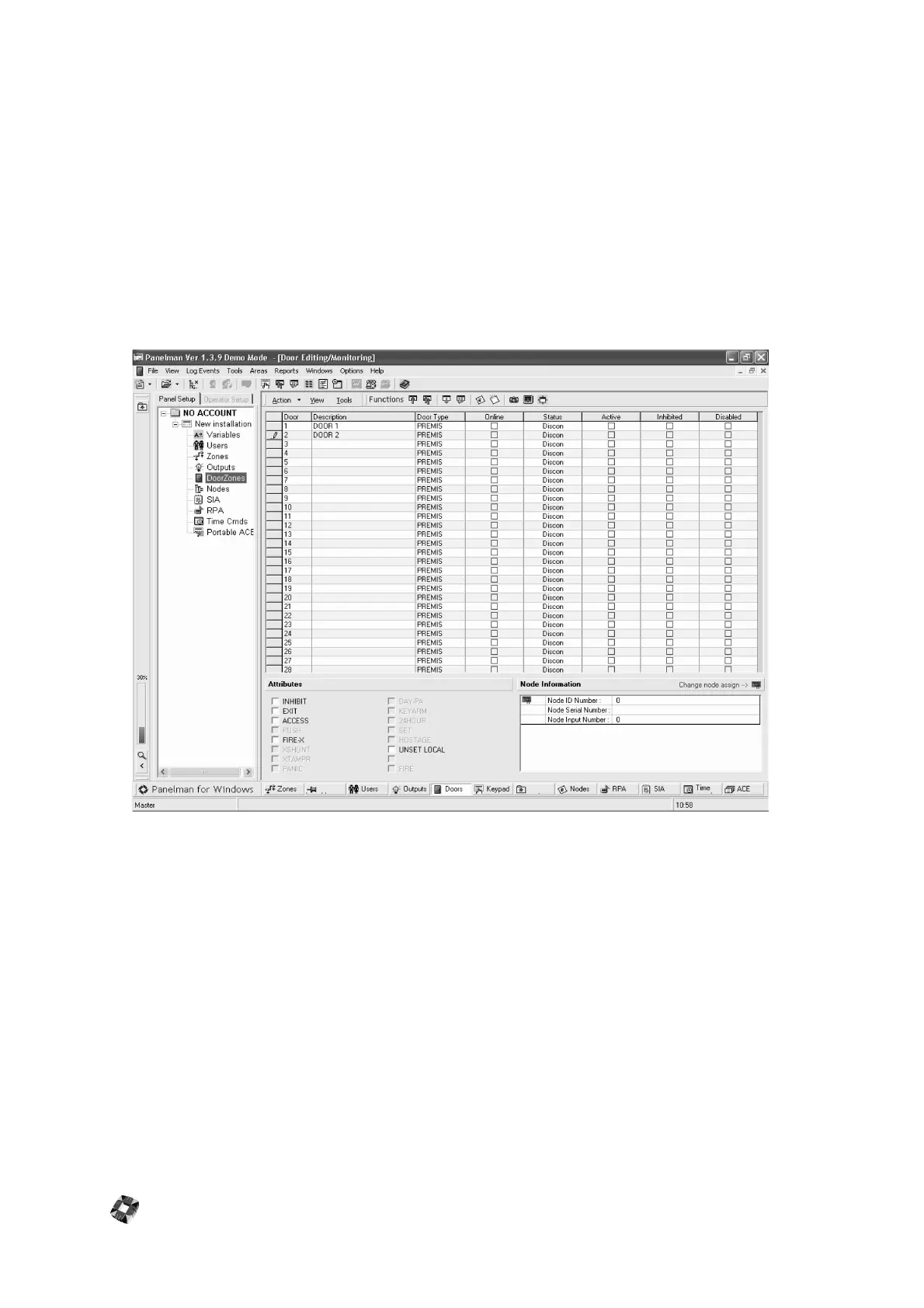
Door Editing/Monitoring Window
Like the Zone Editing Window, DoorZone Descriptions, Types and Attributes can be set up using this window. To
change a Door Type, click on the Door Type box of the Door that you wish to change and select the new Door type
from the drop-down list.
To change a Door Description, click on the description that you wish to change and flashing cursor will appear,
allowing you to edit/add text.
Use the function buttons to Upload or Download individual or all doors. These functions are also available by selecting
the zone and right-mouse clicking.
A check appears for the zone in the Online column to indicate that the zone is currently online. The Status column
shows the status of the zone: open, closed or discon. The Active column indicates whether the zone is active in the
current panel mode i.e set or unset, while the Inhibits and Disabled columns show if this zone is inhibited or disabled.
Door Monitoring is also possible using the Monitor button, or DoorZone Refresh using the Refresh button.
Note however that if the DoorZone Monitor is active, you will not be able to modify anything on this screen.
Node Information
This pane gives the user information about the node where the door is assigned, and also gives the node ID number,
serial number and input number.



 To Next Page