Chapter 3 Configuration and Monitoring How to Configure and Monitor the ProView 7000
© 2011 Harmonic Inc. 34 ProView 7000 v.2.4, Rev. A
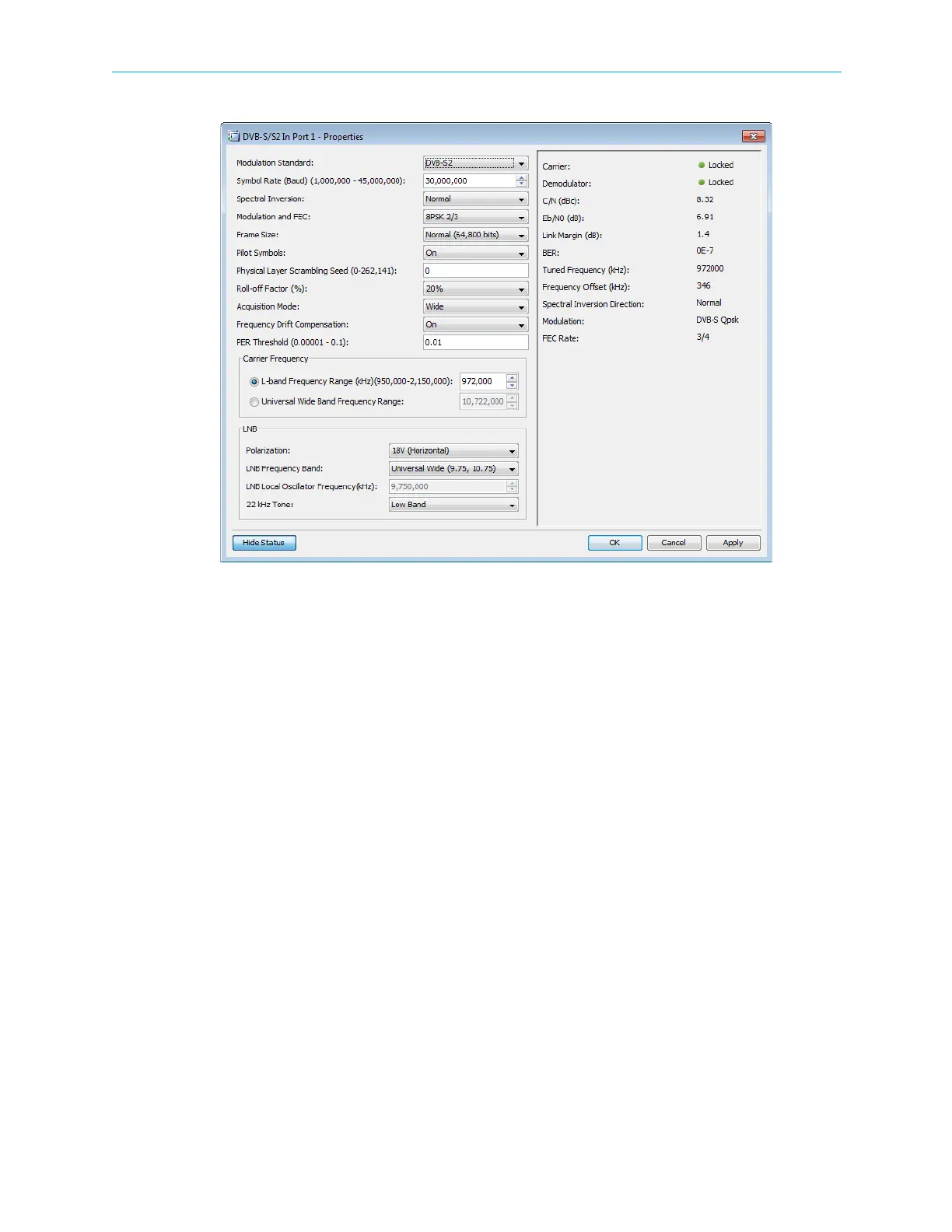
dClick Show Status in the bottom left corner of the properties dialog.
The displayed properties are divided into two sections; the section on the left
displays editable properties and the section on the right provides informative/status
properties that cannot be edited by the EMS user.
e Configure the properties in the left section and click
Apply.
2. If the input stream is received from IP, perform the following to display and configure a
GbE input port:
a Select the device in the Devices box.
b Select
Tools > GbE Mode….
c If the GbE mode is configured as Out in the Set GbE Mode dialog, configure it to In
and click
OK.
The device reboots.
d Expand the device tree in the Physical Input box to reveal the GbE ports.
e Select the required GbE port icon in the Physical Input box.
fClick
Properties on the EMS toolbar.
g Configure the GbE port, see 4.5.2.3 GbE Ports for details.
h Select a socket in the GbE branch in the Physical Input box.
iClick
Properties on the EMS toolbar.
j Configure the socket, see GbE Socket Properties (Input Mode) for details.
3. If the output stream is sent to IP, perform the following to configure a GbE output port:
a Select the device in the Devices box.
b Select
Tools > GbE Mode….



 To Next Page