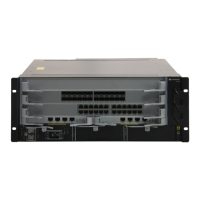
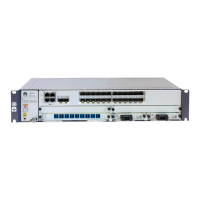
Figure 5-32 Appearance of the E12GA panel
1. REGISTER indicator of
the EPON interfaces
2. ENABLE indicator of
the EPON interfaces
3. ACT indicator of the
lower optical interfaces
4. ACT indicator of the
upper optical interfaces
5. Link indicator of the lower
optical interfaces
6. Link indicator of the
upper optical interfaces
Buttons and Indicators on the Panel
Table 5-111 describes the buttons and indicators on the E12GA panel.
Table 5-111 Description of buttons and indicators on the E12GA panel
Indicator/Button
Color Description
RUN/ALM Green If the indicator is on, it indicates that the board
is powered on but the software is not running.
If the indicator blinks once every 2s (0.5 Hz),
it indicates that the system is in normal state.
If the indicator blinks once every 0.25s (4 Hz),
it indicates that the system is being started.
Red
If the indicator is in red, it indicates that the
board is faulty.
Orange If the indicator is on, it indicates that the board
is installed in the slot and is powered on.
ACT Amber If the indicator blinks, it indicates that data is
being transmitted.
LINK Green-yellow If the indicator is on, it indicates that the link
is connected.
REGISTER Green-yellow If the indicator is on, it indicates that at least
one ONU has been registered.
ENABLE Green-yellow If the indicator is on, it indicates that the
interface is enabled.
If the indicator is off, it indicates that the
interface is disabled.
5 Boards
Quidway S9300 Terabit Routing Switch
Hardware Description
5-88 Huawei Proprietary and Confidential
Copyright © Huawei Technologies Co., Ltd.
Issue 01 (2010-12-15)



 To Next Page
 Loading...