User Guide Chapter 10 Automated Devices
Rev. 1.30.03.07.r1 Page 173
Editing DDLs in the Console
The example steps below give the general steps for editing a device
definition:
Procedure: Notes:
1. Press [SETUP] Opens Setup display
2. Press (Device) Enters Device Assignment
sub-display
3. Press [3] Device menu item 3:
"Edit Definition".
4. Use the arrow keys to highlight
the device to edit then press [ENTER]
5. Use the arrow keys to highlight the
trait to edit then press [ENTER]
6. Use the arrow keys highlight the
attribute of the trait to edit.
7. Press [1] Definition Menu item 1:
(see Table 10.4 below) "Modify Trait"
8. Use the keypad for numbers or
the up/down arrow keys to
make the edit
9. Press [ENTER]
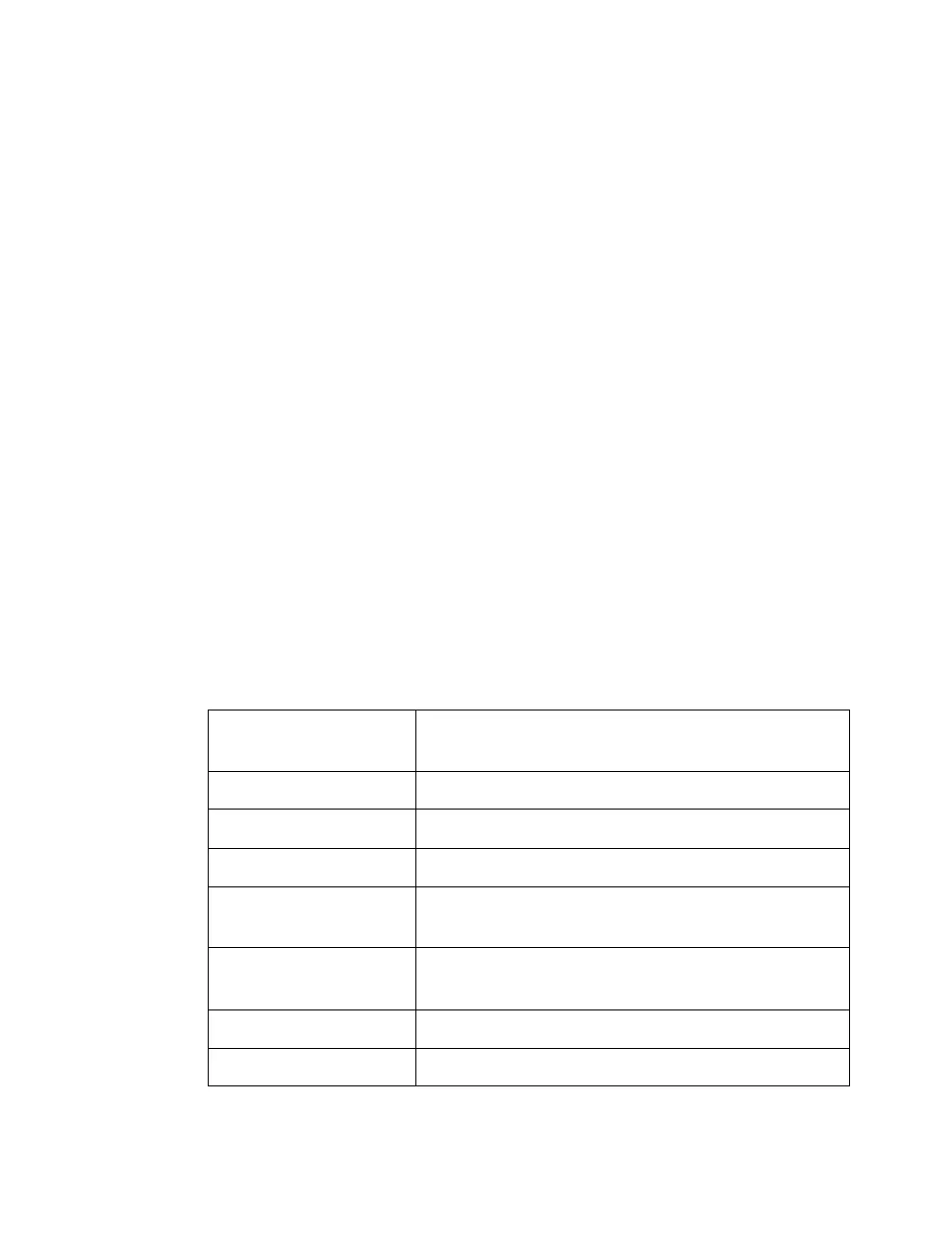
Table 10.4 Device Definition Menu Options
Definition Menu
Options
Description
[1] Modify Trait Modifies a specific trait of a selected device.
[2] Insert Pan Inserts a pan trait in the position highlighted.
[3] Insert Tilt Inserts a tilt trait in the position highlighted.
[4] Insert Continuous Inserts a continuous trait in the position
highlighted.
[5] Insert Indexed Inserts an Indexed trait in the position
highlighted.
[6] Insert Union Inserts a Union Trait in the position highlighted.
[7] Delete Trait Deletes the trait highlighted.



 To Next Page