WP-D
Max -------?? d= -------??
read config failed
Weighing points @admin
Weighing point A
Weighing point B
Weighing point C
Weighing point D
Internal weighing point
Internal weighing point
xBPI scale
Pendeo Truck
Parameters Calib Units
4.7.7.3.1 Quick install with search load cells and set dead load
In this menu item (under Calib), quick install with search and setting of the dead load is
performed for the digital weighbridge load cell Pendeo
®
Truck.
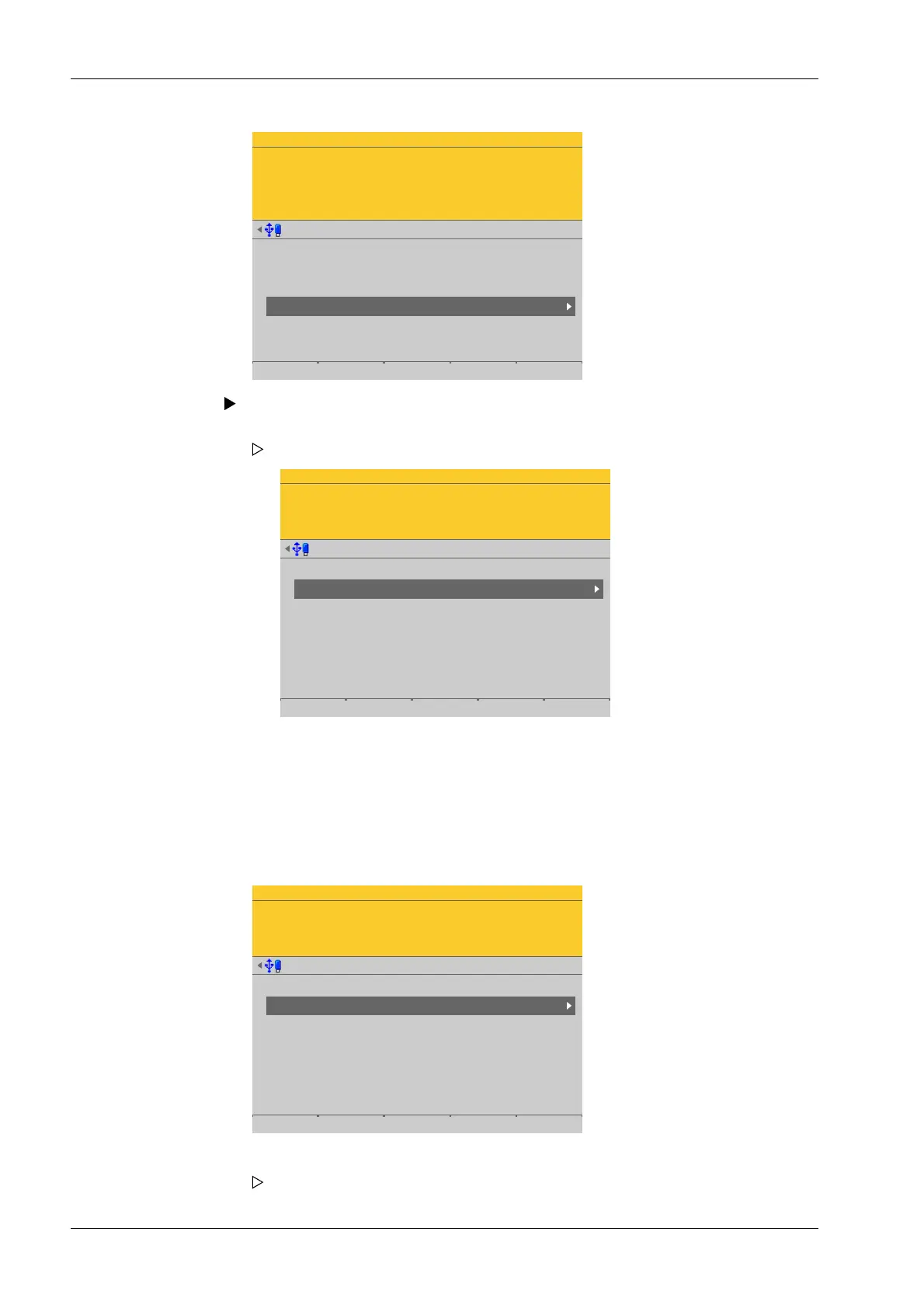
Accessible via MENU - [Operating] - [System setup] - [Weighing points] - [Weighing
point x] - [Calib] - [Quick install with search load cells and set dead load] .
WP-D
Max -------?? d= -------??
read config failed
Weighing points @admin
Setup Pendeo
Quick install with search load cells and set dead load
Search for connected load cells
View and assign load cells
Calibrate the scale
Assign load cell name
Service function for load cells
In this case: Select [Weighing point D] with [Pendeo Truck] and press the [Calib] soft
key.
WP-D
Max -------?? d= -------??
read config failed
Weighing points @admin
Setup Pendeo
Quick install with search load cells and set dead load
Search for connected load cells
View and assign load cells
Calibrate the scale
Assign load cell name
Service function for load cells
The Pendeo setup menu opens.
1. Unload the scale.
2. Select and conrm [Quick install with search load cells and set dead load].
A prompt window appears.
Process Controller Maxxis 5 PR 5900 4 System setup
Minebea Intec EN-168


 To Next Page