Print Job Manager Basic Steps to submit a new Print Job with the APA-Module
A29247-X3-X-6-7670 233
⇓
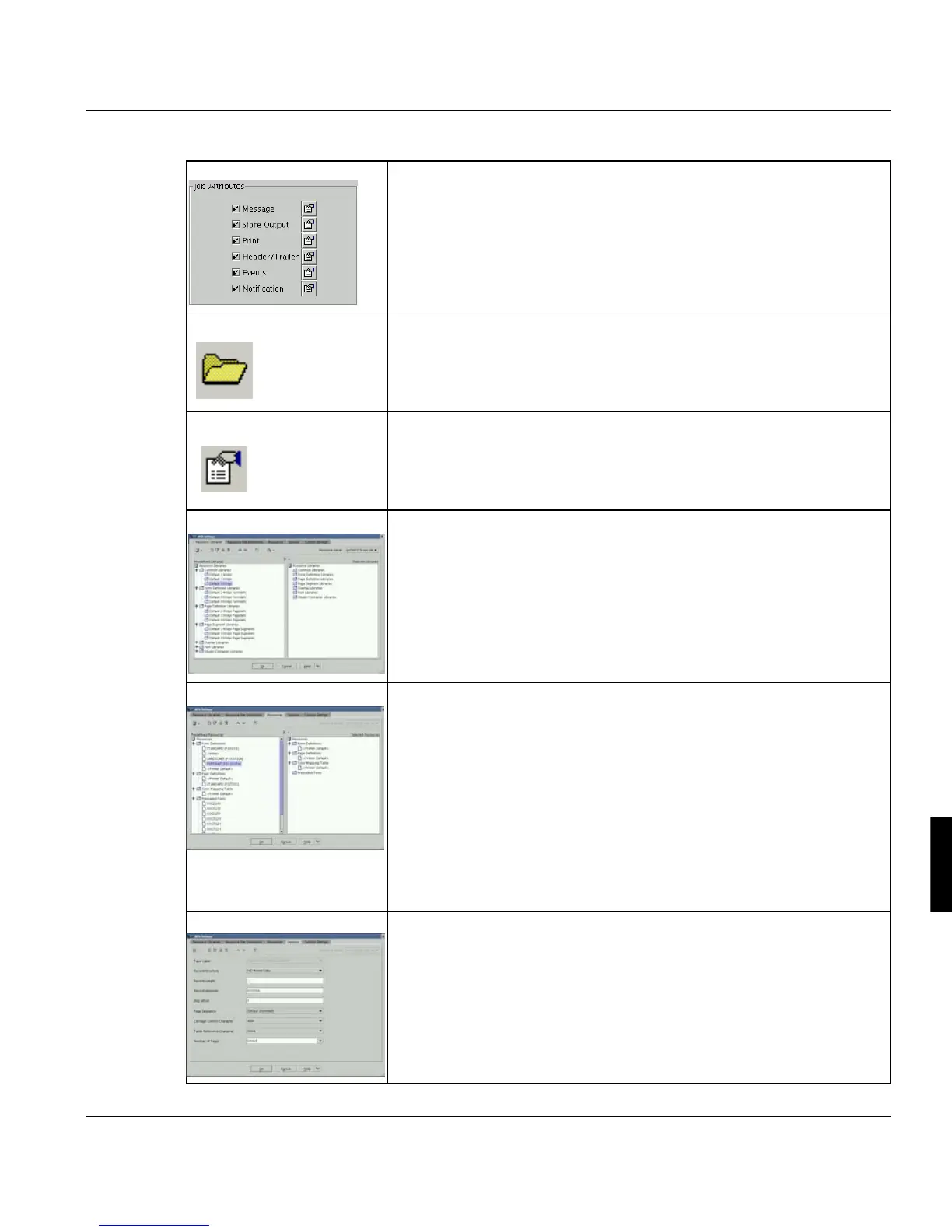
Make the general print job settings (independent of the type of print da-
ta) in the "Job properties" dialog box, which you open by clicking one of
the icons in the "Job attributes" section. Select such settings as 'Printing
Range', 'Print Mode' and 'Header' or define, where the print job should
be stored (see page248).
⇓
Add a print file to the "List of files" by clicking on the "open folder" button
in this section.
⇓
Set the file-specific parameters by clicking the parameter icon to the
right of the "Format" field. This will open a dialog box with AFP-specific
settings with different tabs.
⇓
On the "Resource libraries" tab you can select libraries from a list. To
edit this list, click the right mouse button while the pointer is in the list.
You can also add user defined libraries with inported resources (see
page 273).
⇓
Use the "Resources" tab to make settings for the form definition (form-
def) and page definition (pagedef). This tab also gives the list of pre-
loadable default fonts. These are used if your applications references
default fonts instead of calling specific fonts by name. You can edit the
list of predefined options by clicking the right mouse button.
If you are printing files without an external formdef or pagedef (so called
inline resources), you need to apply as form definition 'INLINE' (form-
def: DUMMY). Files which do not contain line data are pure "structured
field" files and should be set to 'No Page Def' (pagedef: <space>). Print
jobs with inline resources are also known as ACIF files. (see page 273).
⇓
Use the "Options" tab to define general characteristics of line data (PCC
and TRC bytes) and the page sequence (see page 275).



 To Next Page