PRISMAproduction Explorer Using the Eplorer
A29247-X3-X-6-7670 63
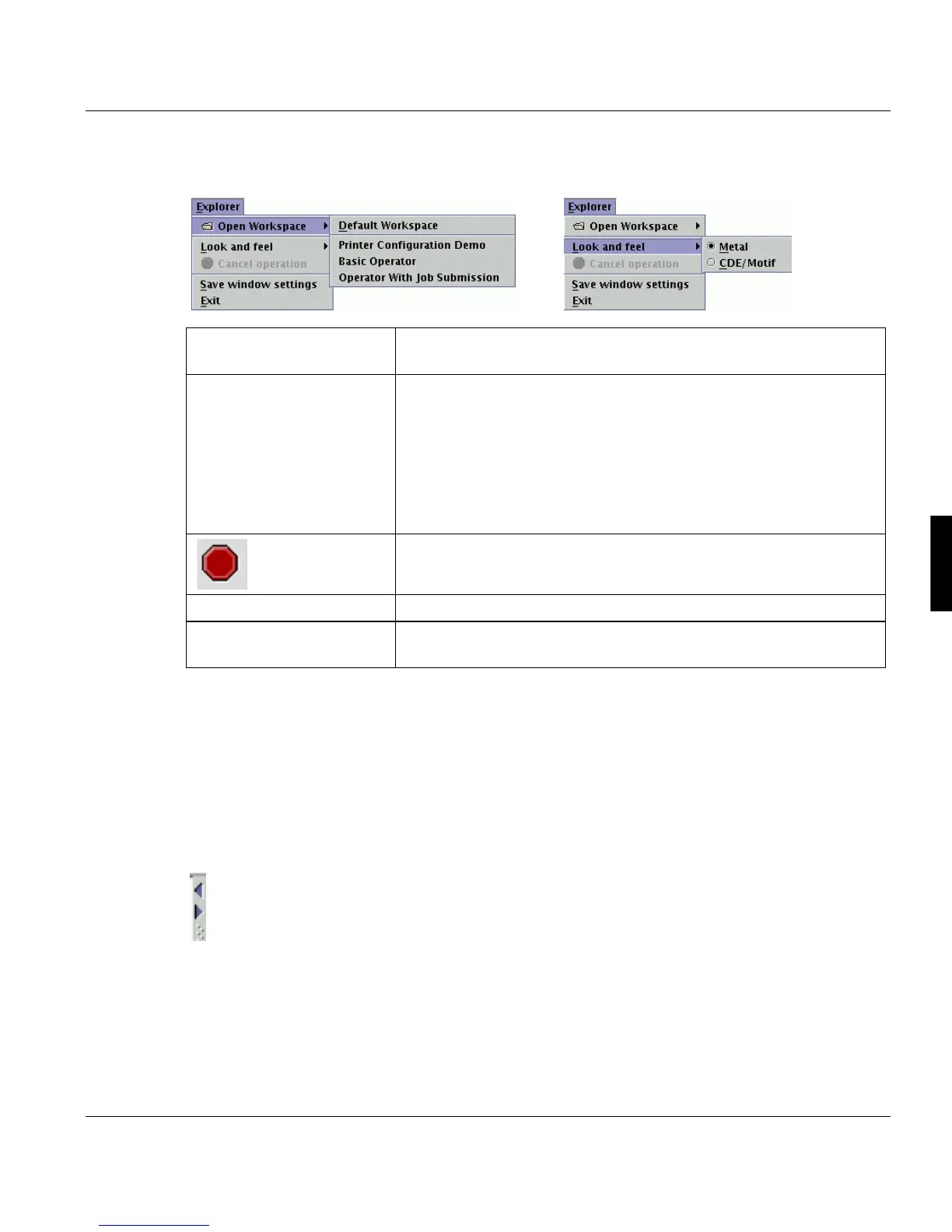
5.2.7 The ‘Explorer’ Menu
5.2.8 Customising the Explorer window
There are several ways of altering the Explorer window to fit your requirements. Settings
such as the choice of open applications or column widths are saved and restored the next
time you launch the Explorer:
Presentation in one window
By clicking one of the two arrows in the column separating the two sections of the window,
you can display either just the Explorer tree or just the application area.
’Open Workspace’ Allows you select a workspace which is configured for special user
tasks. See"Task related Workspaces" on page 65.
‘Look and feel’ Use this option to select the look and feel of the interface:
Metal: Java default. This option is recommended for the Linux plat-
form. The toolbar in 'Metal' mode contains a dotted area that you
can click to move the bar to a position of your choice.
Windows: Simulates a Microsoft Windows environment.
PRISMAMotif: This look matches the former Unix versions of
PRISMAproduction.
'Cancel operation' Cancels the current operation. You might need to do this if the ope-
ration is taking an inordinate amount of time.
‘Save window settings’ Saves the actual setting of the window.
‘Exit’ Exits the program. The last settings of the explorer will automatical-
ly be saved. If you restart the program all windows will be rebuilt.



 To Next Page