User Administration Configuration
144 A29247-X6-X-6-7670
6.2.5 Configuration User
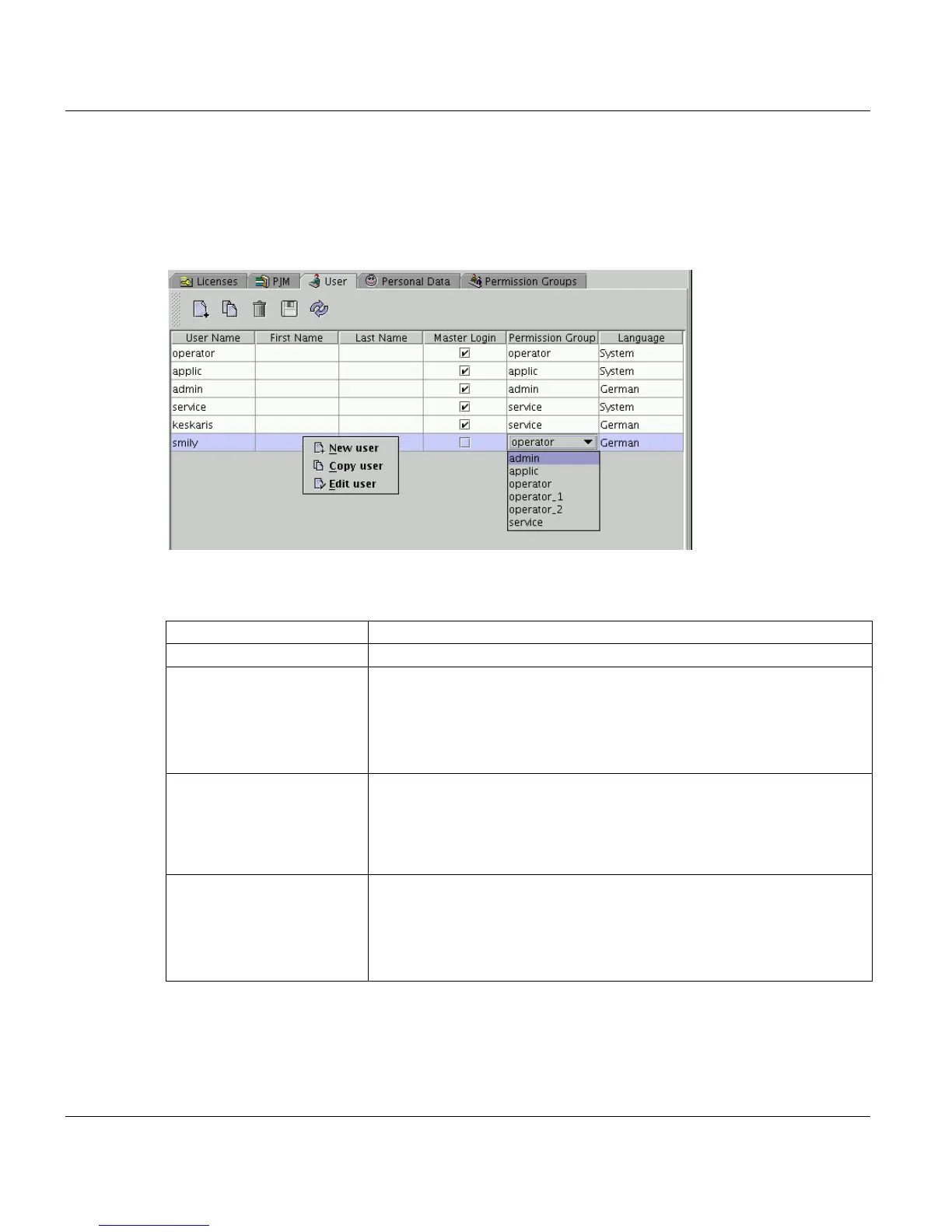
Use this application to create and administrate PRISMA users. The table lists the basic data
of a user and allows you to make small modifications, i.e. changing the language. If you cre-
ate a new user or if you want to modify all user data, a separate dialog is opened.
Columns
If you right click the mouse in the table, a context menu is opened with the following options:
• New user
• Copy user
User Name Name of the user which is used for PRISMAproduction login.
First Name ... Last Name Personal information on the user, max. 64 characters.
Master-Login If you chrck this option, an auto-login to PRISMAproduction is prefor-
med for this user.
You can modify this setting for existing user names. If you activate the
auto-login, a system user of the same name will be created. If you de-
select this option, the system user will be deleted.
Permission Group Double clicking on this column allows you to assign a permission
group to the selected user. You can only assign one group to one us-
er, because the "higher" groups contain the permisions of the "lower"
groups. The sequence of the default groups is (from lower to higher
permissions): operator, applic, admin, service.
Language User language. The PRISMA Explorer with all it’s applications is start-
ed in this language.
If the user language is set to ’system’, the current PRISMA system
language will be used as PRISMA user language. This PRISMA
sytem language is set under ’Configuration’ -> ’System’.



 To Next Page