’List of Files’ Section (‘Edit’ Menu) Print Job Manager
244 A29247-X3-X-6-7670
‘Look in’ Name of the directory whose contents is displayed. Clicking the list button
opens a view of all directories in hierarchy above the selected directory.
Double clicking a directory opens it. The path shown when you open the file se-
lection box equals the path you opened in this window the last time.
Directories beginning with $ are logical paths for default libraries from which
you can also select files. See logical paths. Via $DEVICE you can select files
from tape for APA and LCDS.
Via JavaWeb Start some logical directories of the PRISMAproduction server
are offered. You need special permissions which are saved in a so called policy
file to access the local file system. To upload files from the local system to the
PRISMAproduction server, a upload function is offered. See the ’File’ menu of
the Drectory Viewer.
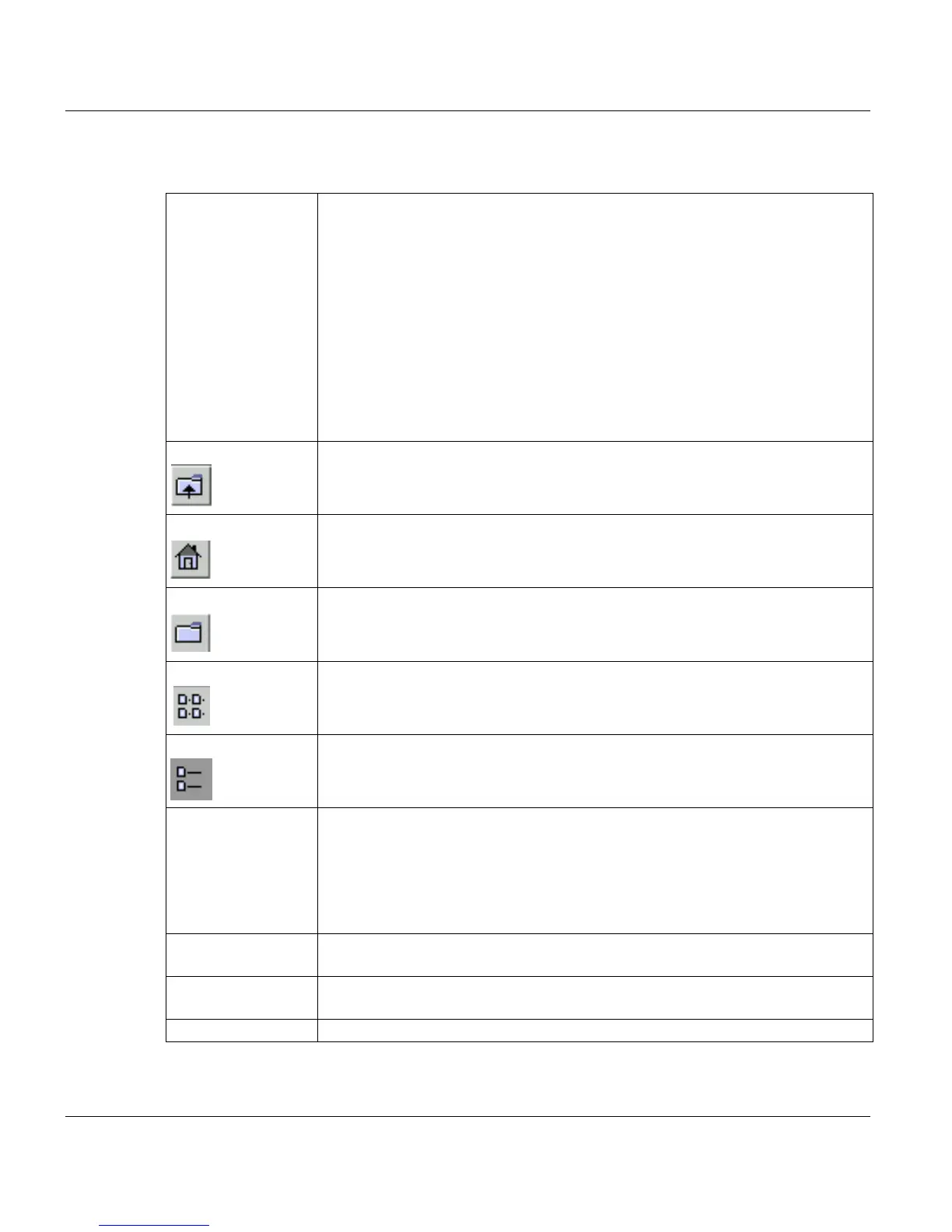
‘Up one level’ Changes to the next higher directory.
‘Home’ Changes to the login directory.
‘Create new folder Creates a new folder in the selected directory.
’List’ Displays the files in a folder in the form of a list.
‘Details’ Displays the files with detailed information on the file size and date of the last
modification.
‘FileName’ The file displayed here is selected and can be placed in the List of Files. If you
press <shift> or <ctrl> when selecting files, you can mark more than one file to
be placed in the list.
For Magnetic Tapes only: Besides using a filename (wildcard are also allowed)
to select a file also the File Sequence number can be used additionally to select
the file on tape. Examples: '1:' to select the first file, '2:' to select the second file.
Add APA/POD/
LCDS/OLDS files
Adds the selected file(s) to the List of Files. The file selection box is closed.
Files of type Only files of this type are displayed. If you select the UNIX file filter, you can
use file names with wildcards according to the UNIX rules.
Cancel Closes the window without adding files.



 To Next Page