PRISMAproduction Explorer Using the Eplorer
A29247-X3-X-6-7670 61
Open applications
Click the tab to make an open application the active one. The interface belonging to this
application is then shown.
Another way of doing this is to choose 'Show existing' from the shortcut menu that is dis-
played when you right-click the name of the application in the Explorer tree.
Active application
The interface of the active application is displayed on the screen. The application functions
can be accessed via the menus. There are also icons available for most functions, enabling
rapid access to the functions in question.
The menus of the active application are shown in the menu bar.
Close application
When you right-click the tab of an open application, you are shown a menu of options for
closing the application.
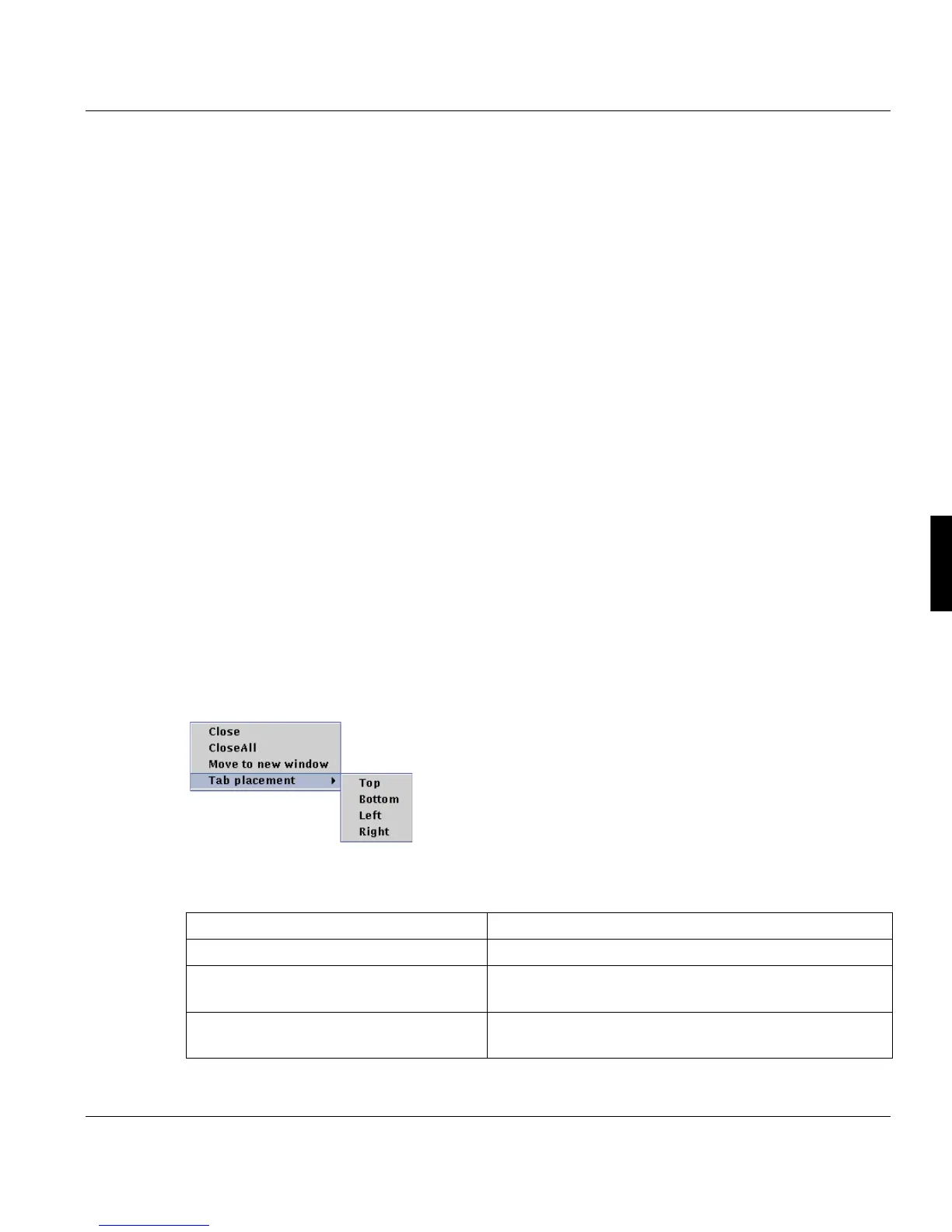
Shortcut menus on tabs
When you right-click on a tab, you are shown a shortcut menu with functions for altering the
presentation on the tab, plus a function for closing the display:
Pop up Menu
Clicking a tab with the right mouse button opens a pop up menu providing the following
functions:
‘Close’ Close the selected application.
‘Close all’ Close all applications in the left window pane.
‘Move to new window’ Displays the selected application in a separate window
which can be placed anywhere on the screen.
‘Tab placement’ Places the tab oft the selected application on the selec-
ted position.



 To Next Page