11
2017 Page 49 5IN2413 B
System Initialization, Device Allocations &
General System Configuration
For installer programming using the Configuration Software, see its documentation.
Step 1: Describing Keypad Controls and Installer Menus
Describing Dynamic Keypad Menus
The ProSYS Plus installer menus are dynamic, in that they display menu items
according to the devices connected in the system.
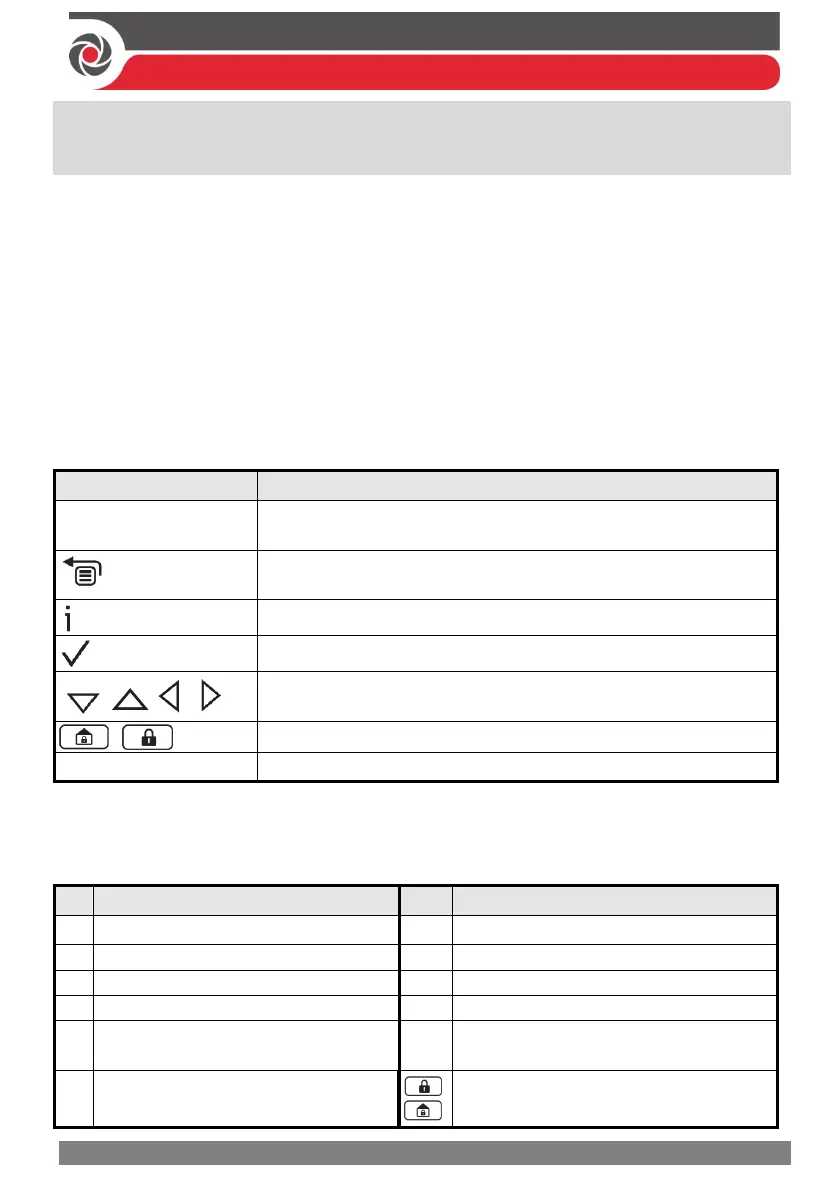
Table of Keypad Buttons
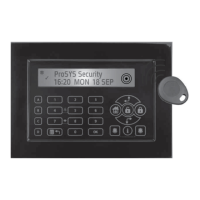
The following describes the typical Elegant keypad buttons used for programming:
NOTE: On other keypad the buttons may differ. See their packaged instructions.
Key Description
1—0
For entering codes, using quick keys (to quickly access a menu
option, labels, and for entering other numeric values.
To go back a step in the menu, to exit a menu or return to the
eginning of a menu.
Long-press to get system status
Confirm (after entering) / OK / Save
For scrolling through menus and menu options, and for
toggling, such as between “ON” and “OFF” options.
To toggle between options(such as Yes and No)
A, B, C, D
To select the corresponding group (A—D)
Designating Labels
The following table describes all the available characters at the Elegant keypad that
can be used for labels (names/descriptions).
Key Character Options Key Character Options
1
1 . , ‘ ? ! \ “ — < > @ / : _ + * #
7
7 P Q R S
2
2 A B C
8
8 T U V
3
3 D E F
9
9 W X Y Z
4
4 G H I
0
0 (also use for blank space)
5
5 J K L
A
To toggle between lower case and
capital letter
6
6 M N O
To scroll through all possible characters,
to toggle through options (Yes/No)



 To Next Page