11
2017 Page 75 5IN2413 B
Changing the Default Installer Code
The default installer code is 1111. You can either use this code during system
programming, or you can change it.
To change the installer code:
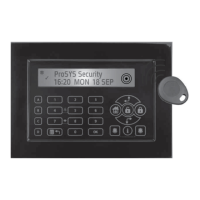
1. From the installer Programming menu select 4)Codes 3)Installer, and then
press OK ( ); CODE: 1111 displays.
2. Scroll to each digit as you overwrite with a new code, and then press OK.
3. Re-enter the new code, and then press OK.
Changing the Default Grand Master Code
The default Grand Master code is 1234, which can be changed by the installer. Be
sure to advise the customer that that after system installation, the primary system
user (“Grand Master”) should change the Grand Master code to be unique and
confidential (refer to the ProSYS Plus User documentation).
To change the default Grand Master code:
1. From the installer Programming menu select 4)Codes 2)Grand Master, and
then press OK ( ); **** displays.
2. Scroll through the asterisks and enter a new code over them, and then press OK.
Defining Follow Me Destinations
You can enable and define up to 64 Follow-Me destinations.
NOTE: The actual telephone numbers and email addresses for FM destinations are
defined by the Grand Master in the User menu.
Enabling Follow Me
To enable using Follow Me destinations:
• From the installer Programming menu go to: 1)System 2)Controls
3)Communication 2)FM Enable, toggle to Y to enable (or to N to disable), and
then press OK ().



 To Next Page