Chapter 15 — Maintaining the Drives Updating Drive Firmware
December 2019 User Guide—Spectra T200, T380, and T680 Libraries
486
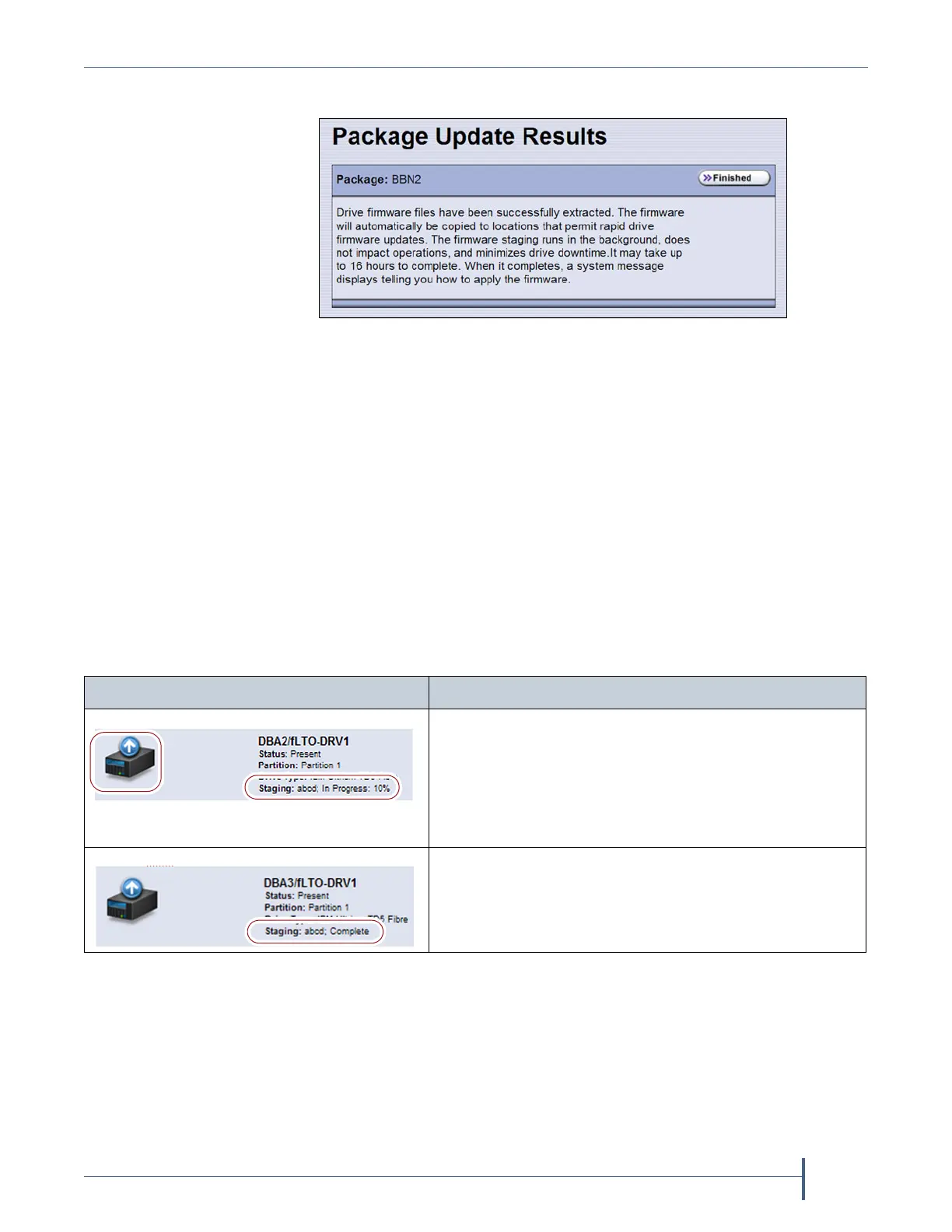
10. Click Begin Staging. The Package Update Results screen displays.
All drives that require an update begin staging automatically. This can
take up to 8 hours for LTO drives and up to 16 hours for TS11xx
technology drives.
Notes: Staging only prepares the drive for the update process. After
staging is complete, you can choose which drives to update
in
Step 2 on page 488.
There may be a few minutes of delay before the Package
Update Results screen displays.
11. Click Finished on the Package Update Results screen. The firmware
staging runs in the background, allowing the library to perform other
tasks.
The Drives screen displays the staging status while the process is active.
12. When the staging process completes, a system message displays.
Note: If there are any failures in staging the firmware to the drives, a
system message informs you of the failure. Follow the remedy
instructions on the system message and then reset the drive to
restart the staging process.
Figure 301 The Package Update Results screen.
The Drives screen displays... when...
The drive firmware is staging to the drive. The drive
icon changes to the staging drive icon, and the staging
status line displays.
Note: A Global Spare icon does not change to the
Drive Staging icon while firmware is staging to it.
However, the staging status line displays.
The drive firmware is finished staging to the drive, and
is available to be used to update the drive.


 To Next Page