Chapter 3 — Introducing the BlueScale User Interface Using the BlueScale User Interface
December 2019 User Guide—Spectra T200, T380, and T680 Libraries
89
If there is no interaction with the operator panel within 30 seconds after the
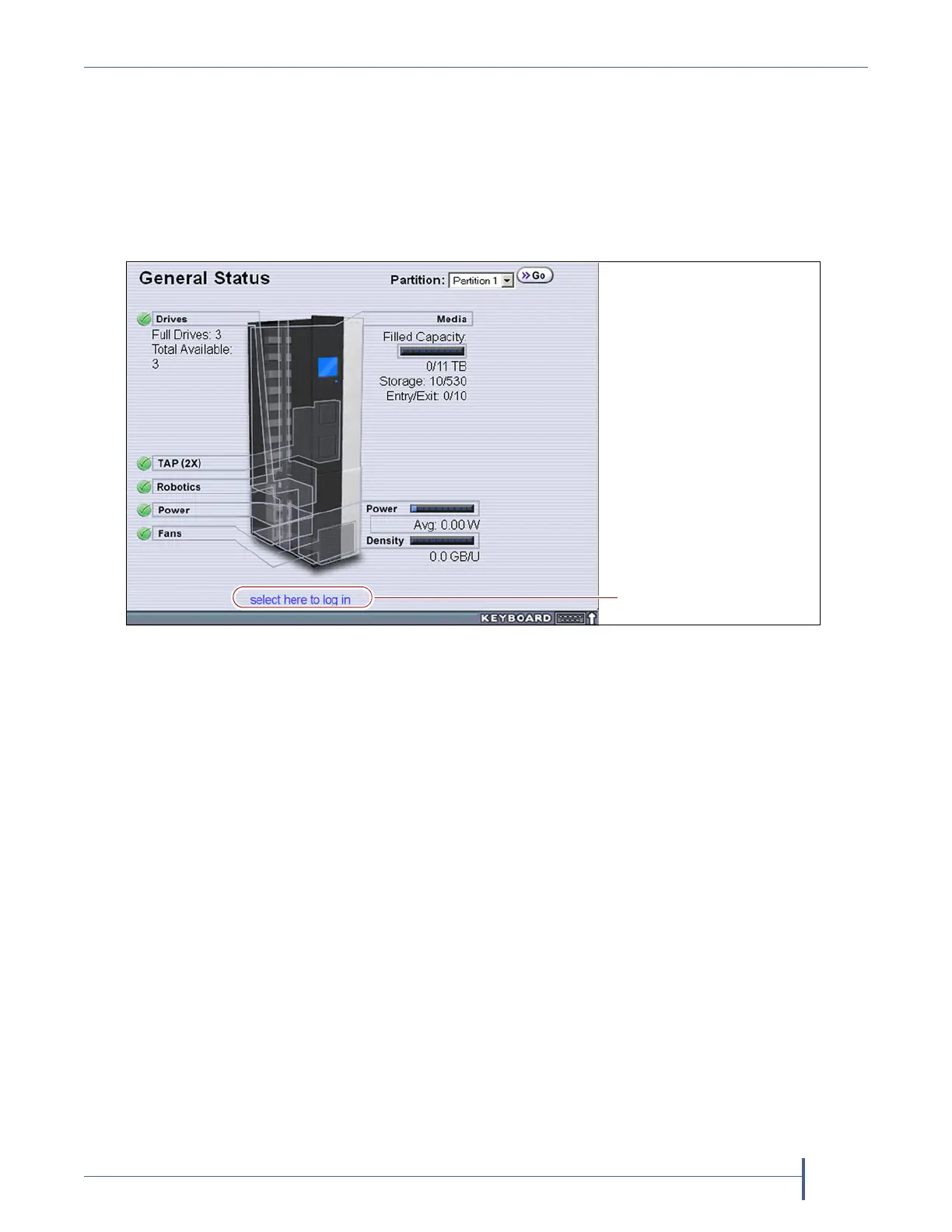
Login screen displays, the Login screen is replaced by the pre-login General
Status screen. This General Status screen provides at-a-glance status for the
library and its components without requiring you to log into the library. You
can view the status of the entire library or a specific partition.
Note: The pre-login General Status screen does not display when you
access the library remotely through the BlueScale web interface.
Use the following steps to log into the library:
1. Connect to the library. The method depends on how you are accessing
the library.
Using the front panel touch screen or a direct connection to the LCM
If the Login screen is displayed, skip to Step 2 on page 91.
If the pre-login General Status screen is displayed, touch or click
select here to login at the bottom of the screen to display the Login
screen and then skip to Step 2 on page 91.
Note: If the soft keyboard is open and covering the bottom of the pre-
login General Status screen, touch the keyboard icon to close the
soft keyboard or use the scroll bar on the right side of the screen
to scroll down to the bottom of the screen.
Figure 42 Log in from the pre-login General Status screen (T680 shown).
Touch to display the Librar y
Controller: Login screen


 To Next Page