11-10 Sysmex XP-300
Instrument Setup
Revised February 2013
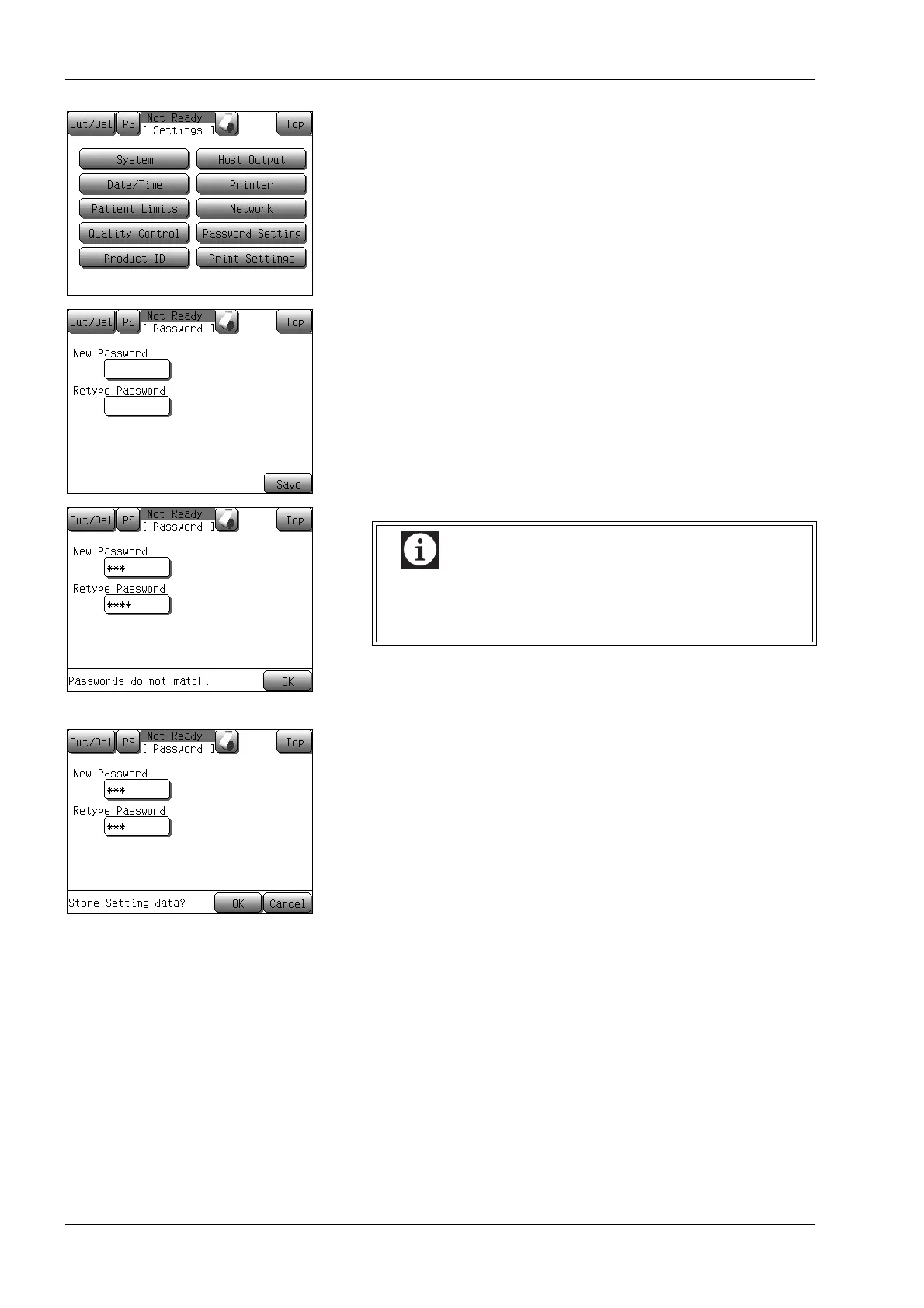
(3) Press the [Password Setting] button.
The password setting screen will appear.
(4) Press the New Password column.
The alphanumeric input dialog will appear. Set the password by
using maximum 10 digits of numerals (0-9) or hyphens (-).
Then press the [Ent.] button.
(5) Press the Retype Password column.
Enter the new password to be set again, and then press the
[Ent.] button.
(6) Press the [Save] button.
When the New Password and the Retype Password are
identical, the store setting data confirmation message will be
displayed.
• Press the [OK] button to update the changed settings and to
return to the Main screen.
• Press the [Cancel] button to cancel the setting changes, and
close dialog.
*Press the [Top] button on the setting screen. The setting stop
confirmation dialog will appear.
Press the [OK] button to return to the Main screen without
changing the settings. Press the [Cancel] button to close the
dialog and continue the setting.
If the New Password and the Retype Password are
not identical, the password setting error message will
appear. Re-enter the password into both boxes.



 To Next Page