Sysmex XP-300 6-1
Operation
Revised July 2012
6. Operation
6.1 Screen display
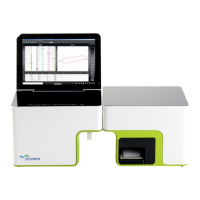
To a large extent, the instrument is menu-driven. Composed of 3
display areas (system area, data processing area and basic operation
area), the LCD screen also displays the operation status and analysis
progress.
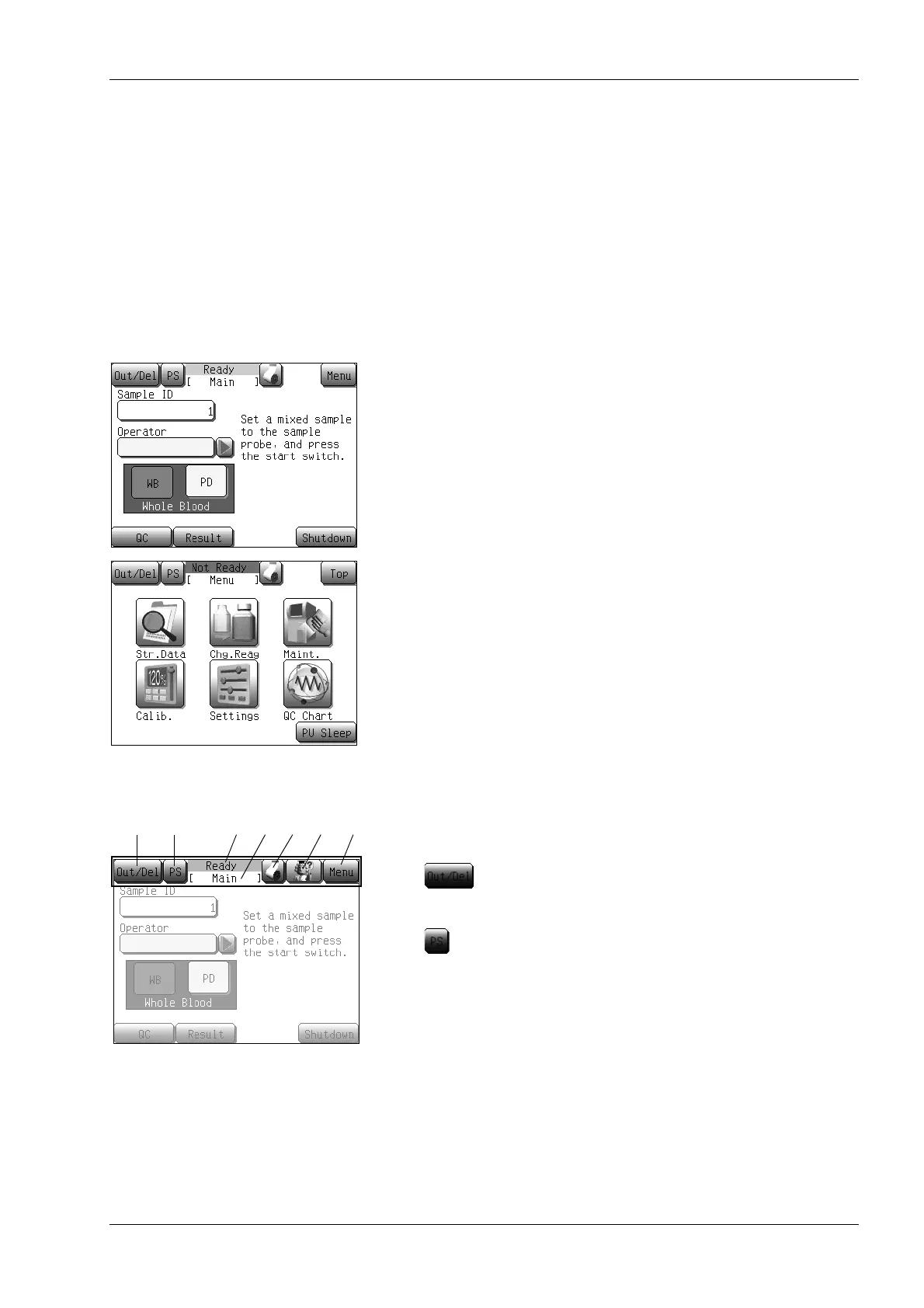
Main screen/Menu screen
After turning the power ON, the Sysmex logo appears, and the
startup operation is performed. Then the Main screen will appear.
Analysis operation is performed on the Main screen. When the
[Menu] button on the Main screen is pressed, the Menu screen will
appear.
The menu to select a required function is displayed on the Menu
screen. Auxiliary operations such as instrument maintenance and
settings are performed from this screen. Press the [Top] button on
the upper right of the screen to return to the Main screen from the
Menu screen.
System area
The following information is displayed in the system area on the
upper part of the LCD screen.
(1) button: Prints or deletes the displayed data. This button
also displays a menu screen related to the
SNCS function.
(2) button: Used only for the SNCS function to save the
displayed screen image in bmp format.
For details, see “Screen saving method (Print
screen)” in “6.7 SNCS functions”.
(3) Instrument status indicator
Displays the status of the instrument. The status display shows
5 types of conditions for the instrument: [Ready], [Aspirating],
[Running], [Not Ready] and [PU Sleep].
[Ready]: Analysis can be started.
[Aspirating]: Sample is being aspirated.
[Running]: Analysis is being performed.
(1) (3) (5) (6) (7)(2) (4)



 To Next Page