5.4 Confidential Print
184
5.
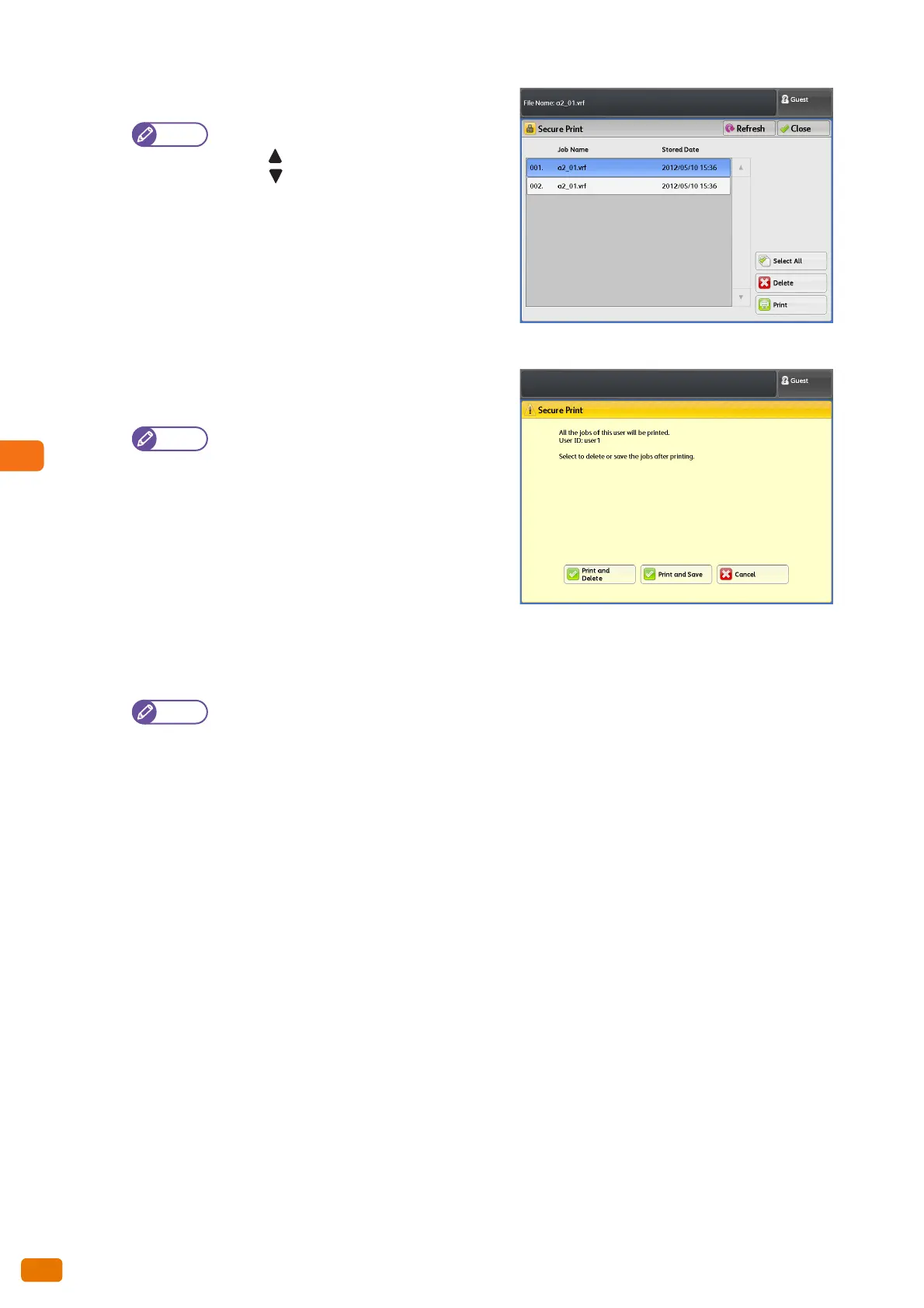
Select a file you want to print.
Press [Refresh] to refresh the display.
Press [ ] to display the previous screen, and
press [ ] to display the next screen.
Select All
Select this to select all the documents. Select this again to
deselect all the selected documents.
Deleting
Select this to delete the selected document(s).
6.
Press [Print].
7.
On the print confirmation screen, press [Print and Delete]
or [Print and Save].
Press [Cancel] to stop printing. (This does not
erase the print job.)
This screen is not displayed when [Tools] >
[System Settings] > [Stored File Settings] >
[Print Job Confirmation Screen] is set to
[Disabled].
Print and Delete
Select this to delete the Secure Print document stored on the
machine after printing.
Print and Save
Select this not to delete the Secure Print document stored on the machine even after printing.
By using [Tools] > [System Settings] > [Stored File Settings], you can set to automatically delete
documents for print jobs stored in the machine. ("Stored File Settings" (p. 324))


 To Next Page
 Loading...