Gen II User Manual
7-20 – Main Rotor Track & Balance Chapter 7 Revision 3.00, Apr 2020
7.2.1. – Starting a New Job
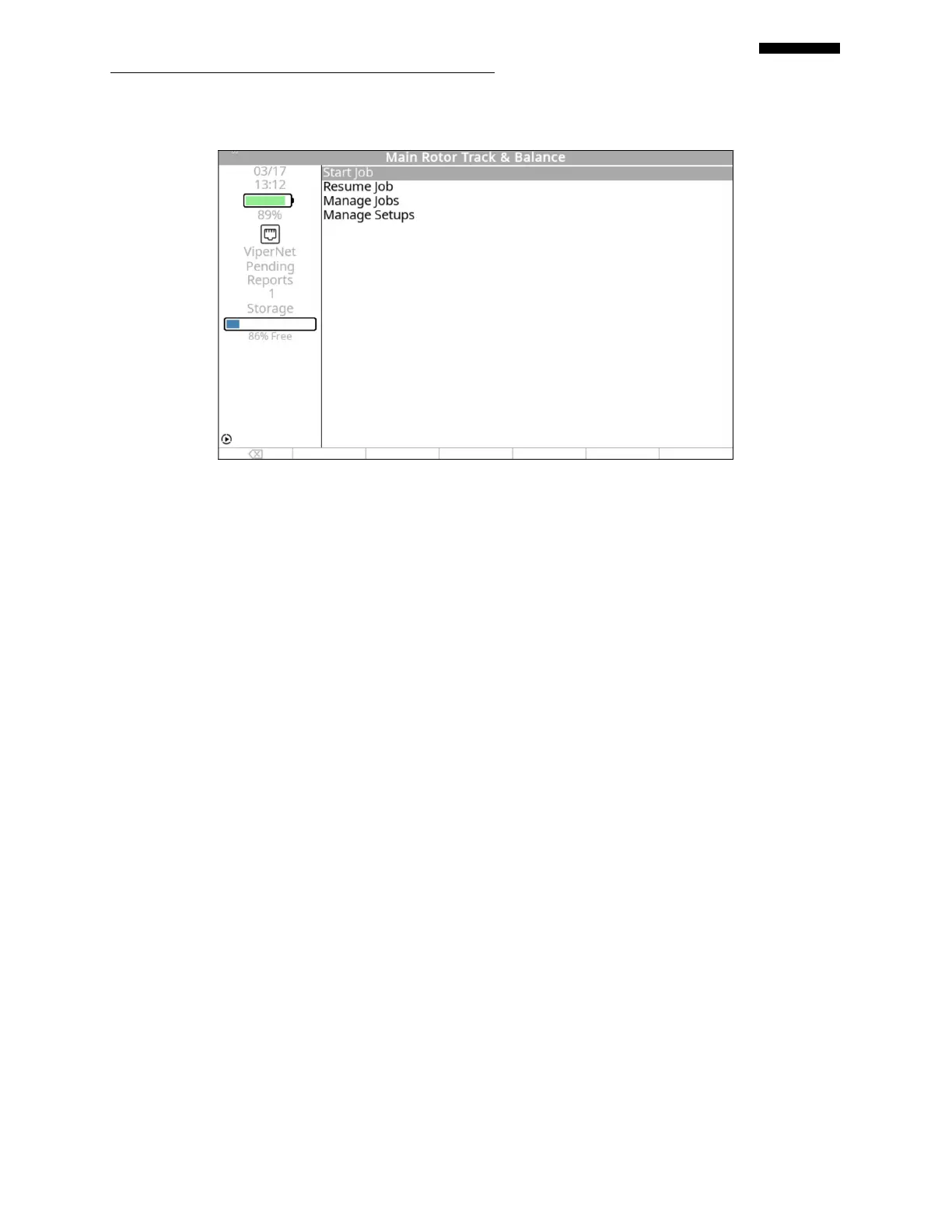
Selecting “Start Job” from the “Main Rotor Track & Balance” banner screen allows you to begin
a main rotor balance job. When you select this option, one of three screens will appear next
depending on whether you are using the main rotor function for the first time, have previously
defined main rotor setups, or have a previously started job stored in the analyzer.
If you are using the analyzer for the first time, the “Main Rotor Setup” banner screen will
appear allowing you to define a new main rotor setup to use. Refer to paragraph 7.1
above “Main Rotor Setup” for detailed instructions on defining a setup.
If you have previously-saved setups stored in the analyzer’s memory, a screen displaying
the list of setups will be displayed. You can then select a setup from this list to use for the
job. Proceed to paragraph 7.2.2 “Setup List”
If another job was already in progress but not completed, the “Incomplete Job” banner
screen will be displayed and the analyzer will present a message prompting you to verify
that you wish to finish the incomplete job or begin a new job. The screen will display the
message; “The last job performed is incomplete. Do you want to RESUME work on it?”
If you wish to return to the unfinished job, press the [F1] “Yes” key and you will be
returned to the point where the in-progress job was stopped and allowed to complete it. If
you wish to continue with starting a new job, press the [F5] “No” key and the screen will
then display the “Setup List”. Proceed to paragraph 7.2.2.


 To Next Page
 Loading...