Chapter 4. Licensing
Vol. IV-4-8 Alcatel-Lucent
2. Once the help desk has all the required information and has confirmed the
requested upgrade is valid, the operator will provide a quote for the upgrade.
On acceptance, a purchase order will be required before the license is shipped.
3. On receipt of the license file, it must be loaded into the CT PC that will be
used to connect to the Node/Terminal to be upgraded. To load the license
upgrade into the CompactFlash, refer to the Procedure for Loading a License
on page 4-8.
Procedure for Loading a License
To load an upgrade license:
1. On your 9500 MXC CT PC, copy the new license file into the default 9500
MXC CT program folder C:\Program Files\9500 MXC CT or load it into a
new license sub-folder such as, C:\Program Files\9500 MXC CT\License.
2. Log into the Node/Terminal and from the Licensing screen, click the
Select
a New License
button.
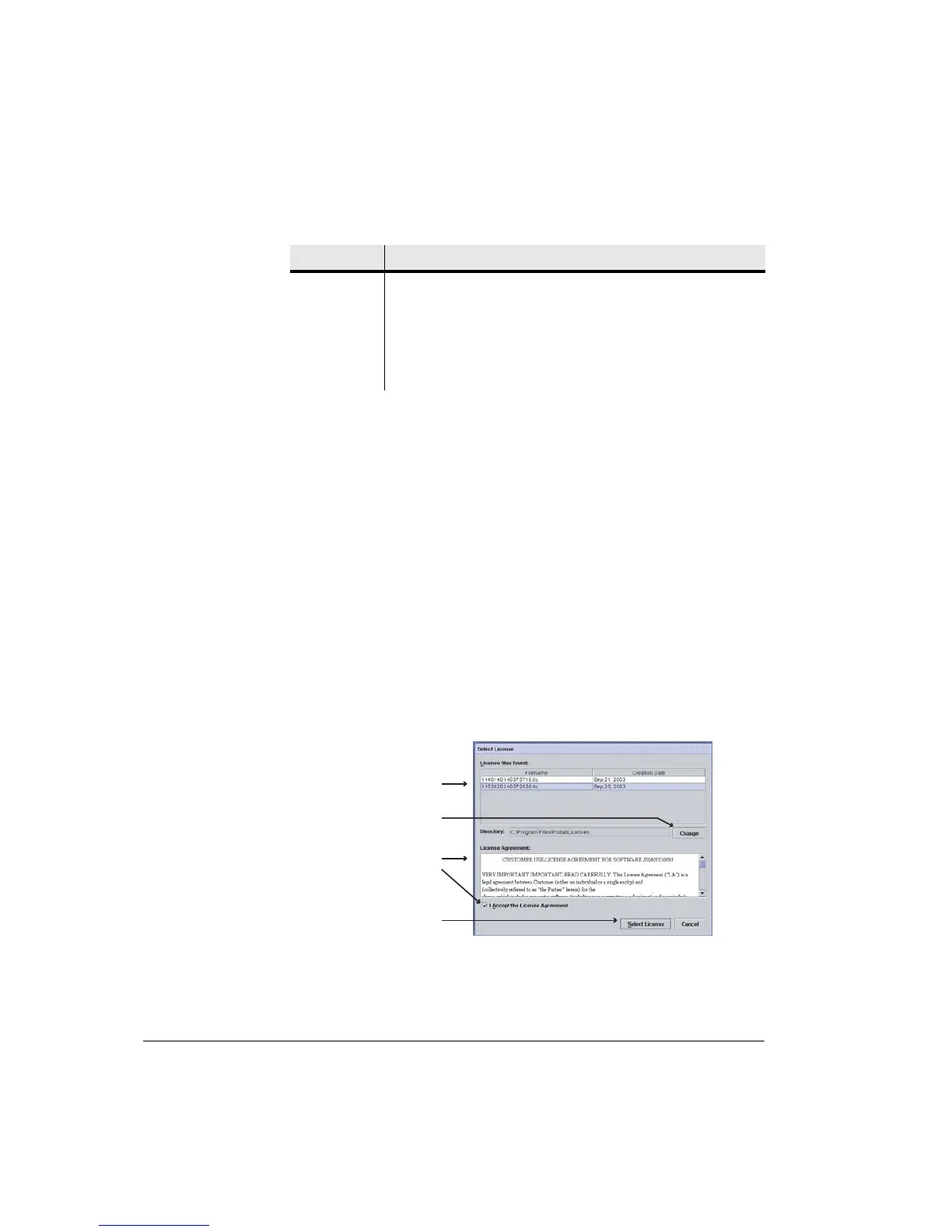
The Select License window is displayed, with a listing of the matching license
file(s) held in the 9500 MXC CT program folder of your PC:
IDU Link
Upgrade
Requirements
Where an existing IDU link is to be capacity upgraded, the existing
and new capacity for each IDU is required.
Shipment
Method and
Delivery
Delivery can be by email, or for a CD file, by mail or courier.
Item Description
Lists licenses available
within the CT license
folder on your PC
Click to select
License agreement terms
Click to accept
Click to load the selected
license
Click Change to open a
browser to go to a
different directory
9500 MXC
Alcatel-Lucent
Alcatel-Lucent software product identified



 To Next Page