Version 6.4 65 March 2012
SIP User's Manual 3. Web-Based Management
To replace a module:
1. Remove the module by performing the following:
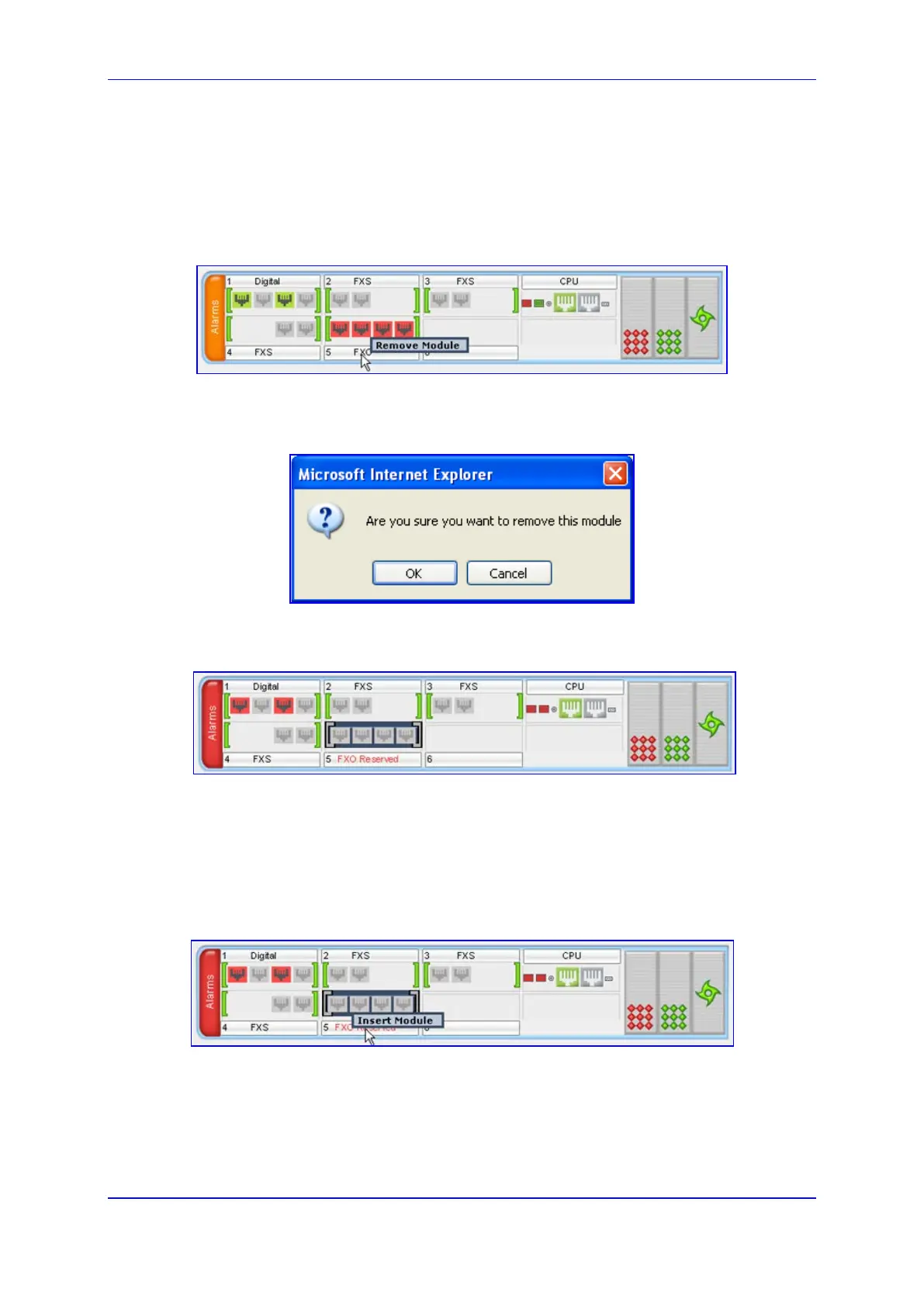
a. In the Home page, click the title of the module that you want to replace; the
Remove Module button appears:
Figure 3-35: Remove Module Button
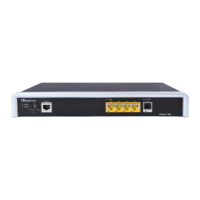
b. Click the Remove Module button; a message box appears requesting you to
confirm module removal:
Figure 3-36: Module Removal Confirmation Message Box
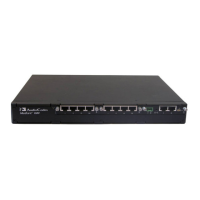
c. Click OK to confirm removal; after a few seconds, the module is software-
removed, the module status icon turns to grey, and the name of the module is
suffixed with the word 'Reserved':
d. Physically remove the module (refer to the Installation Manual).
2. Insert the replaced module, by performing the following:
a. Physically insert the replaced module (refer to the Installation Manual) into the
same slot in which the previous module resided.
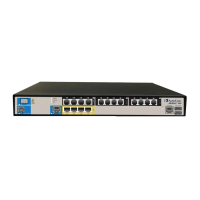
b. In the Home page, click the title of the module ("<module type> Reserved") that
you want to replace; the Insert Module button appears:
Figure 3-37: Insert Module Button
c. Click the Insert Module button; a message appears informing you that this may
take a few seconds. When the message disappears, the module is inserted,
which is indicated by the disappearance of the word 'Reserved' from the module's
name.





 To Next Page