MC4 Firmware
18 MC4 User Guide
The Function Key Bar
The Function Key Bar at the bottom of the display is visible all the
time. The meaning of the Function Keys varies depending on the
situation. A grayed Function Key text means that the function is
disabled at the moment.
Menu
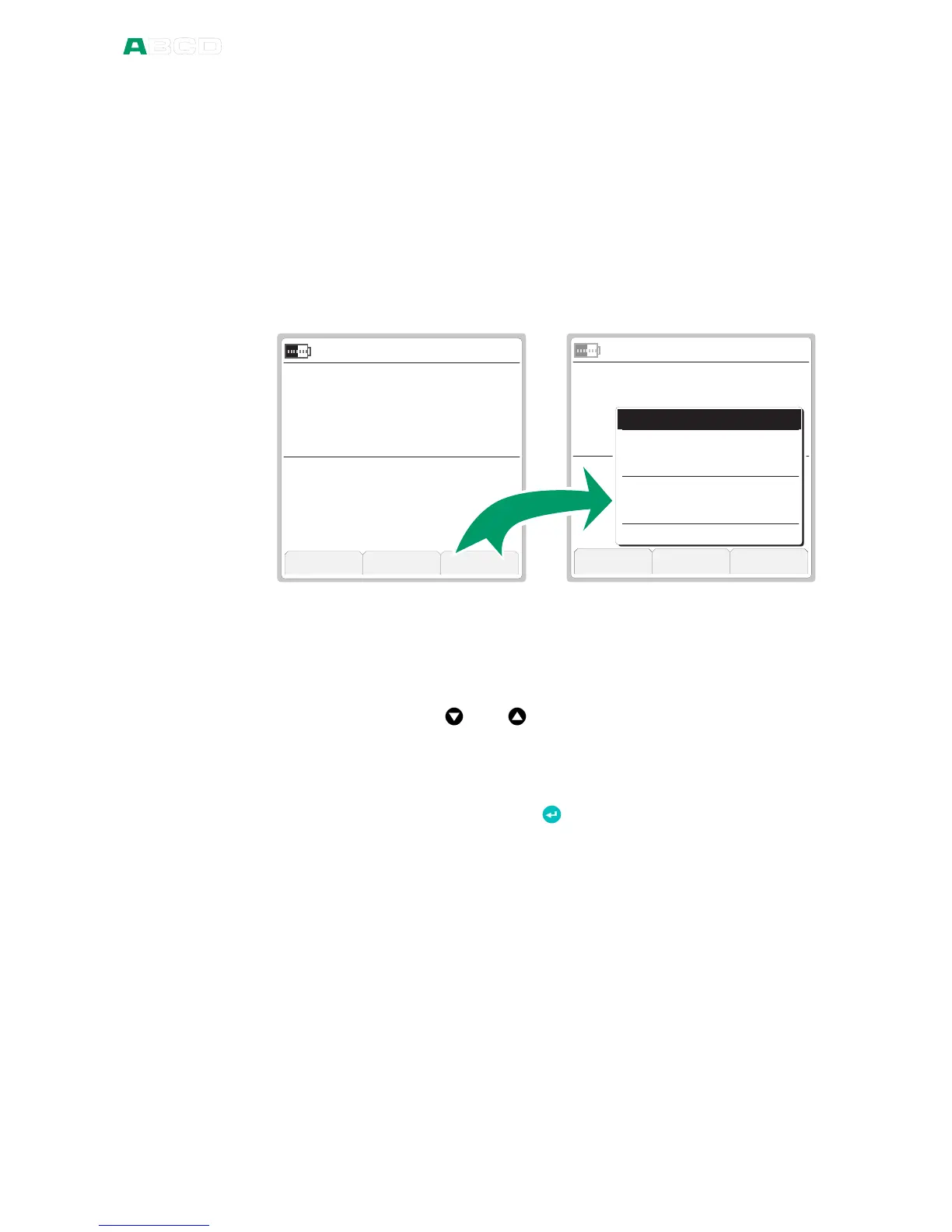
The Function Keys often open menus, i.e. lists of available items.
S e t u p
u
S e t u p
v
M e n u
m A
2 1 . 0 8 . 2 0 0 8 1 2 : 4 1 : 2 3
k P a
S u p p l y : O n
G a u g e E X T
5 . 4 9 7 5
1 2 . 3
A b o u t t h i s C a l i b r a t o r
I n s t r u m e n t C a l i b r a t i o n . . .
U s e r S e t u p s f o r
&
D a t e / T i m e
G e n e r a l S e t t i n g s
C a l i b r a t o r A d j u s t m e n t
A v b r y t N e d e r s t a V ä l jC a n c e l B o t t o m S e l e c t
S e t u p S e t u p
M e n u
m A
2 1 . 0 8 . 2 0 0 8 1 2 : 4 1 : 2 2
k P a
S u p p l y : O n
G a u g e E X T
5 . 4 9 7 5
1 2 . 3
The pair of screenshots above is an example of an opening menu.
This one opens from Basic Mode when F3 Function Key is pressed.
A menu with a longer list has small arrows at the top/bottom of the
list to point out that the list is longer that what is shown.
Use the arrow keys ( and ) to move between menu options.
The F2 Function Key helps you to scroll longer menu list. It allows
you to quickly jump to the end (
Bottom
) and beginning (
Top
)
depending on where in the list you are.
Select an item with the Enter key ( ) or use the F3/
Select
Function
Key. Selecting a menu option results in one of the following events:
1. The menu closes and a window opens for viewing additional
information or for configuring the selected task. This happens,
e.g. when selecting the
About MC4
menu option in the
picture above.
2. A tick is added/removed from the selected menu item. It
means that the menu item is selected/deselected for a duty.
This happens, e.g. when selecting which items are to be
shown on the Additional Info row.
3. A sub menu opens allowing you to select one of available
sub menu items.


 To Next Page