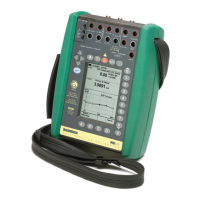
MC4 Firmware
20 MC4 User Guide
Field Types Available for Editing Data
Use the arrow keys ( and ) to move between fields. Start and
stop editing a field with the Enter key ( ).
Fields typically have three modes:
1. The field is displayed, but the cursor is not highlighting that
particular field.
2. The cursor is highlighting a field.
3. The field is in edit mode.
All field presentations include a list of how the field looks in different
states. Some fields do not exactly follow the above mentioned list of
states. The differences are described where applicable.
Numeric Fields
Beside the Enter key ( ), all Numeric keys sets the highlighted
Numeric field to edit mode. The Enter key leaves the previous number
available for editing and the Numeric keys replace the old value.
During edit mode, you can use the arrow keys ( and ), the
F3/
Clear
and F2/ (= backspace) Function Keys to edit the field.
Accept the new value by pressing the Enter key ( ). To discard
changes, use the F1/
Cancel
Function Key. See also Part B for
special features concerning numeric fields when generating a signal.
Notes.
Certain numeric fields have an extra tool for inserting a value:
When the field is highlighted, an F2/
Capture
Function Key appears.
This allows you to capture and save the measured value in the
Numeric field.
Numeric field used for generating/simulating signals include
additional editing possibilities: Spinning and Manual Stepping.
More of them in part B, page 54.



 To Next Page