General
130 MC4 User Guide
The current plant structure level is followed by names of sub levels
(if there are any), then by instrument (positions/devices) belonging to
the current plant structure level.
To select an instrument for calibration, use the arrow keys ( and
) to move the cursor (the inverted text) to the desired instrument.
Select the instrument by pressing the key. Alternatively, press
F3/
Menu
and then
Select
from the opened menu.
If you want to move to another plant structure level, move the cursor
to the name of that particular level and press the key.
How the instrument is identified in the Instrument List depend on en-
tered instrument data. For more information, see page 157.
A Calibration Procedure Using MC4
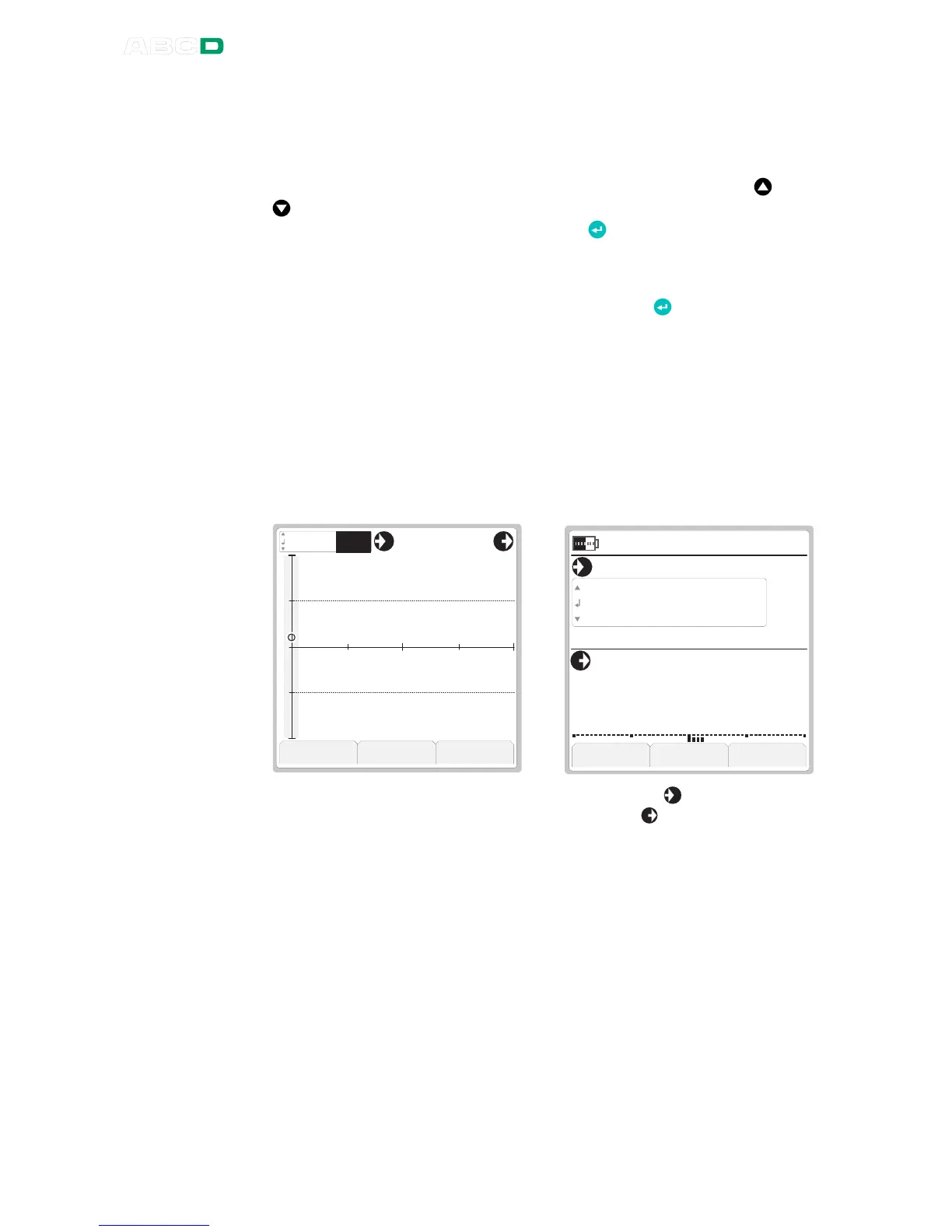
When you have selected an instrument for calibration, a window like
the leftmost picture below opens.
M e n u G r a p h i c s S t a r t
° C
2 1 . 0 8 . 2 0 0 8 1 2 : 5 6 : 2 2
E r r o r %
P t 1 0 0
a
3 8 5
S u p p l y : O n
0 . 5 1
M e n u N u m e r i c S t a r t
4 . 0 8 1 60 . 0 0
E r r :
0 . 5 1
5
0
+
-
0 . 0 0
0 . 0 0
- 5 0 5- 2 . 5 2 . 5
The current input value is shown to the left of the symbol. The
current output value is shown to the left of the symbol. Most of
the display area is reserved for an error graph.
If you want to see larger numeric values, press F2/
Numeric
. Then
the display looks like the rightmost picture above. The upper window
displays the input value and the lower window displays the error nu-
merically and as a bar graph. Return to graphics view by selecting
F2/
Graphics
.
Before starting the actual calibration, make sure all your connections
are ok and both the input and output is "live" in the calibrator display.


 To Next Page