Tools Menu
76 MC4 User Guide
Ramping
Ramping utility is one of three tools allowing you to create
generation/simulation signals that vary with time.
Other similar tools:
Stepping on page 73
Manual Stepping on page 78
To open the ramping configuration window, enter the following menu
commands: F1/
Setup
or F2/
Setup
(depending on which
window you want to configure the ramping to), F2/
Tools
and
Ramp
from the opened menu. Note that ramping is available for
generation/simulation Functions only.
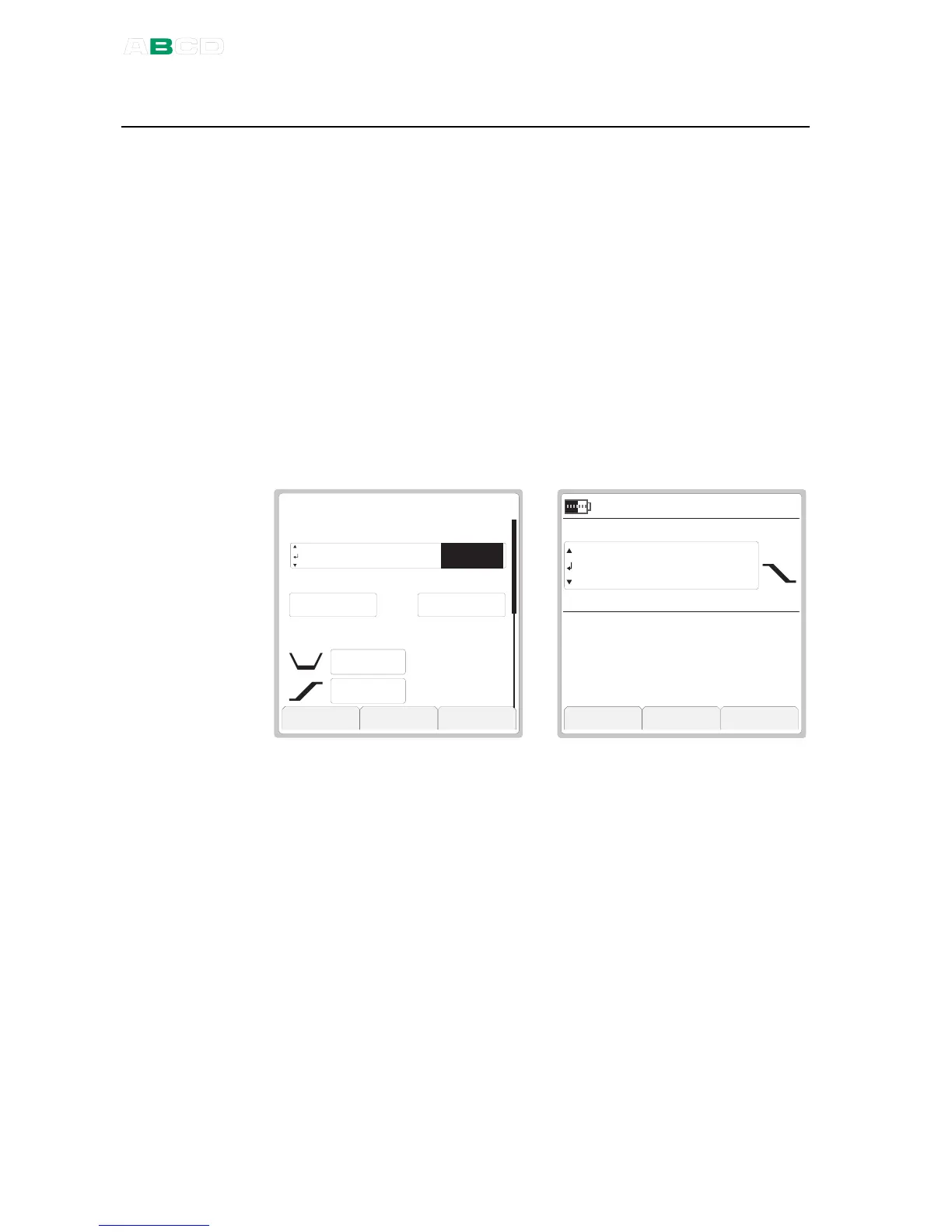
The leftmost picture below shows the configuration window and the
rightmost picture the ramping utility in use.
5 . 9 6
O u t p u t
R A M P
W a i t i n 0 %
C l o s e C a p t u r e S t a r t
V
I N T
R a n g e ( 0 % . . . 1 0 0 % )
0 . 0 0 0 0 1 2 . 0 0 0 0
R e p e a t F o r m a t
. . .
0 . 0 0 0
0 . 0 0 0 R i s e T i m e
1 2 . 0 0 0 0
Start ramping by selecting the F3/
Start
Function Key in the
configuration window. To stop a ramp that is in progress, open the
ramping configuration window and press F3/
Stop
Function Key.
When ramping is ready, or stopped, you may restart it as follows:
F1/
Setup
or F2/
Setup
(depending on which window you want
to configure the ramping to), F1/
Start Ramp
. This possibility is
available until a new Function is selected for the window where
ramping was used or MC4 is shut down.



 To Next Page