Sync Scorer Components 53
CIRCUIT BOARD AND COMPONENT REPLACEMENT
CAUTION: Some circuits and circuit boards may be static sensitive and can be
damaged due to improper handling. You should follow the suggested guidelines
to avoid problems.
NOTE: Failure to use proper handling techniques for the circuit board may void the warranty.
1. Before working on or removing any board you MUST discharge any static within your body by
touching the metal chassis of the component.
2. Always keep static sensitive boards and components in their protective wrapping when not in use.
3. Handle the boards by the edges only to avoid damaging the board.
4. Avoid touching the gold plated edge terminals.
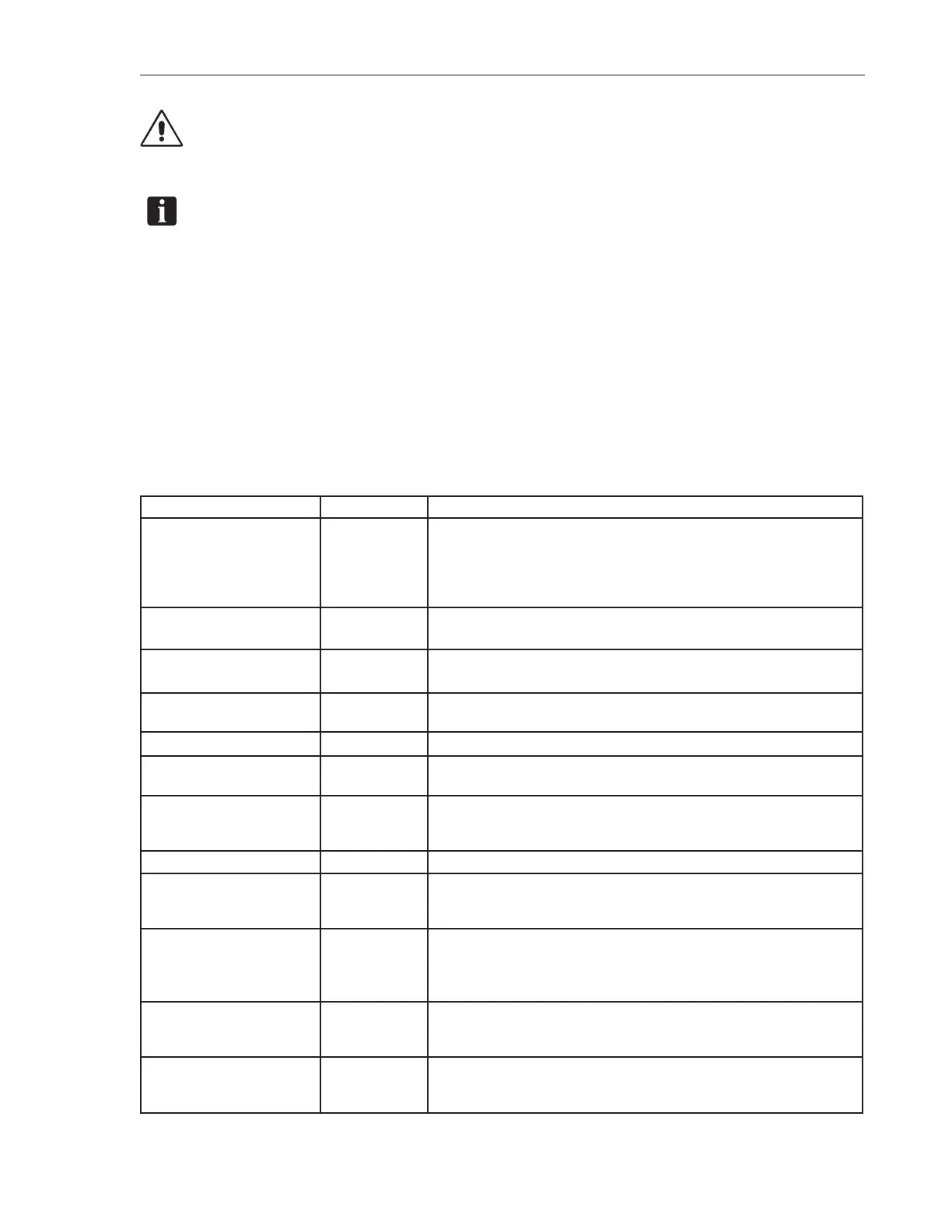
Before replacing any component, you must determine if it requires any initial setup. Refer to the chart
titled Conguration Chart.
Component Setup Required Setup/Comments
Display Controller Yes 1. Verify the cabling to the Display Controller is connected properly.
2. Set the IP address for the Display Controller in the ofce program to
match the address assigned to the new Display Controller.
3. Updated setting from the Ofce Program as needed.
4. Assign 2 bowlers to the lane pair using Lite League to test.
Display Controller Power
Supply
No Check power fuses
Peripheral Controller Yes 1. Set Board Address dip switches to the left lane number of the lane pair.
2. Verify the jumper settings on the board.
Pin Camera Ye s 1. Connect cables as needed. Make sure power cable is connected properly.
2. Calibrate the Camera for the lanes associated with the cameras.
Ethernet Switch No Connect cables as needed. Make sure power cable is connected properly.
Sync Interface
(Single Mounted Tablet)
Yes 1. Connect cables as needed. Make sure power cable is connected properly.
2. Verify the jumper settings on the board.
Sync Interface
(Pedestal Mounted Tablet)
Yes 1. Connect cables as needed. Make sure power cables are connected
properly.
2. Verify the jumper settings on the board.
Sync Console Power Supply No Check power fuses
Vector Keypad Interface PCB Ye s Set jumper on JP4
At 2 and 3(T) if the audio cable does not continue from J6
At pins 1 and 2 (U) if the audio cable continues from J6
Sync Tablet Ye s 1. Connect cables as needed. Make sure power cable is connected properly.
2. Set the IP address for the tablet in the ofce program to match the
address assigned to the new tablet.
3. Assign 2 bowlers to the lane pair using Lite League to test.
Touchpad Interface (Pedestal
Mounted Touchpads)
Yes 1. Connect cables as needed. Make sure power cables are connected
properly.
2. Verify the jumper settings on the board.
Sync Keyboard Controller
(Single Mounted Touchpad)
Yes 1. Connect cables as needed. Make sure power cables are connected
properly.
2. Verify the jumper settings on the board.
Conguration Chart.



 To Next Page