Print Position(P. 426)
TIFF Spooler(P. 427)
Show Warnings(P. 427)
Enlarge Print Area(P. 429)
Halftones(P. 429)
Grayscale Conversion(P. 430)
Specify whether or not to display an E-Mail Print error.
Show Warnings(P. 365)
Manually Receiving E-Mails
If e-mail printing from the POP3 mail server is enabled, you can manually receive and print e-mails as well. When you
want to connect to the mail server before automatically receiving e-mails or the machine is congured to prevent e-
mails from being automatically received, follow the procedure below to manually receive the e-mails.
1
Press ( ).
● When the machine is oine, it does not operate even if ( ) is pressed. Set the machine to Online.
Online key(P. 25)
2
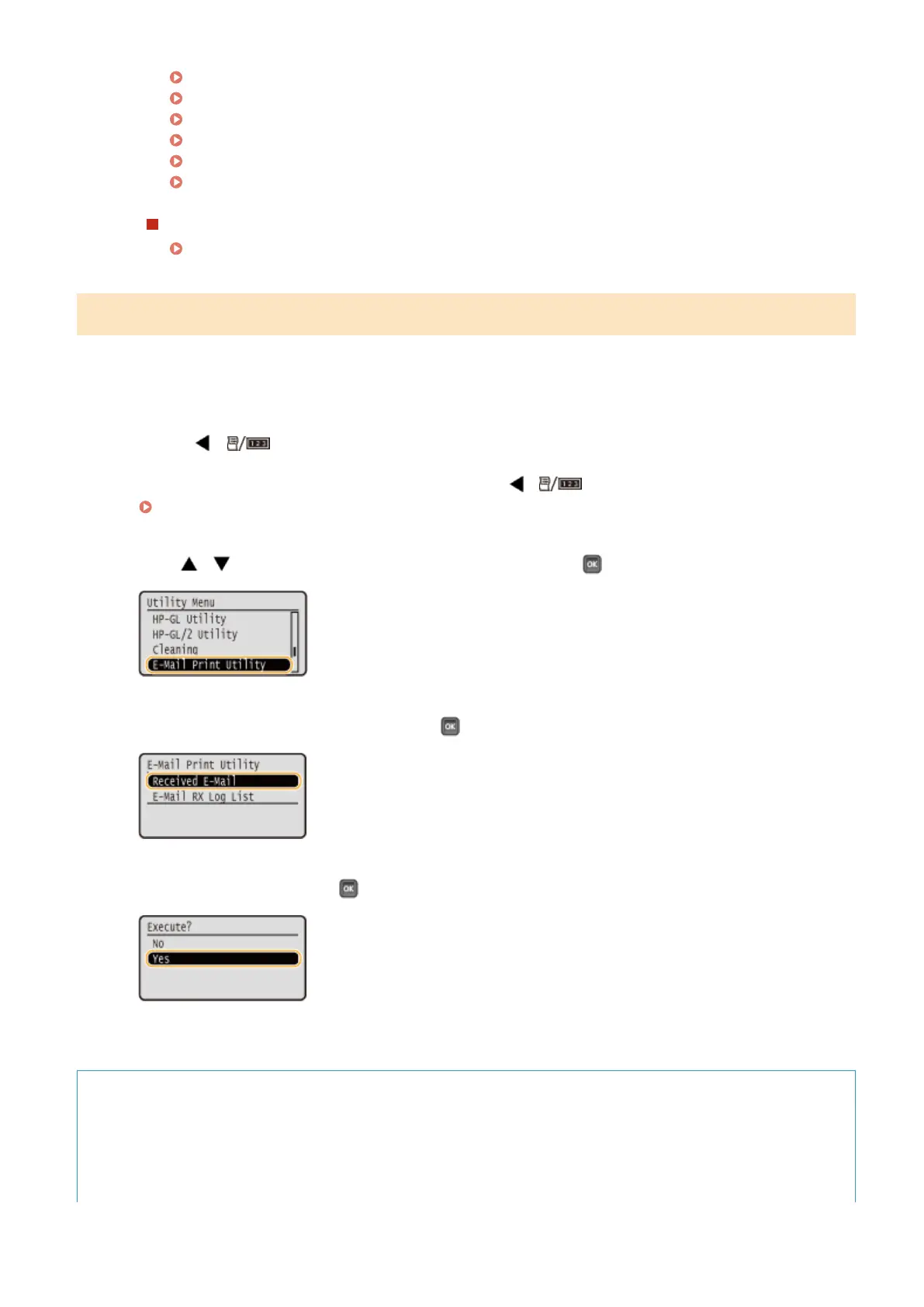
Use / to select <E-Mail Print Utility>, and press .
3
Select <Received E-Mail>, and press .
4
Select <Yes>, and press .
➠ The machine is connected to the mail server. E-Mail Print is started for new e-mails in the mailbox of the
mail server if any.
To forward fax documents from Canon multifunction printers
Enable SMTP RX on this machine, and then specify the IP address of the machine as the Internet Fax (I Fax)
Address on the source multifunction printer. Forwarded fax documents are printed immediately when received.
● Attached les can only be printed if they are in TIFF format. Only one TIFF le can be printed for each fax
document.
Printing a Document
162



 To Next Page