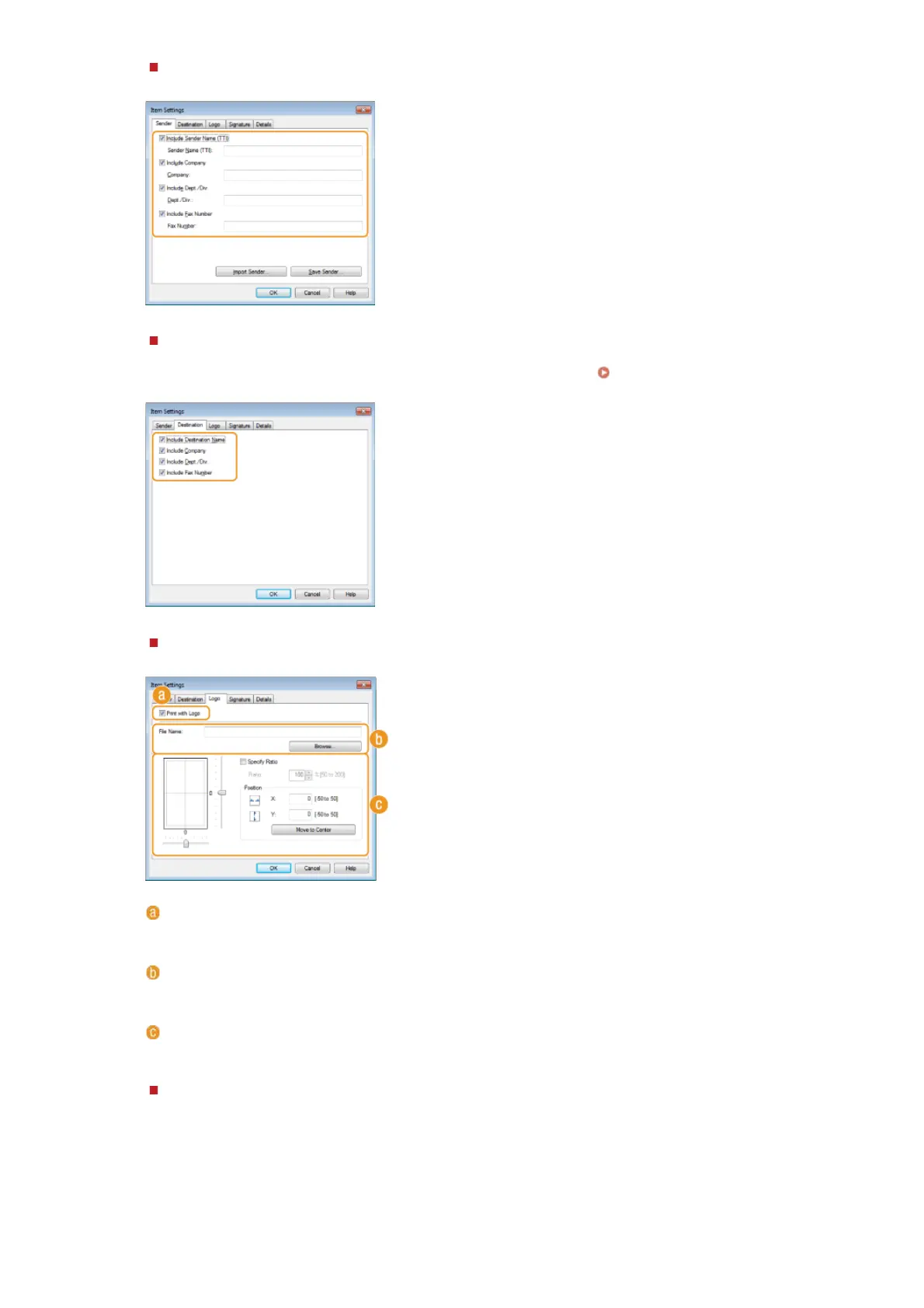
[Sender] tab
Select the sender items you want to include and enter the information.
[Destination] tab
Select the destination items you want to include and enter the information. Destination names, company names,
department names, and fax numbers specified in the [Sending Settings] tab (
Sending PC Faxes) are included on
the cover sheet.
[Logo] tab/[Signature] tab
Specify each setting. The following screen shows an example for when the [Logo] tab is selected.
With/without logos or signatures
Select [Print with Logo] or [Print with Signature] if you want to include logos or signatures on the cover sheet.
Have the bitmap files for logos or signatures ready beforehand.
Location of logos or signature files
Specify the location where logos or signatures files are saved. Click [Browse] to locate the file you are using for
logos or signatures.
Size and position of the specified logos or signatures
Adjust the size and position of the specified logos or signatures while checking the image displayed on the left.
[Details] tab
㻝㻣㻢㻌㻛㻌㻢㻣㻢











 To Next Page