[Input Method] (MF8580Cdw / MF8550Cdn / MF8540Cdn only)
Select whether you want to scan a 1-sided or 2-sided document placed in the feeder.
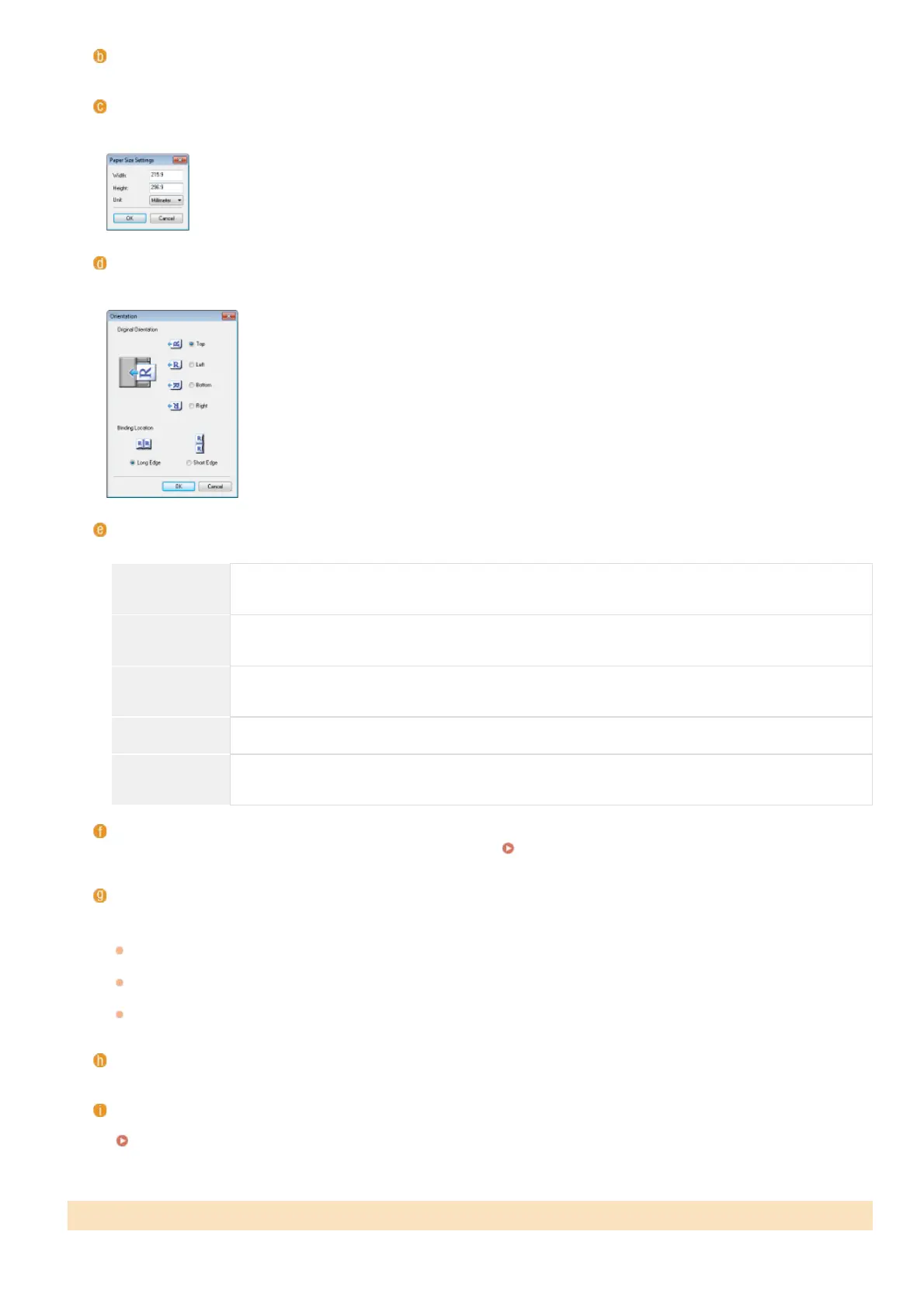
[Paper Size]
Select the document size. If you select an option for a custom size, the [Paper Size Settings] screen opens. You can then enter a
custom size.
[Orientation]
If documents are placed in the feeder, set the orientation of the documents. You can also set [Binding Location] if 2-sided
documents are placed in the feeder.
[Scan Mode]
Select the image type to scan documents. Available items vary depending on the type of scan, such as [Mail] or [PDF].
[Black and
White]
The document is scanned as a black and white image (in black and white only, with no intermediate
shades of gray).
[Black and
White (OCR)]
The document is scanned as a black and white image optimized for processing by OCR (optical character
recognition) software.
[Grayscale]
The document is scanned as a grayscale image (in black and white with intermediate shades of gray,
similar to a black and white photograph).
[Color] The document is scanned as a color image.
[Color
(Magazine)]
The document is scanned as a color image. The color unevenness and moire that occurs when scanning
print material is reduced. It takes more time to scan when using this setting than when using [Color].
[Upper Limit of Attached File:]
This item is displayed when [Mail] is selected for the type of scan (
Scanning Using MF Toolbox). The quality of the scanned
image is automatically adjusted so that the file size does not exceed the maximum limit that you specify here.
[Image Quality]
Select the resolution of the scanned image that suits your intended use.
NOTE:
Available resolutions vary on whether the document is placed in the feeder or on the platen glass, and whether the file format
is PDF or JPEG.
A resolution of 75 dpi is a rough guide for displaying the scanned image on a computer, and 300 dpi for printing or creating a
searchable PDF.
If you double the output resolution, the image file size increases by a factor of 4. If the file size is too large, a memory
shortage or other error may occur. Set the resolution to the minimum required for your intended use.
[Correct Black Text]
Emphasizes the outlines of black text.
[Display the Scanner Driver]
Select this check box to enable you to configure advanced scan settings with ScanGear MF. To start ScanGear MF, click [Start]
(
Configuring Scan Settings in ScanGear MF).This item is not displayed when [OCR] is selected for the type of scan.
Configuring Storing Settings
㻞㻢㻠㻌㻛㻌㻢㻣㻢











 To Next Page