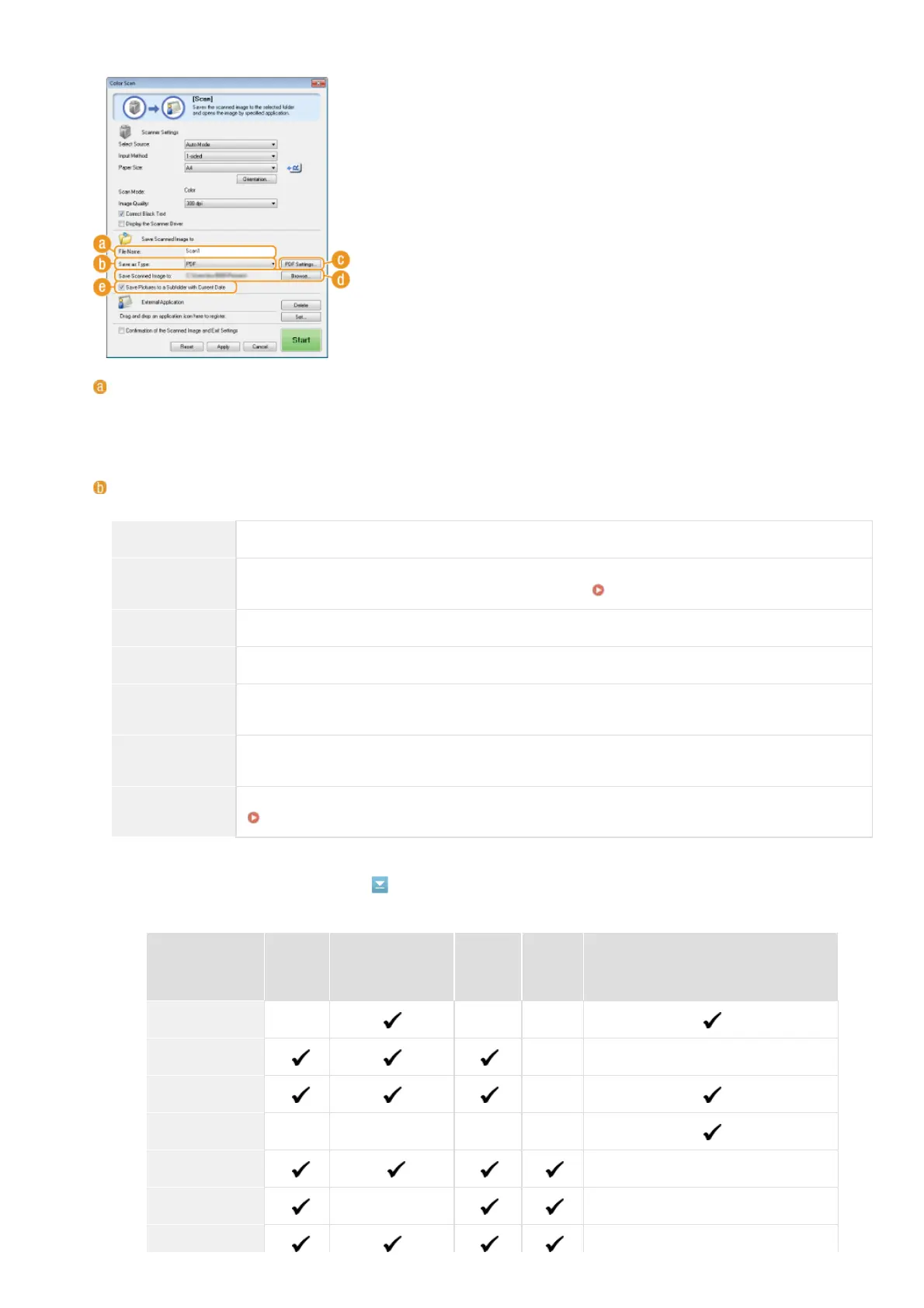
Specify settings for the scanned data, such as the file name, file format (PDF, JPEG, etc.) and save destination.
[File Name]
Enter the name for the scanned data file.
NOTE:
If a file with the same name already exists in the save destination, a unique sequential four-digit number (for example, "0001") is
appended to the new file name.
[Save as Type]
Select the file format.
[BMP] The scanned document is converted into a bitmap image.
[JPEG/Exif]
The scanned document is converted into a JPEG/Exif image. This setting is available when [Grayscale],
[Color], or [Color (Magazine)] is selected for [Scan Mode] (
Configuring Scan Settings).
[TIFF] The scanned document is converted into a TIFF image.
[PDF] A PDF file is created. If you scan a multi-page document, these pages are merged into one PDF file.
[PDF (Single
Page)]
A one-page PDF file is created for each page of the scanned document. For example, if you scan a three-
page document, three separate one-page PDF files are created.
[PDF (Multiple
Pages)]
One PDF file is created from multiple documents. For example, if you scan a three-page document, one
three-page PDF file is created.
[PDF (Add Page)]
Newly scanned document data is added as additional pages to an existing PDF file that you specify.
Adding Pages to an Existing PDF file
NOTE:
Available file formats for each scan type
Scan type BMP JPEG/Exif TIFF PDF
PDF (Single Page)
PDF (Multiple Pages)
PDF (Add Page)
[Mail]
[OCR]
[Save]
[PDF]
[Color Scan]
[B&W Scan]
[Custom 1]
*
*
*
*
㻞㻢㻡㻌㻛㻌㻢㻣㻢











 To Next Page