You can select either <PDF> or <PDF (Compact)> as a file format.
The file name of a scanned document is automatically assigned based on the following format: communication management
number (four digits)_sent date and time_document number (three digits).pdf.
Example of file names: If a one-page document is converted into a PDF file and sent on October 17, 2013 at 07:00:05 P.M.
0045_131017190005_001.pdf
You cannot specify file names yourself.
Specify the subject, body, reply-to address, and priority for the e-mail as necessary.
The subject and the priority are set to "Attached Image" and "Standard" respectively by default.
The body is not set by default. Enter it as necessary. Without the body text, only scanned documents are sent.
The reply-to address is not set by default. If you want to display the reply-to address differently from that of the machine,
specify the address from among those registered in the Address Book. If no destination is registered in the Address Book,
see
Registering in the Address Book (MF8580Cdw / MF8550Cdn / MF8540Cdn / MF8280Cw Only).
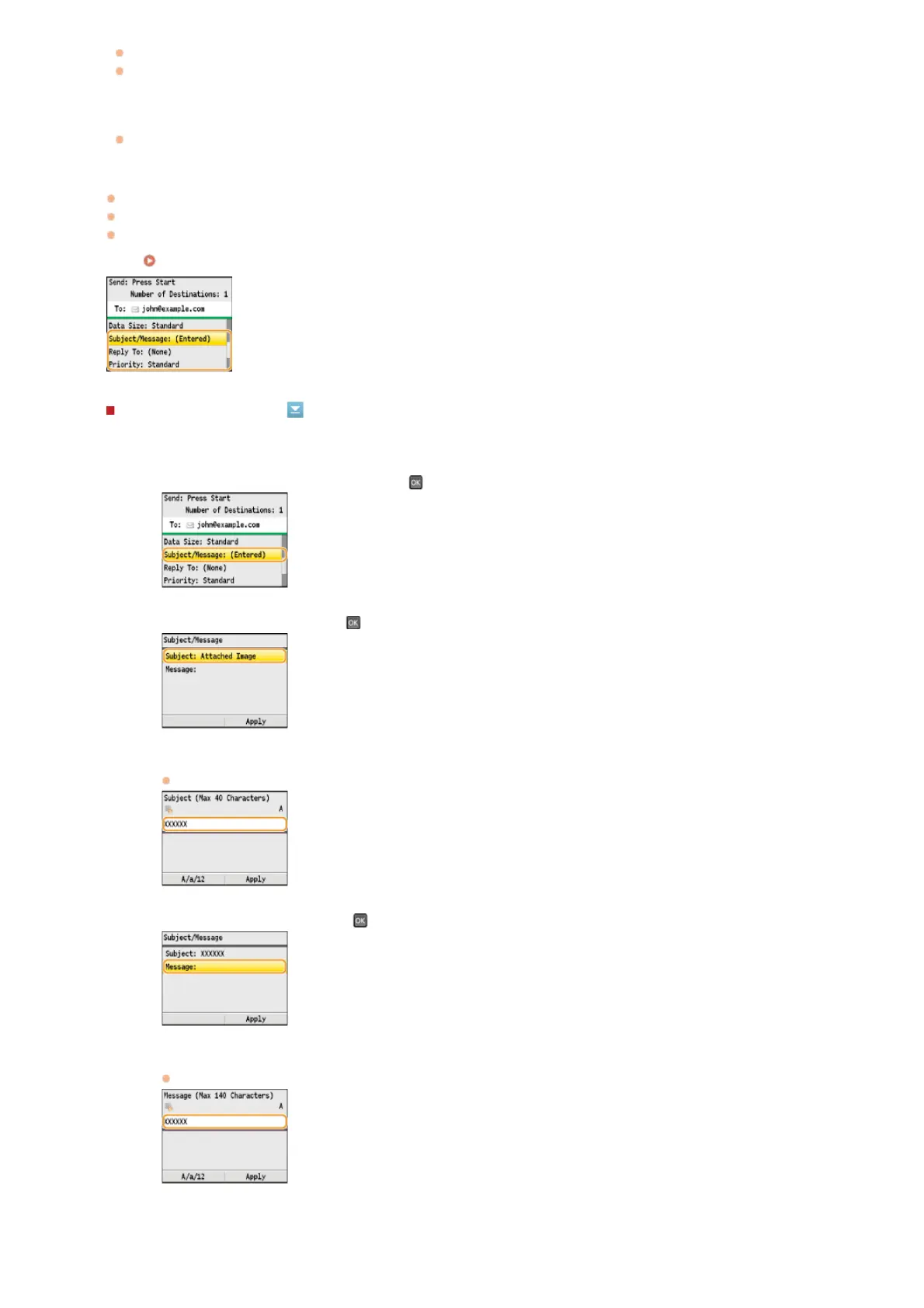
To specify subject/body
1
Select <Subject/Message>, and press .
2
Select <Subject>, and press .
3
Enter the subject using the numeric keys, and press <Apply>.
Pressing <A/a/12> toggles the input modes.
4
Select <Message>, and press .
5
Enter the body using the numeric keys, and press <Apply>.
Pressing <A/a/12> toggles the input modes.
6
Press <Apply>.
7
㻞㻤㻥㻌㻛㻌㻢㻣㻢











 To Next Page