If you want to enable Department ID Management for printing and faxing from a computer, you need to specify settings by using the
drivers you already installed on the computer. Specify the Department ID and PIN as necessary.
IMPORTANT
To perform the following procedure, log on to your computer with an administrator account.
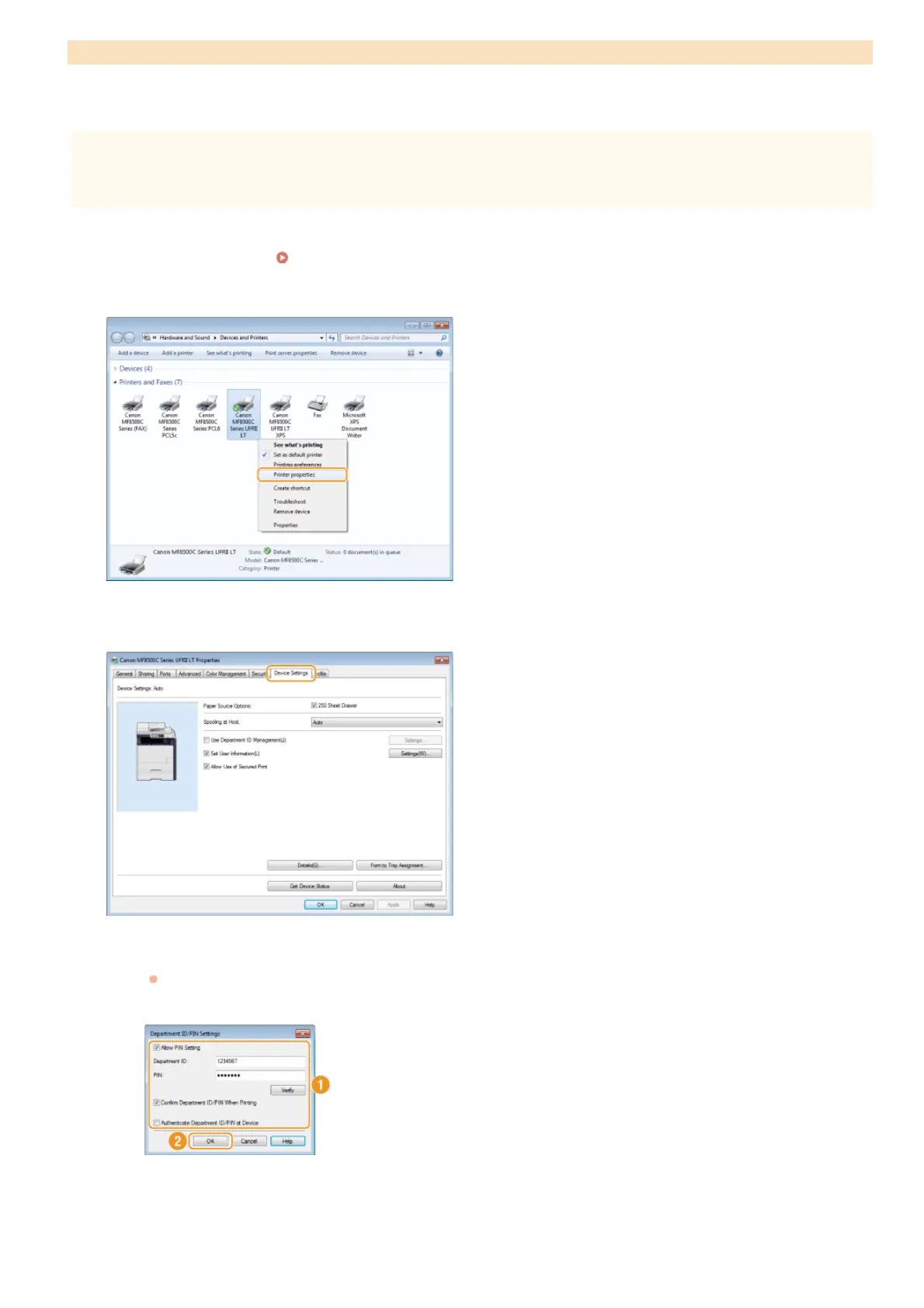
Open the printer folder. Displaying the Printer Folder
Right-click your printer or fax icon and click [Printer properties] (or [Properties]).
Click the [Device Settings] tab and specify the required settings.
1
Select the [Use Department ID Management] check box and click [Settings] on the right of it.
For the fax driver, also select the [Allow PIN Setting] check box to enable the PIN setting.
2
Specify the settings as necessary and click [OK].
[Allow PIN Setting]
Select the check box to enable the PIN setting.
[Department ID]
Enter a number of up to seven digits for the Department ID.
Setting the Department ID Management for Printing or Faxing from the Computer
1
2
3
㻠㻜㻠㻌㻛㻌㻢㻣㻢











 To Next Page