9
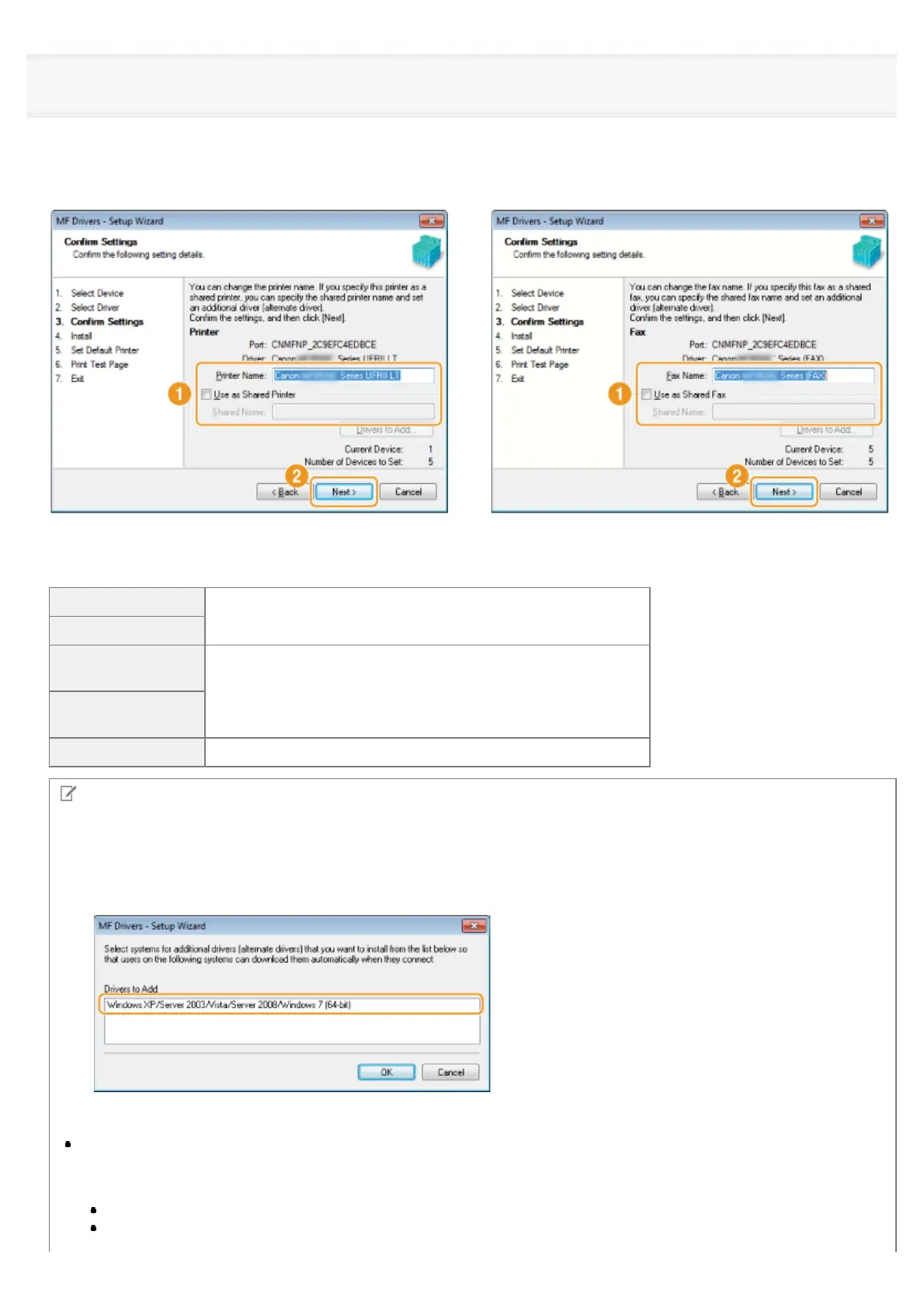
Set the printer or fax information.
(1) Specify the settings for each option as needed.
(2) Click [Next].
Printer information
*1
Fax information
*2
*1
Appears if you selected [Printer] in step 8.
*2
Appears if you selected [Fax (for Supported Models)] in step 8.
[Printer Name]
Enter a new name if you want to change the printer or fax name.
[Fax Name]
[Use as Shared
Printer]
Select the check box to share the printer or fax.
[Use as Shared
Fax]
[Shared Name] Change the shared name as needed.
NOTE
If you selected the [Use as Shared Printer] or [Use as Shared Fax] check box:
Install the additional driver as follows.
1. Click [Drivers to Add].
2. Select the operating system displayed in [Drivers to Add].
3. Click [OK].
If a 64-bit operating system is running on a computer on which the installation is being performed, the download
installation (installation from a network) for a client computer on which any of the following 32-bit operating systems is
running is not supported due to a Windows restriction.
Windows XP (on which no service pack or SP1 is installed)
Windows Server 2003 (on which no service pack is installed)
㻞㻞㻌㻛㻌㻣㻠











 To Next Page