If you download and install the software on any of the above 32-bit operating systems, you may fail to install the software
and may not be able to open the printing preferences dialog box.
If any of the following 32-bit operating systems is running on a computer on which the installation is being performed, the
additional driver for a 64-bit operating system cannot be installed.
Windows XP (on which no service pack or SP1 is installed)
Windows Server 2003 (on which no service pack is installed)
10
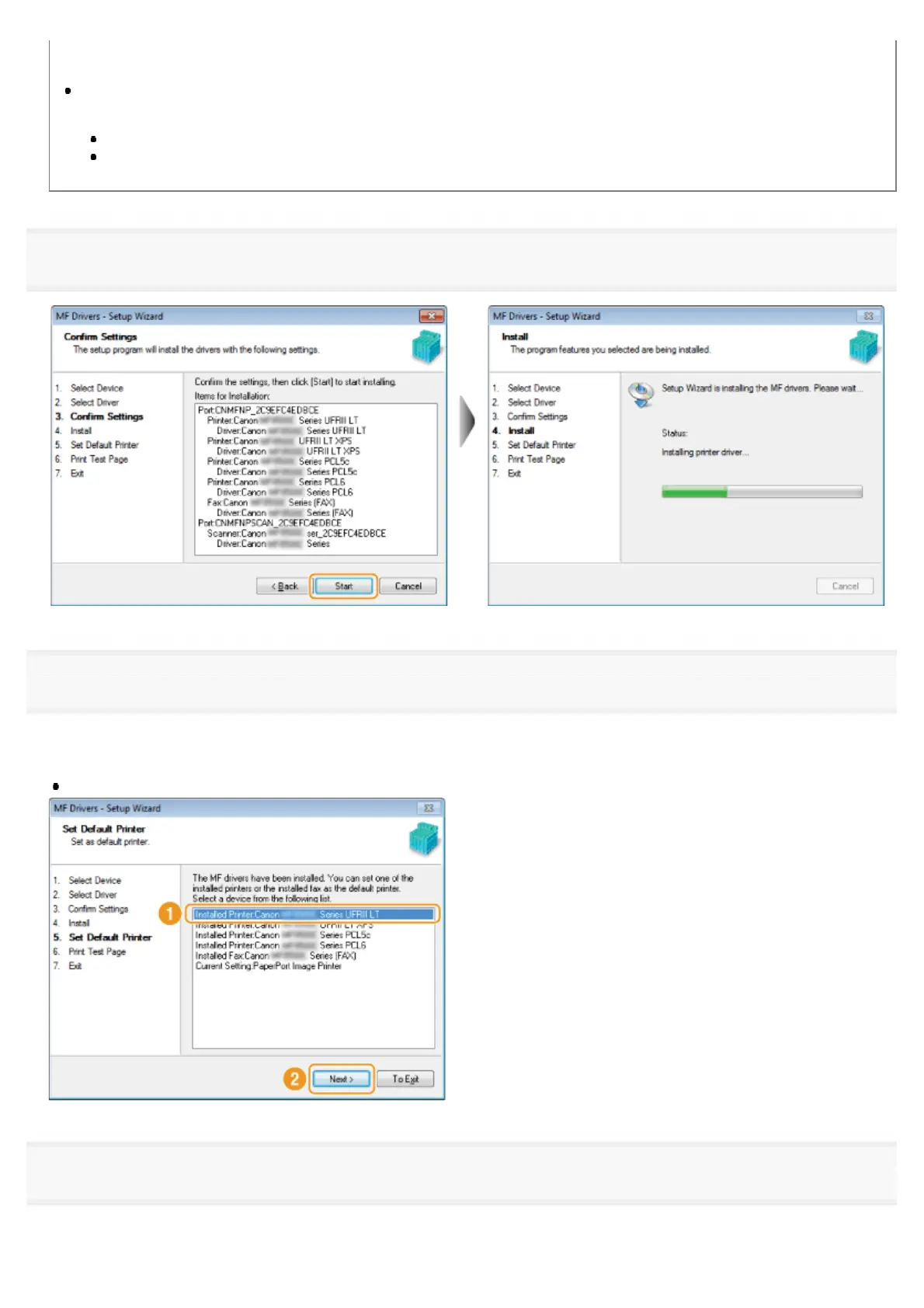
Click [Start] to start installation.
11
Select the machine you would like to make your default printer.
(1) Select the machine you would like to make your default printer.
(2) Click [Next].
This screen appears only when installing the printer driver and fax driver.
12
Select to print a test page.
(1) Select the check box to print a test page.
㻞㻟㻌㻛㻌㻣㻠











 To Next Page