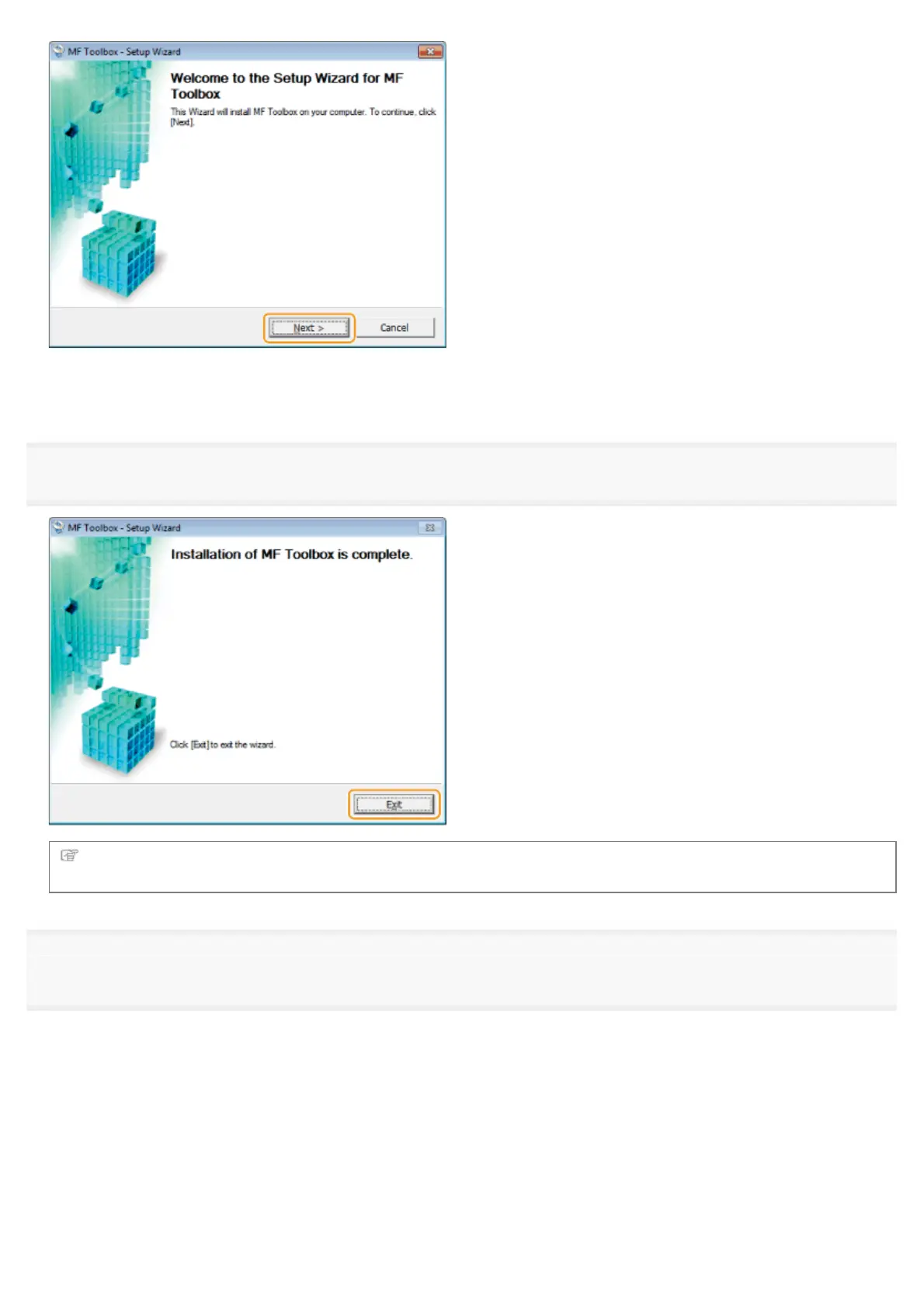
The screens for specifying a location in which the MF Toolbox is installed and position to which the start menu is added appear.
Specify the settings in the respective screens, and then click [Next]. Click [Start] in the displayed screen.
15
Click [Exit].
The software for which the check box was selected in step 4 is installed.
Follow the on-screen instructions.
16
When the following screen appears, read the displayed information, click [Accept] or [Do Not Accept], and
then click [Next].
㻞㻡㻌㻛㻌㻣㻠











 To Next Page