Using
Press to apply a setting.
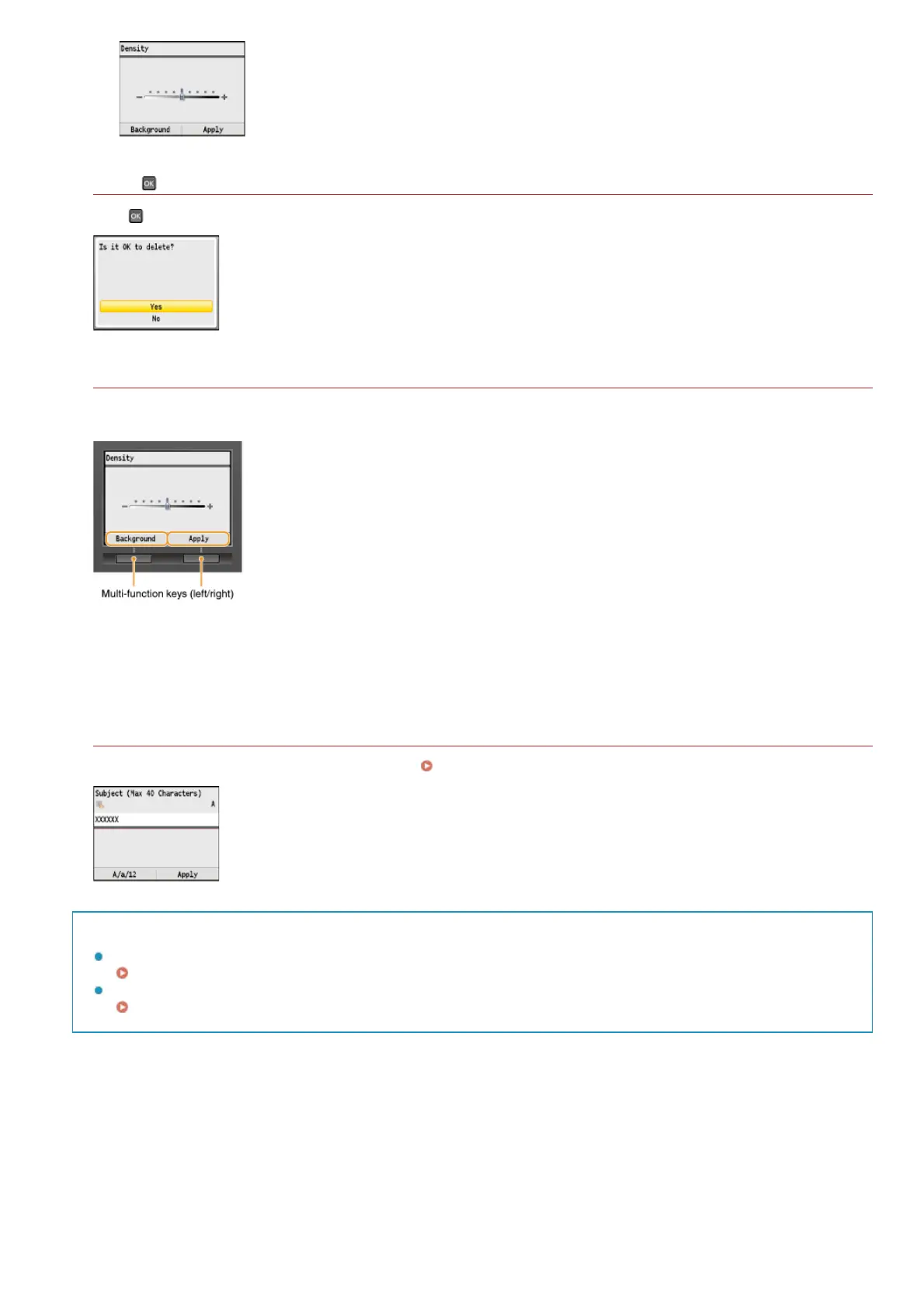
Using the Multi-function Keys (Left/Right)
Items may appear at the bottom of the screen, such as <Background> and <Apply> shown on the screen below. Press the
corresponding multi-function key (left/right) to select one of these items.
NOTE:
Reference to multi-function keys in the Manual
The instructions in the e-Manual refer to the names of the items at the bottom of the screen instead of the corresponding multi-
function keys. For example, when describing instructions for selecting <Background> on the screen shown above, the phrase
"Press <Background>" is used instead of "Press the left multi-function key to select <Background>."
Using the Numeric Keys
Use the numeric keys when entering text and numbers. Entering Text
TIPS
You can change a variety of display-related settings, such as the scrolling speed or display language:
Display Settings
To change the screen that is automatically displayed when the machine remains idle for a specified length of time:
Function After Auto Reset
㻥㻠㻌㻛㻌㻢㻣㻢











 To Next Page