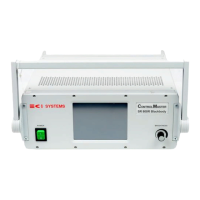
CI Systems SR-800R
2. To connect the SR-800R to a computer via "Direct LAN":
a. Basic Assumptions:
• It is assumed that the Host Computer is running under Windows XP or
2000.
• The Host Computer does not have a DHCP server running or it has been
disabled.
• The Host Computer and the SR-800R are connected to each other with a
Direct Link LAN cable. This is necessary since the Host Computer and the
SR-800R are not connected via a LAN Hub. The Direct Link Cable can be
obtained through CI Systems or purchased at any computer store.
b. Follow these steps to connect:
• In order to communicate via the LAN both the Host Computer and the
ControlMaster must be set up with compatible IP addresses. Usually when
connected via a DHCP network server, this is done automatically. In cases
where there is no in house network and/or for security reasons the
connection needs to be direct, use the Direct Link method.
• The LAN can be used to remotely connect to the SR-800R by
implementation of the communications protocol.
• It is also needed for updating the SR-800R application program via the SR-
800R Update Utility.
c. Setup the Communication Setup window as shown in Figure 3-42:
Figure 3-42: Communications Setup (Direct LAN setup)
d. To save the setting, press Save ( ).
The SR-800R will update the changes and then require you to re-boot the
controller.
The new settings will be valid only after the controller has powered up again.
605-7040 Operation Manual
Rev D 3-40
June 2013
Artisan Technology Group - Quality Instrumentation ... Guaranteed | (888) 88-SOURCE | www.artisantg.com


 To Next Page