System Basics 129
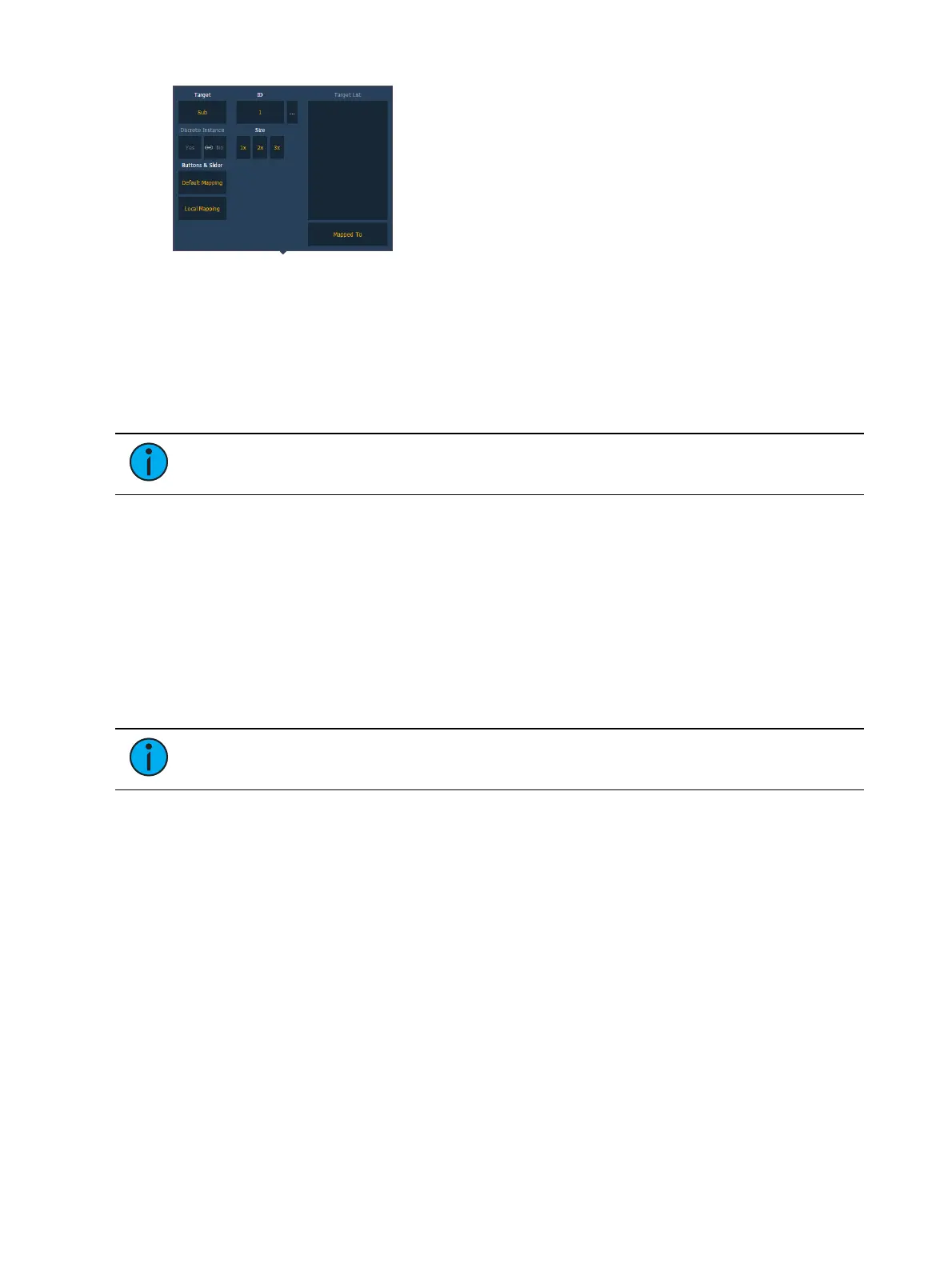
Target
This setting allows you to map a cue list, submaster, intensity, focus, color, or beam palette,
preset, global effect fader, manual time master, or grandmaster to a fader.
ID
This sets the number of the target assigned to the fader, such as Cue List 2 or Submaster 5. For
a list of available Target IDs, click or press the {...} button beside ID.
Note:
Content can also be loaded to faders from Live, using the command line and
load.
Discrete Instance
This setting defaults to Yes and applies to cue lists. When a fader is discrete, it will track other
faders that are running the same cue list, BUT if a fader that it is tracking manually changes to
a different cue list, a discrete enabled fader will not change its content. When set to No (or
disabled), once a fader is in sync with another fader running the same cue list, it will stay in
sync when content is changed. Discrete disabled is noted in the fader ribbon with a link icon.
Size
A fader can be mapped so its content takes up 1, 2, or 3 faders. 1x will take up 1 fader, 2x will
use 2 faders, and 3x will use three.
Note:
If a fader is mapped to 1x, the top button will be locked as a load button.
When mapped to 2x or 3x, the top left button will be locked as a load button.
Buttons &Slider
When set to Default Mapping, the button and fader configuration is drawn initially from the
cue list or submaster list properties for that content. If changes are made to that mapping in
Tab 36, it filters BACK to the cue or submaster list and changes any other instances where that
content is mapped. If set to Local, any changes made in Tab 36 impact only that instance of
the content. See
Cue List Properties
and
Submaster Properties
for more information on default
mapping.
Target List
If temporary fader mapping is being used, the list of content will display here. See
Temporary
Fader Mapping (on page299)
for more information.
Additional Configuration
Clicking on the configuration box will open additional configuration options that are
dependent on the target type assigned to the fader.
For detailed information on these various options, see the following topics:



 To Next Page