Single Cue Lists 329
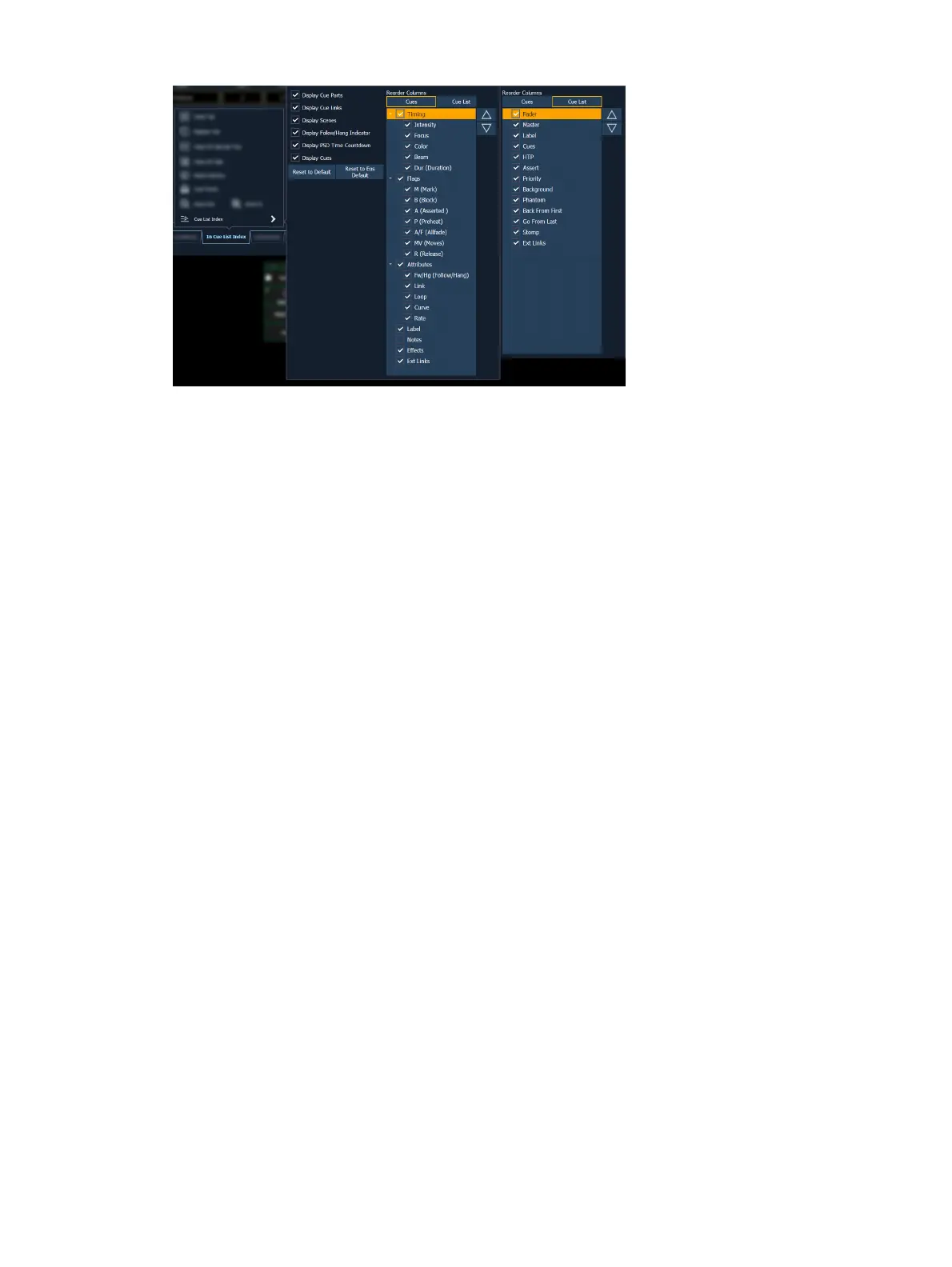
The following options are available in this configuration menu:
Display Cue Parts - displays the individual parts of a part cue. When not enabled, the
number of parts for that cue will display as a superscript number beside the cue's
number.
Display Cue Links - displays the
Link / Loop
information.
Display Scenes - displays cue scene information.
Display PSD Time Countdown - displays the cue category times countdown in the PSD
as a cue is fading.
Display Cues - displays the top half of the cue list index, which shows all the stored cues.
This option is not available on Element 2.
Reorder Columns
Reorder columns allows you choose what data displays in the top and bottom halves of the
Cue List Index and what order it displays in. To make changes to the top half, select {Cues}. To
make changes to the bottom half, select {Cue List}.
By default, all columns except notes will be displayed. The arrow keys on the right can be used
to move columns around. Columns with multiple options are moved in groups. To select a
column header to move, click or tap the name. The check boxes suppress or enable. When an
item is enabled to display, a check mark will be in the corresponding box.
Default
The Cue List Index takes its default settings from the Playback Status Display. The default is
identified with parentheses. See
Playback Status Display Configuration (on page110)
for more
information.
Reset to Default - returns the settings to the default state that you created.
Reset to Eos Default - returns all settings to the Eos defaults.
Cue List Properties
When the cue list index is open, the cue list properties dialogue box will display in the CIA. The
cue list properties determine how the cue list will interact.
On Element 2, the cue list cannot be assigned to a fader. These settings will only impact the
master fader pair.



 To Next Page