132 Eos Apex, Eos Ti, Gio, Gio @5, Ion Xe, Ion Xe 20, and Element 2 User Manual
Note:
Although all fader target options are displayed in the dropdown menu, only
cue lists can be assigned to the master fader.
ID
This sets the number of the target assigned to the fader, such as cue list 2. For a list of
available Target IDs, click or press the {...} button beside ID.
Element 2 can only map to cue list 1.
Discrete Instance
This setting default to Yes and applies to cue lists. When a fader is discrete, it will track other
faders that are running the same cue list, BUT if a fader that is tracking manually changes to a
different cue list, a discrete enabled fader will not change its content. When set to No (or
disabled), once a fader is in sync with another fader running the same cue list, it will stay in
sync when content is changed. Discrete disabled is noted in the fader ribbon with a link icon.
Size
The main playback is set to a size of 2 faders and cannot be changed.
Buttons &Slider
You can select to use default mapping for the fader, or you can use local mapping.
Note:
When a user first joins a session, the main playback fader is unmapped. Once
a cue list is established for that user, any other devices joining the user group will
have the same cue list automatically mapped to their main playback fader. If a device
changes its user ID, the cue list on the main playback fader will be remapped
accordingly.
Additional configuration options are available. see
Cue List Properties (on page329)
for more
information.
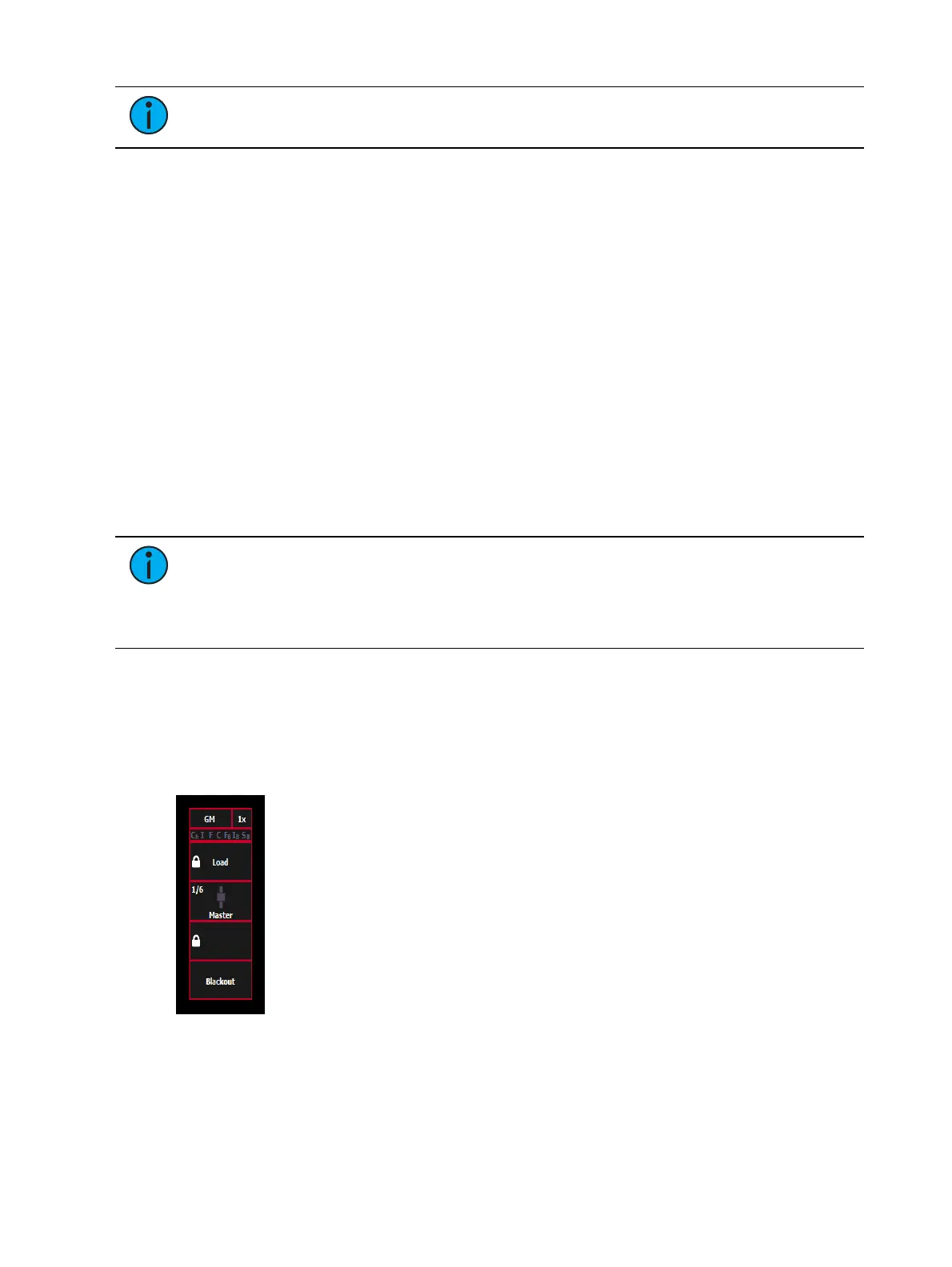
Grandmaster Configuration
When a fader is configured as a grandmaster, you can set the fader itself as a master or disable
it. Fader size is set to 1x, and cannot be changed.
The first button is locked as a load button, and cannot be configured. The second button is
disabled and cannot be configured. The third button can be configured as a blackout button
or disabled. When configured as a blackout, both buttons must be pressed to set the
grandmaster to blackout.



 To Next Page