484 Eos Apex, Eos Ti, Gio, Gio @5, Ion Xe, Ion Xe 20, and Element 2 User Manual
Name - the name of the material.
Duplicate - this button creates a copy of the selected material.
Base Color - the underlying color used for the material.
Base Color Image - the texture for the material. If transparent, the base color will show
through.
Color materials only contain a base color. Texture materials have an additional base color
image, for which the following properties are available:
Metallic - adjusts the reflectiveness between dielectric / absorbing some light (0) to pure
metal / reflects all light (1).
Smoothness - adjusts the texture between roughest (0) and polished (1).
Rotate - rotates the base color image in degrees.
Quick buttons are also available to rotate the material 90° CCW and CW, mirror
left/right, and mirror top/bottom.
Alignment - changes the texture's alignment on the object along the X and Y axes of the
object's UV map (0-0.9).
Repeat - alters the texture's size by setting how many times it repeats along the X and Y
axes between fewest repeating patterns (1) and most repeating patterns (100).
Accurately editing the properties above may rely on knowing the UV mapping of an object, the
2Drepresentation of how materials are applied to the 3D surface. To aid in this, duplicate the
stock UV Map texture (Stock > Textures > Miscellaneous > UV Map) and temporarily apply it
to your object to see the stock mapping. Edit the properties above to test how your changes
will be applied to the object with a different texture.
Materials in the Inspector
Selecting an object in the
Hierarchy
will display associated information in the
Inspector
.
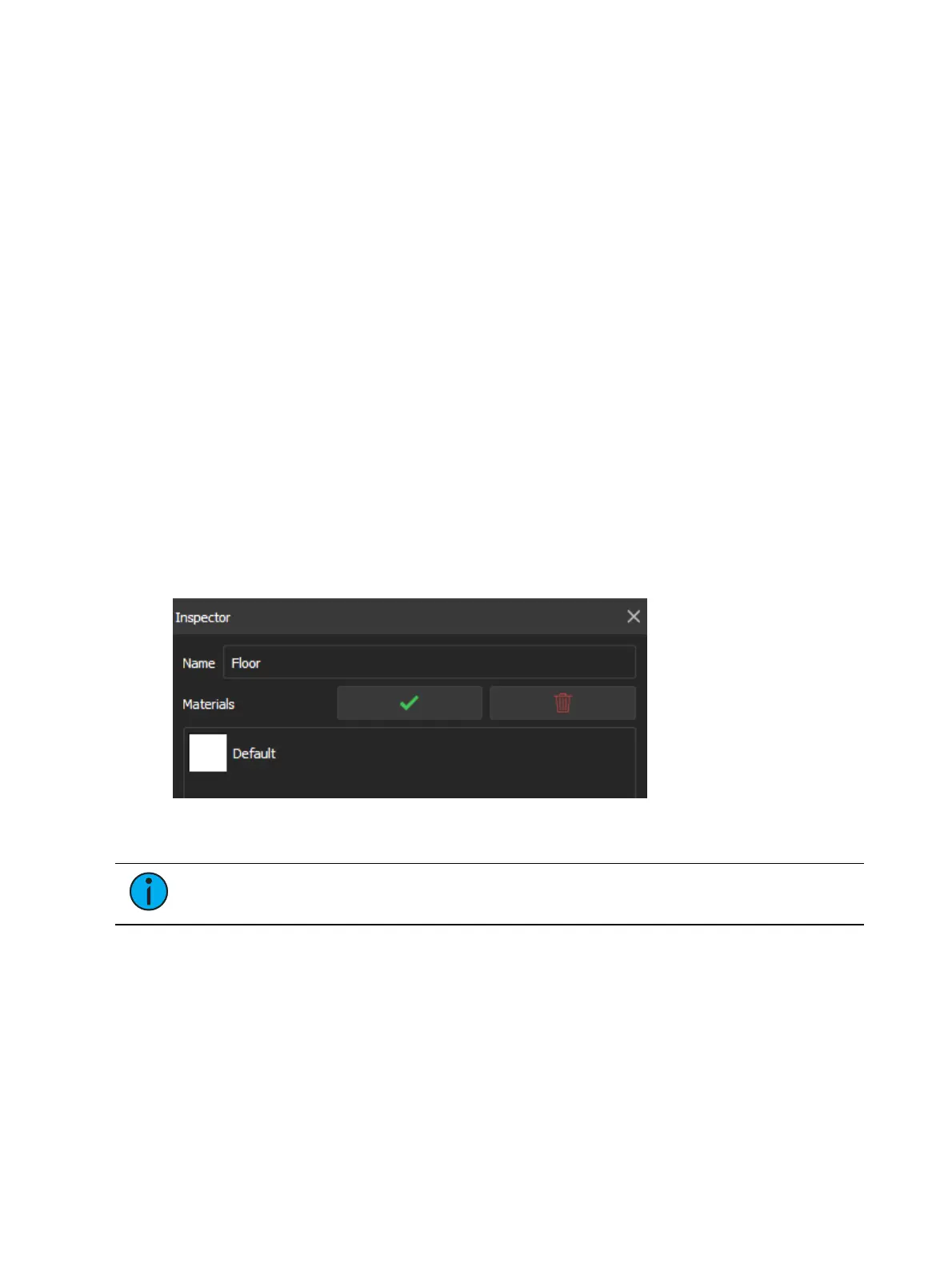
Selecting in the Materials field will show a list of all materials currently applied to that object.
Note:
Complex objects can be expanded to view and edit the materials for the
object's component parts.
Select the material to open a dropdown version of the materials library. New color materials
can quickly be created using the color picker and material name options at the bottom of the
dropdown.
To save changes and close the materials list, use the checkmark button. To discard changes,
use the trashcan button.
Custom Materials
Custom materials can be created by adding JPG or PNGimages to a zipped folder. The images
must match the following naming conventions:



 To Next Page