516 Eos Apex, Eos Ti, Gio, Gio @5, Ion Xe, Ion Xe 20, and Element 2 User Manual
Importing Augment3d Objects
Custom 3Dobjects can be imported into the Augment3d object library from the
Using the
Browser
via File >Import > Augment3d Scenic Models.
For a full list of supported 3Dfile types, see
Supported 3D File Formats (on page518)
.
Note:
Custom objects can only be deleted from the Library if they are not used in
the current model.
If a tether and a console are connected, objects must be imported from the tether device.
Enter Edit Mode, and navigate to File > Import to Library >3DModel to proceed with object
import.
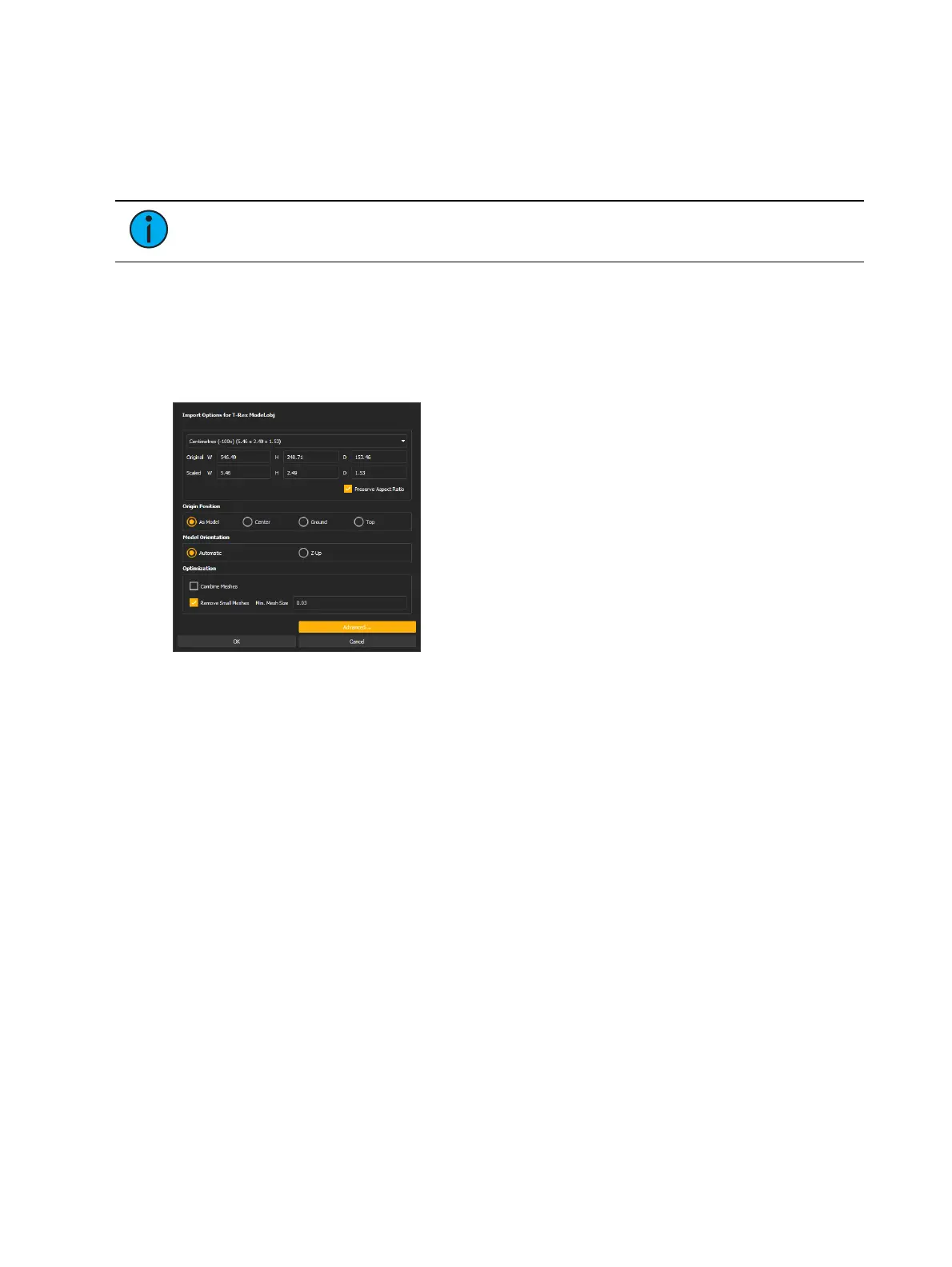
Import Options
After a file is selected via the file browser, the Import Options panel will display.
Use the available options to configure the import to correctly represent your file in
Augment3d.
Scale
Select the desired units to use for the size of the object being imported.
Origin Position
Determines the position of the object relative to the origin when added to the model from the
Library.



 To Next Page