Show Control 579
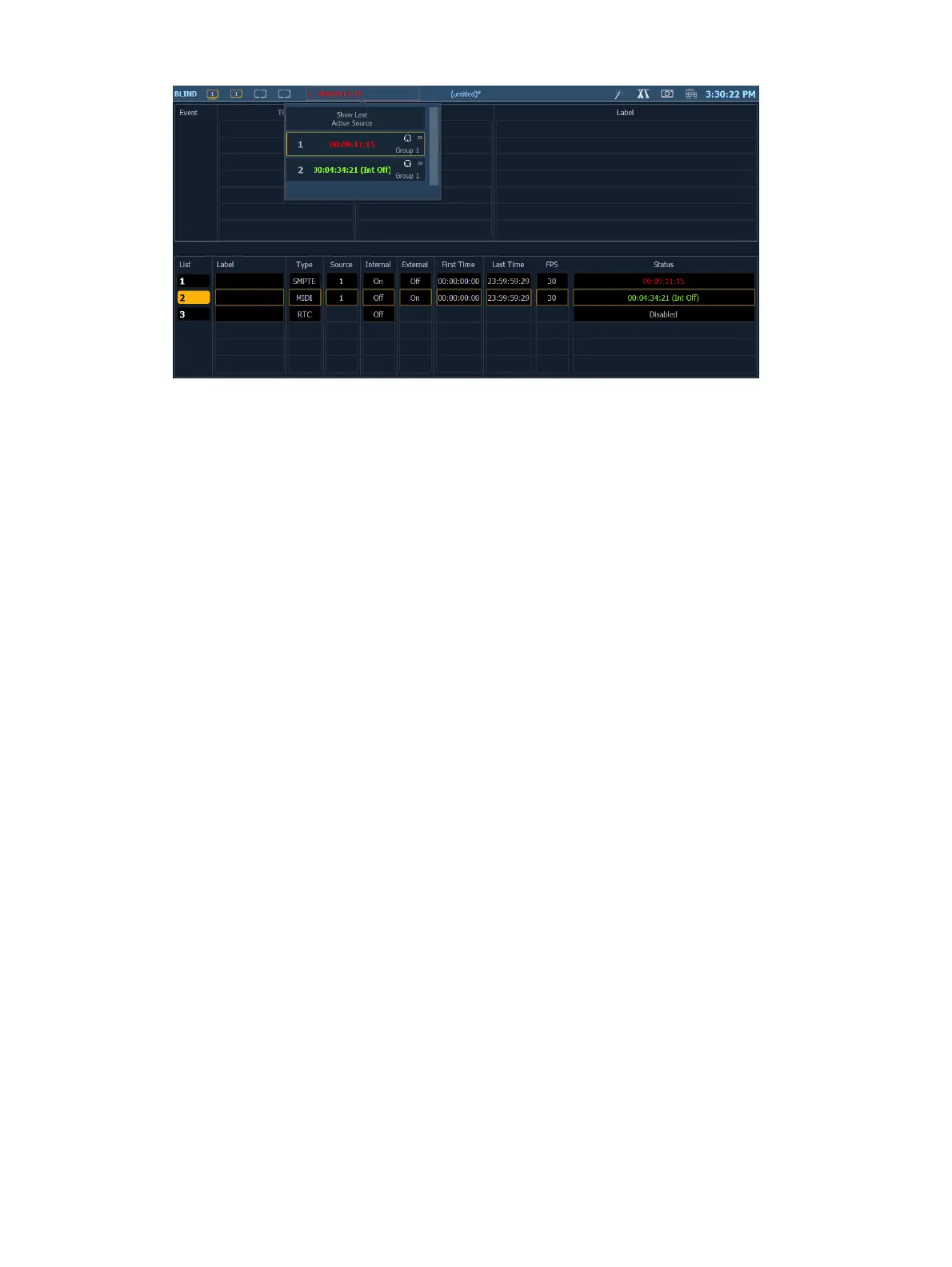
Select the indicator to see a dropdown menu of all active time code sources. The menu shows
the List number, list label (if any), current time (if any), a symbol for MIDI/SMPTE, subscript for
framerate, and the list group ID.
Selecting {Show Last Active Source} will display the last active time code source in the upper
portion of the main display after the dropdown is closed. The selected list can be stored in a
snapshot (see
About Snapshots (on page438)
).
Timing and Clocks
The internal and external clocks can be enabled separately for each time code list. If you
enable the external clock only, events will play back as long as valid timing data is received
from an external source. When the timing data stops, the events will stop.
When you enable the internal clock only, it starts running immediately and triggers events
appropriate to the time.
When both internal and external clocks are enabled, the internal clock does not start running
until the first valid external time is received. After that, it will run whenever the external time
source is absent.
Loop Times
First and last times define the overall loop. Times can be set anywhere from 00:00:00:00 to
23:59:59:29. When external time is being received, your console ignores these times.
However, you should still set them to match whatever loop times the external clock is using.
When using internal timing, it is important to set the first and last times. These set the start
and stop or loop points of the sequence.
Internal Clock
You can set the internal clock at any time by selecting the event list (<Event List> [1] [/]),
pressing [Time], and entering a time.
To reset the internal clock, select the event list and press [Time] [Enter].
Programming a Time Code Event List
Open the show control display.
[Displays] > <More SK> > {Show Control}
Create a new event list.



 To Next Page