5.3 Text (Annotation)
192
5.3.4 Entering Registered Annotation
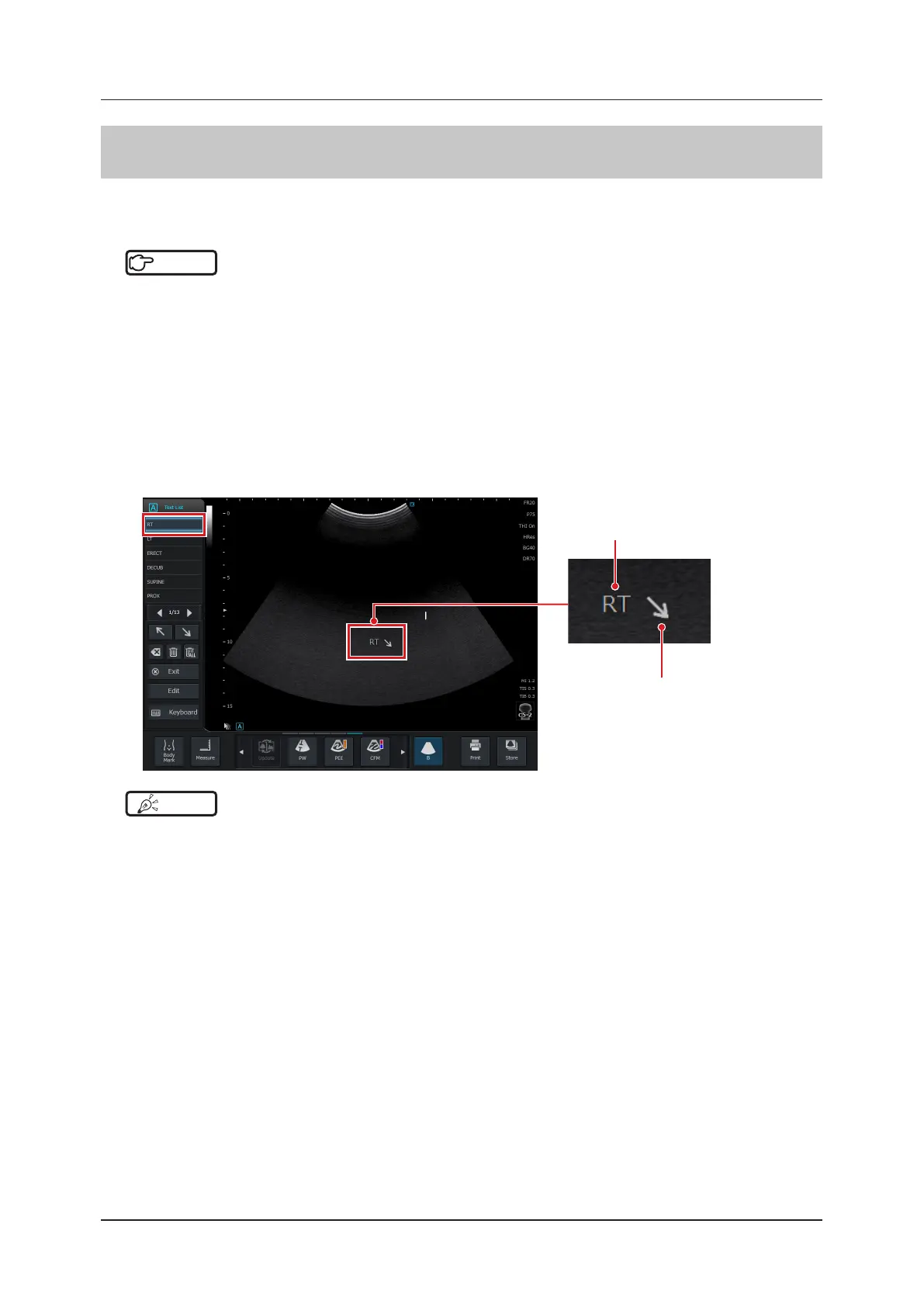
Auto Annotation can be used to enter already registered texts and arrow marks. The currently available Annotation
list is shown on the upper portion of the Text List menu.
Reference
•••••••••••••••••••••••••••••••••••••••••••••••••••••••••••••••••••••••••••••••••••••••••••••••••••••
• The Annotation list can be edited from the [Setup] screen.
You can add [Auto Annotation] or edit the display order.
Refer to "Annotation Screen" of the "Operation Manual: Applications".
• It is possible to back up or restore edits made in the Annotation list.
Refer to "3.7 Data Backup".
•••••••••••••••••••••••••••••••••••••••••••••••••••••••••••••••••••••••••••••••••••••••••••••••••••••••••••••••••••••
1
Move the cursor to the desired position.
2
Select the desired text from the Annotation list.
• The selected text is displayed at the location of the cursor in the image display area.
Text
Arrow mark
Press an arrow mark button to enter.
HINT
•••••••••••••••••••••••••••••••••••••••••••••••••••••••••••••••••••••••••••••••••••••••••••••••••••••
• You can touch and drag the displayed text to move it from one location to another.
• When touched and highlighted, the characters become movable.
•••••••••••••••••••••••••••••••••••••••••••••••••••••••••••••••••••••••••••••••••••••••••••••••••••••••••••••••••••••


 To Next Page